15 Best AI Video Watermark Removers (2026)
Why This Review Looks Different
Most articles about AI video watermark removers follow the same pattern: a short intro, a comparison table, and a list of tools filled with phrases like “high quality” or “fast and easy.”
That format usually collapses the moment you actually try the tools.
Buttons don’t match screenshots.
Key steps are missing.
Export limits appear only after upload.
Suddenly, the word “best” stops meaning anything.
This review takes a workflow-first, test-driven approach. Every tool below was tested using the same sample video. What you’ll read is not marketing copy, but what actually happens when you try to remove a watermark: what you click, what’s automatic, what breaks, and where friction appears.
Quick Comparison: 15 Video Watermark Removers (Workflow + Real Outcomes)
| Tool | Score | Removal Mode | Key Strength | Editorial Verdict |
|---|---|---|---|---|
| EzRemove | 9.4 | Select / Brush + AI Repair | Predictable, controllable, low retry cost | Best overall balance of control + reliability |
| Unwatermark.ai | 8.7 | Select + AI + Preview | Preview-first, good manual control | Fast and dependable if you’re willing to mark |
| WatermarkRemover.io | 8.4 | Auto AI | Clean removal quality | Good output, but slow and color-shifting |
| MagicEraser | 8.3 | Manual + AI Fill | Simple, no login | Clean for static marks, slower for complex |
| RecCloud | 8.2 | Box Select + AI | Great selection UX | Clean removal, but face distortion risk |
| Fotor | 8.0 | Brush + AI | Very fast | Clean removal, but face warping |
| Vmake | 7.9 | Hybrid Modes | Mode flexibility | Works only if you choose correctly |
| EaseMate AI | 7.8 | Auto (Credits) | High-quality output | Frustrating, unstable workflow |
| X-Design | 7.6 | Dual AI Modes | Extremely easy start | Blur vs distortion trade-off |
| Media.io | 7.4 | Brush + Multi-Models | Many AI options | Limits block real testing |
| Airbrush | 7.2 | Auto Preview | Easy preview | Blur + added watermark |
| Wink | 7.1 | Auto + Manual | Batch upload | Face distortion, residue |
| Pixelbin | 7.1 | Auto AI | Simple UI | Detection often fails |
| DIGEN | 7.0 | AI Deep Clean | Removes watermark | Blur + format issues |
| VEED | 6.8 | Editor Workarounds | Good editor | Not real watermark removal |
EzRemove — Full Review (Primary Benchmark)
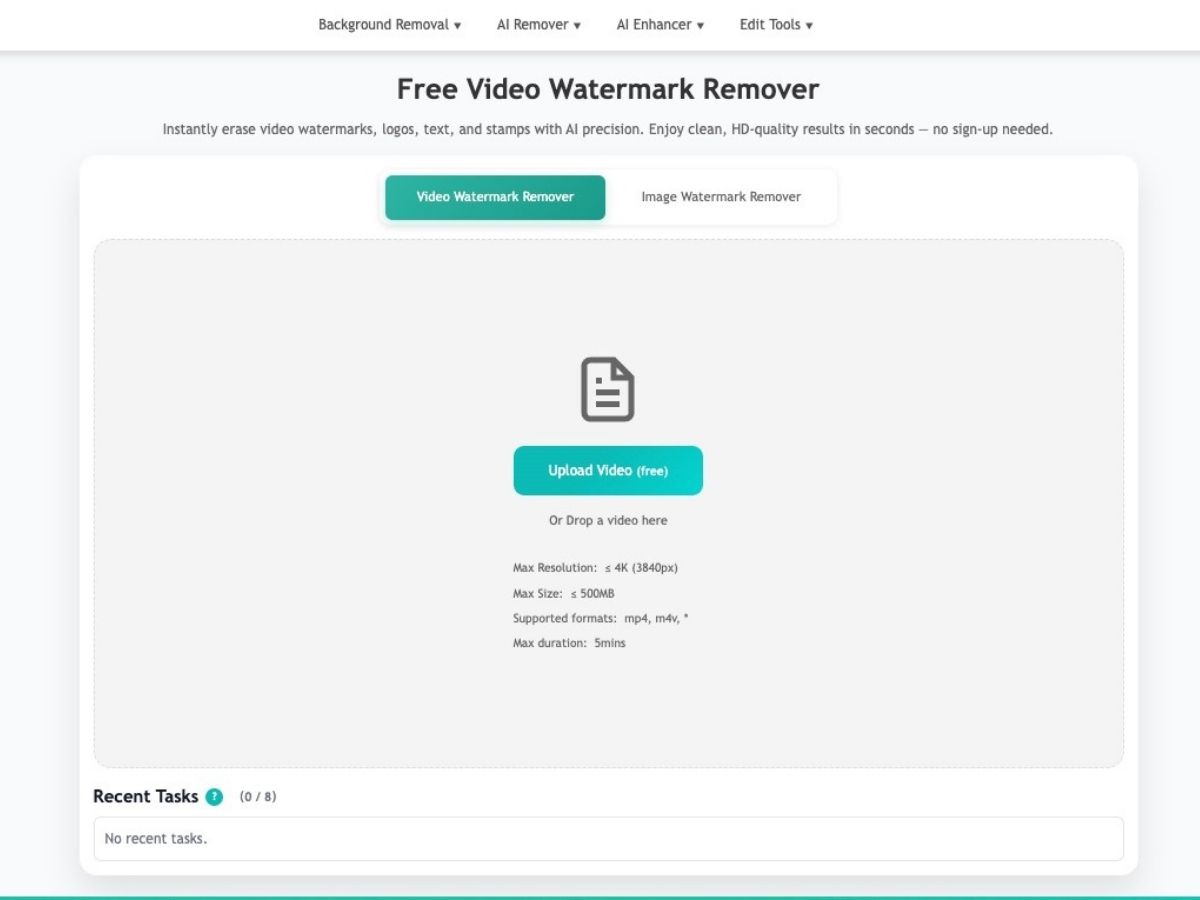
EzRemove is built around a selection-first AI repair workflow. Instead of guessing where the watermark is, the tool asks you to mark it explicitly, then applies AI reconstruction only inside that region.
How to Use EzRemove
Upload your video directly in the browser
Mark the watermark area
- Box selection for logos or text blocks
- Brush for irregular overlays
- Eraser to refine edges
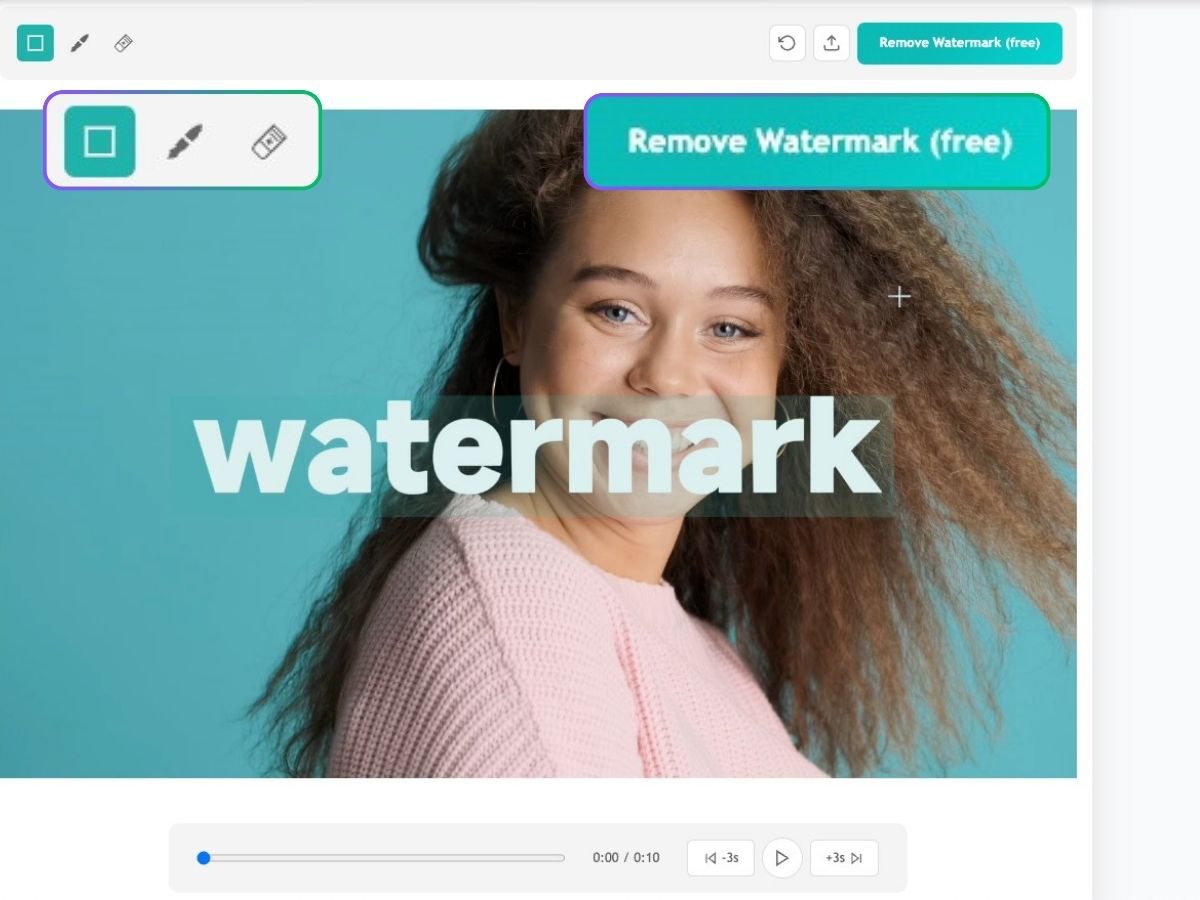
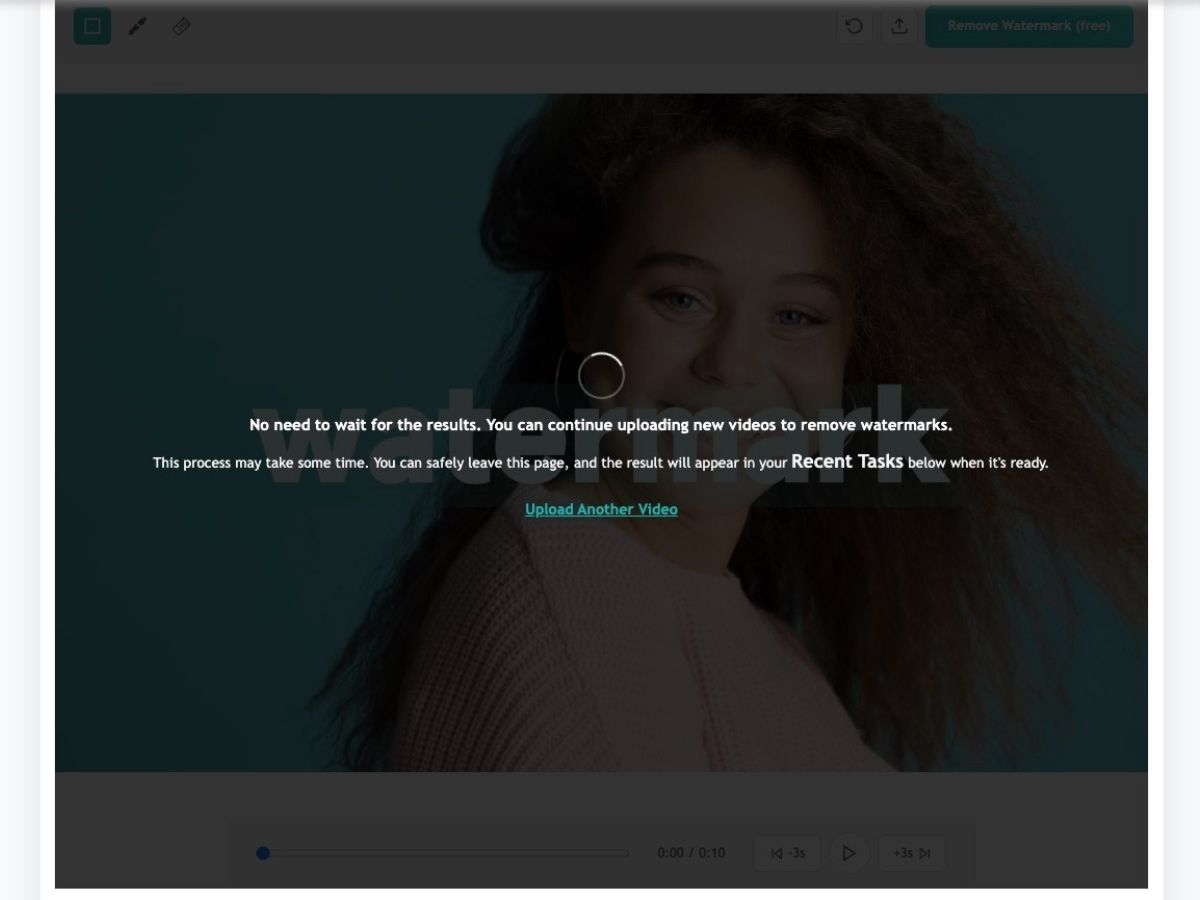
Run AI removal
Preview first, then download
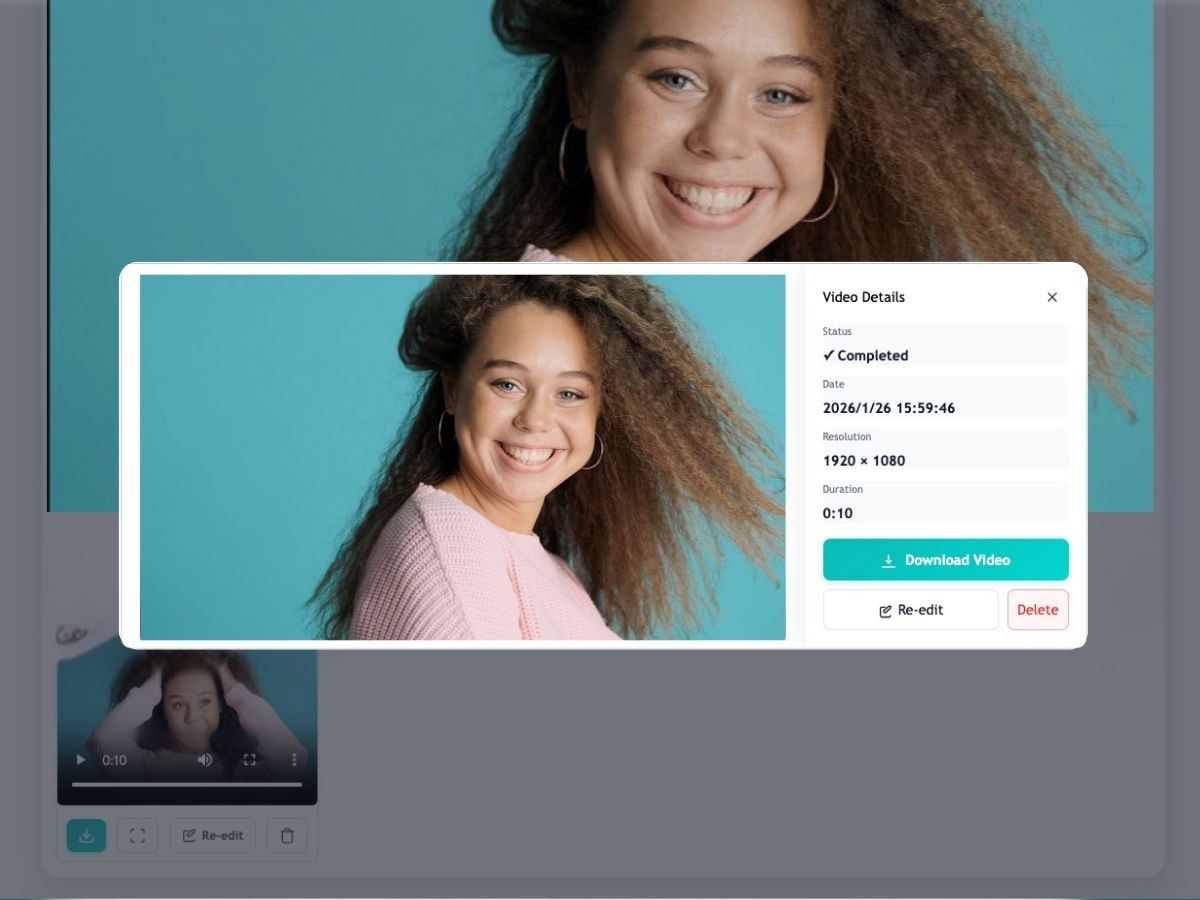
Test Conclusion
EzRemove delivered the most predictable and repeatable results in my testing as a video watermark remover. Because its AI only edits inside the user-defined region, it produced fewer wrong-area changes and almost no “why did it touch that?” moments. When a first pass wasn’t perfect, EzRemove made retries fast and low-cost—tighten the selection, run again, and you’re back to a usable result quickly.
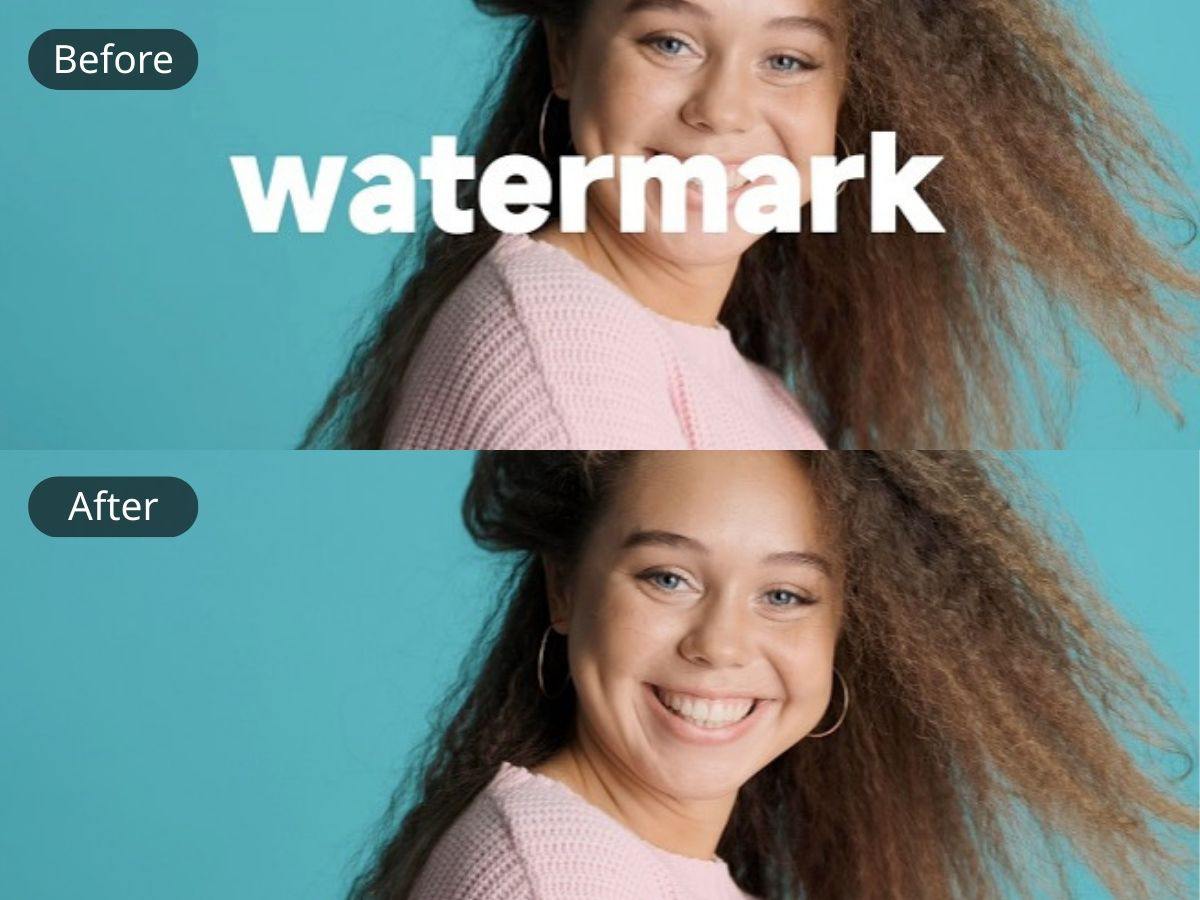
Best for: frequent watermark removal, sensitive areas near faces/products
Less ideal for: users who want zero interaction
Unwatermark.ai — Workflow Review
Despite looking like a one-click tool, Unwatermark.ai is actually selection-based with AI repair and a preview-first flow.
How to Use
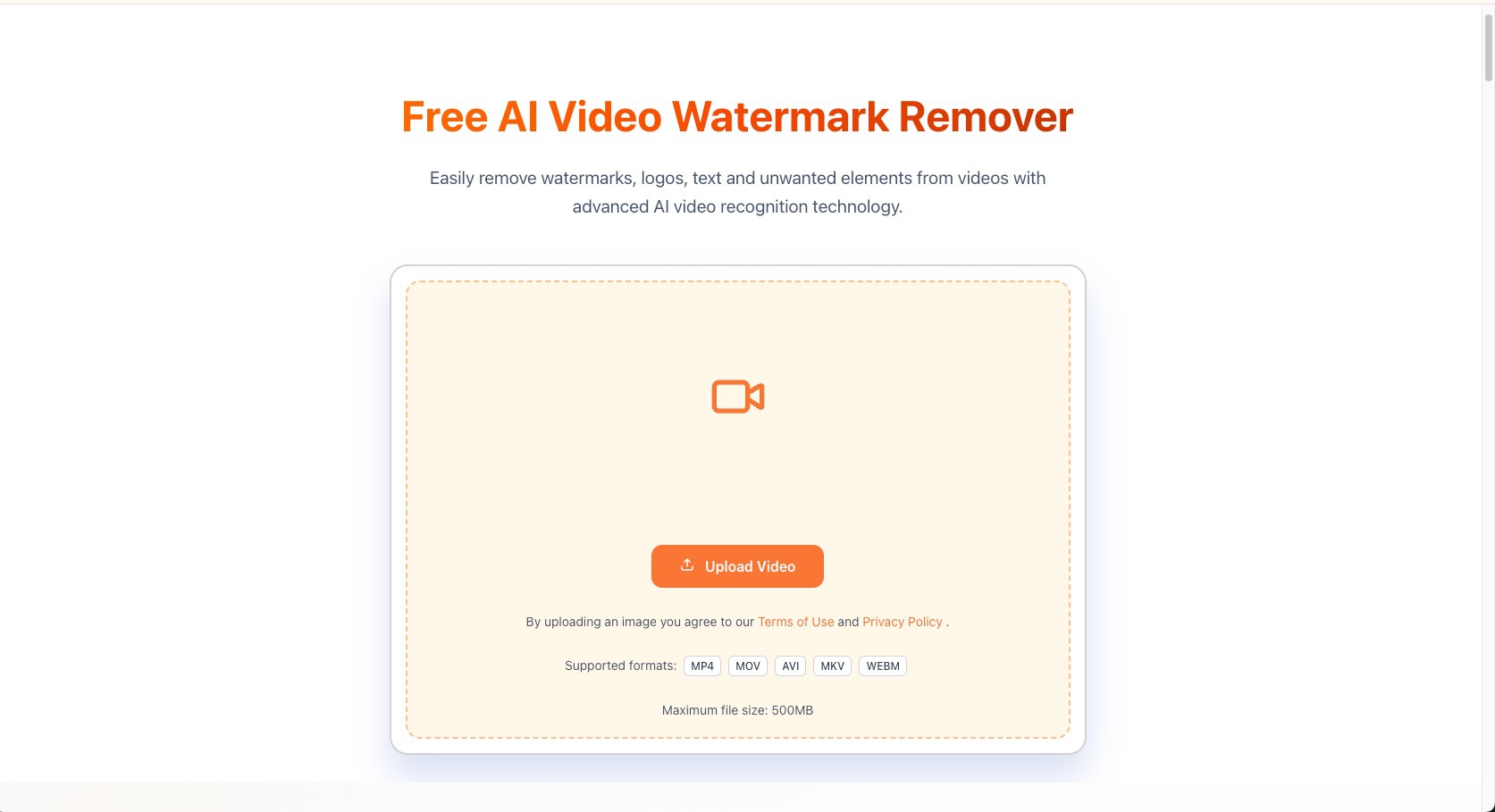
Upload (supports MP4, MOV, AVI, MKV, WebM; up to ~500MB shown)
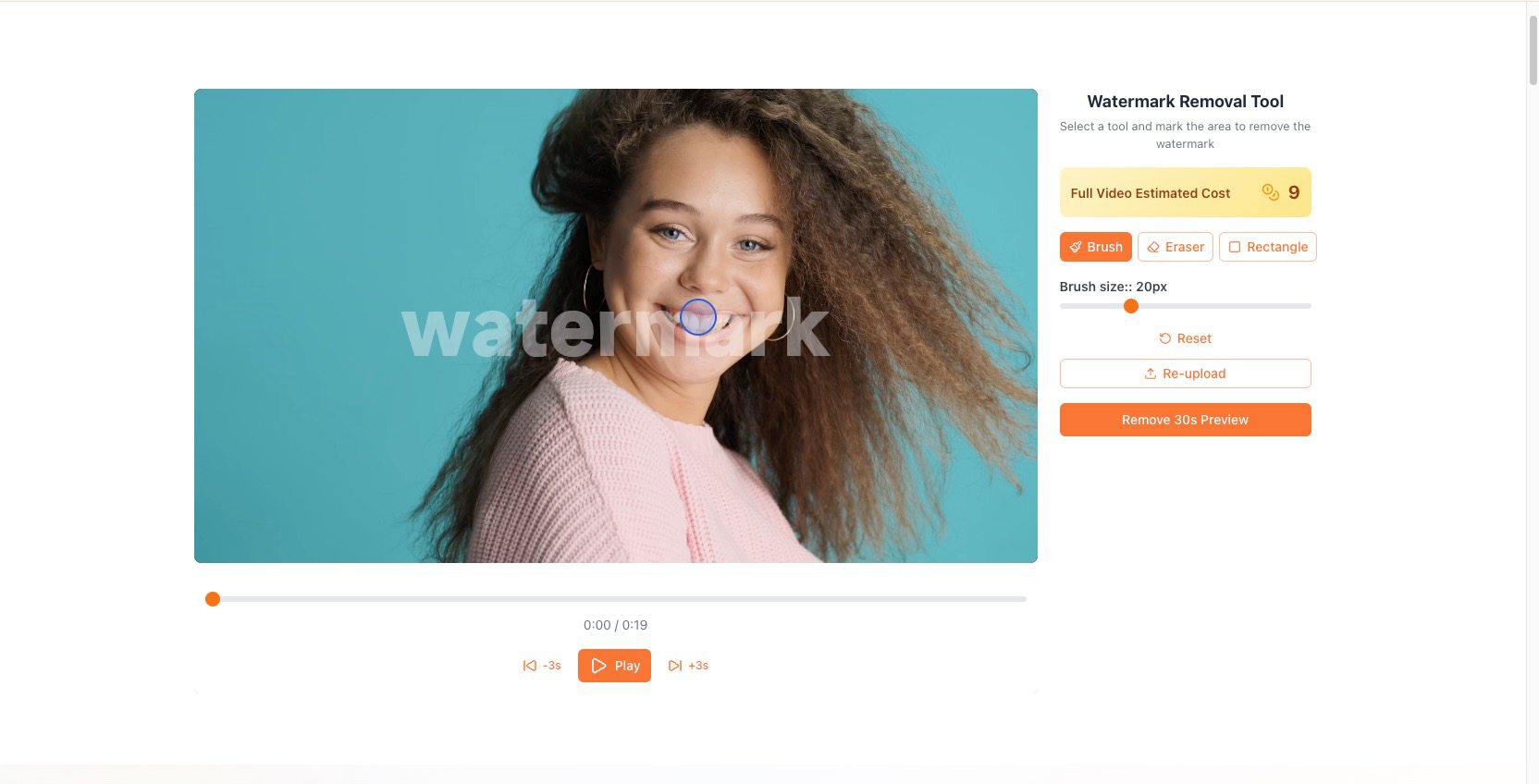
Mark the watermark with brush or frame
Click Remove → preview short segment
Process full video → download
Test Conclusion
Unwatermark.ai strikes a strong balance between speed and control. The preview-first design prevents wasted full exports, and manual selection significantly improves reliability compared to auto-only tools. Results were consistently clean as long as the selection was careful. 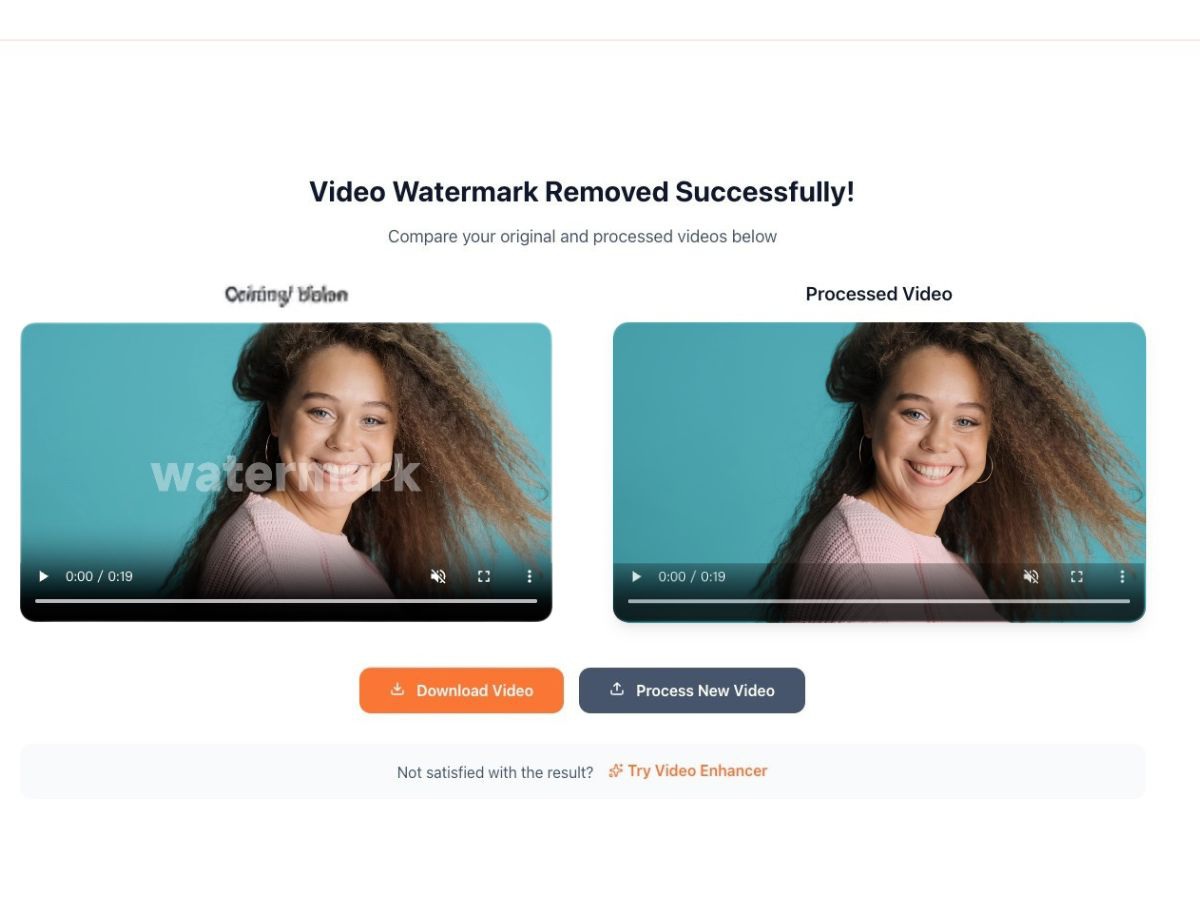
Downside: moving watermarks require more effort.
WatermarkRemover.io — Workflow Review
A fully automatic tool designed for minimal interaction.
How to Use
- Upload video
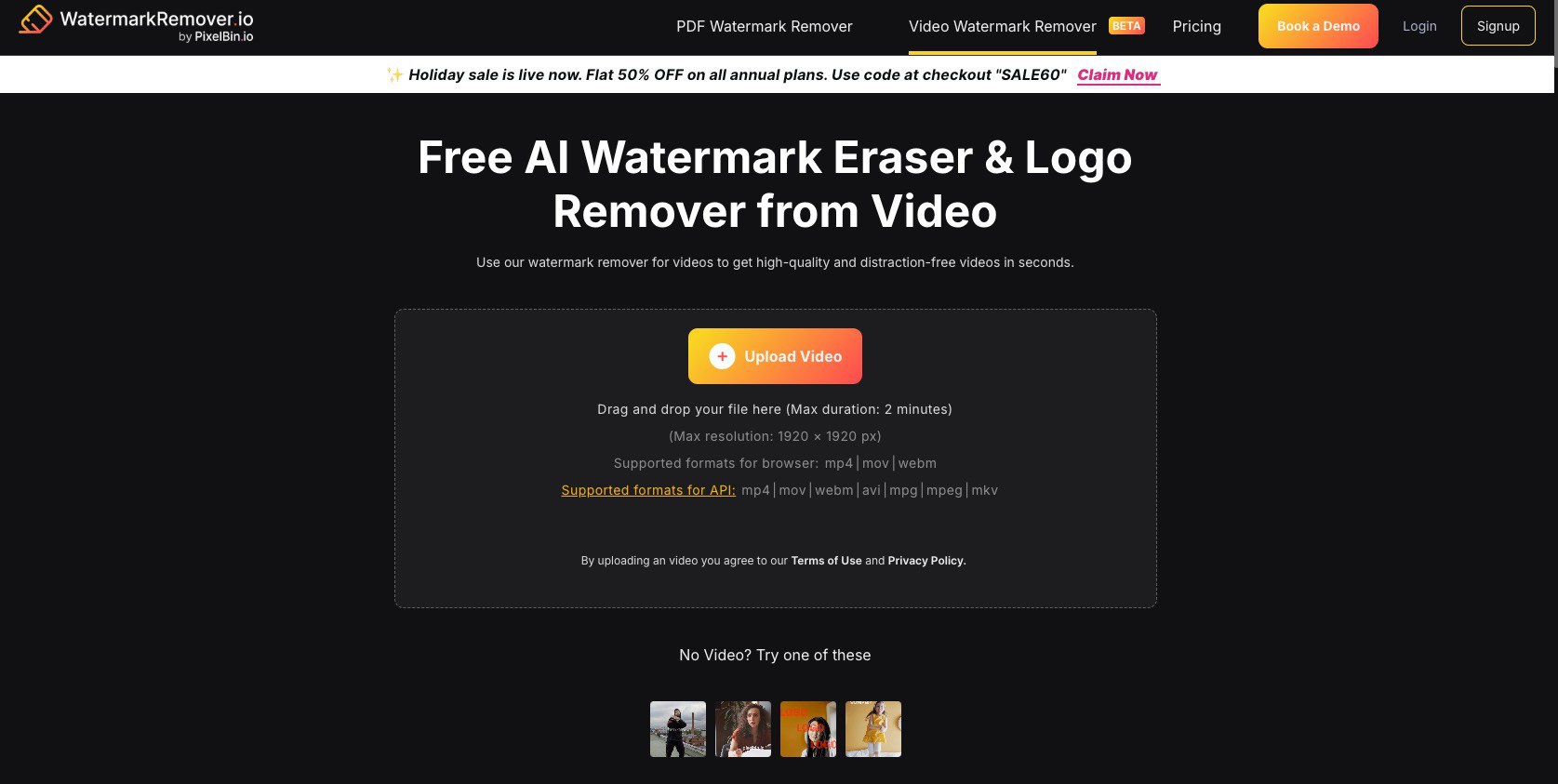
- Wait for AI processing + 5-second preview
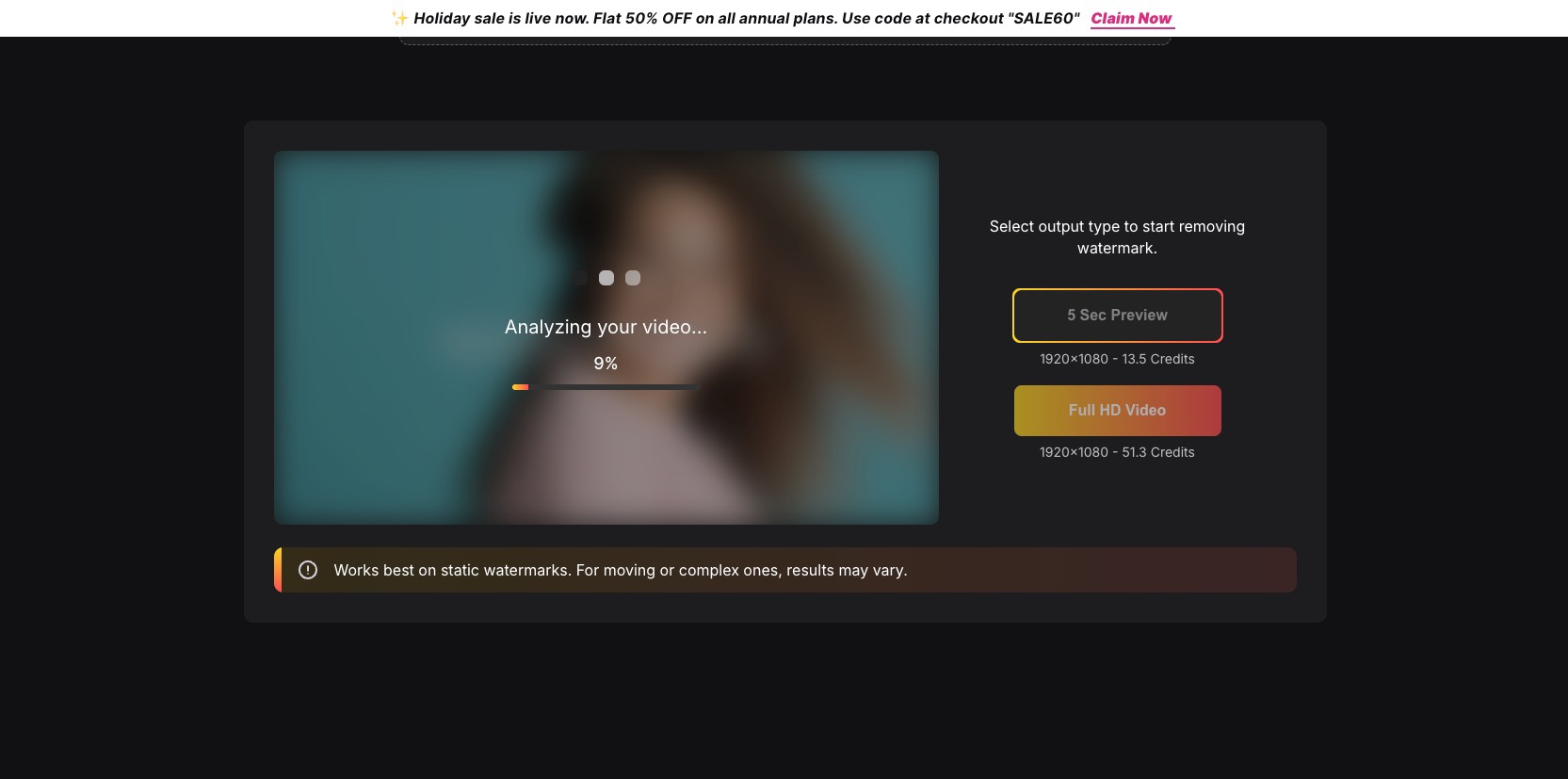
- Download or export (plan-dependent)
Test Conclusion
Removal quality was surprisingly strong, but the workflow felt slower than expected. Even the 5-second preview took noticeable time. Another important observation: the output video looked more saturated than the original, suggesting hidden enhancement that may not suit color-sensitive work. 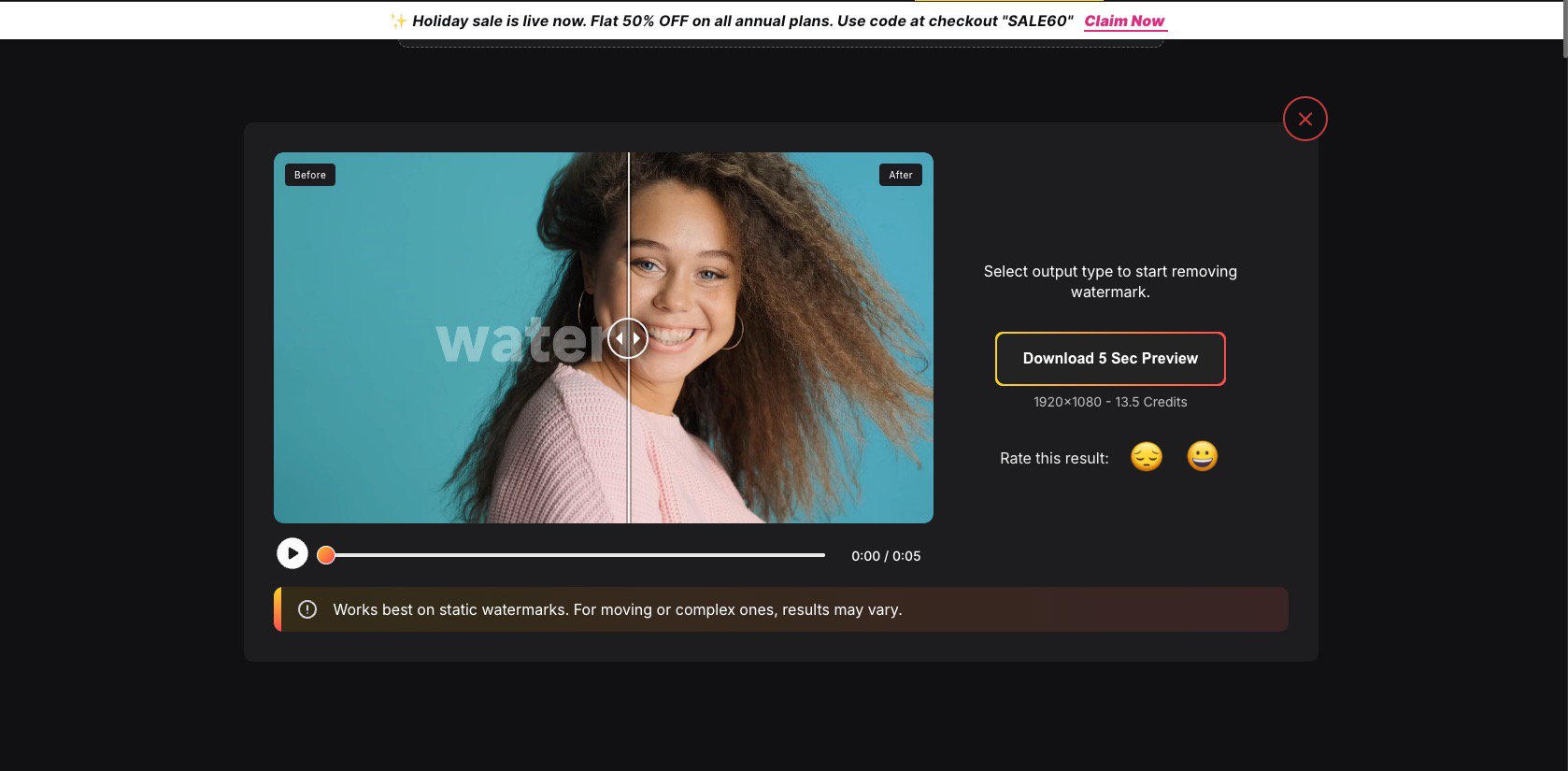 Good results, but not neutral.
MagicEraser — Workflow Review
Manual selection + AI fill, no login required.
How to Use
- Upload (page claims up to 4K / 500MB)
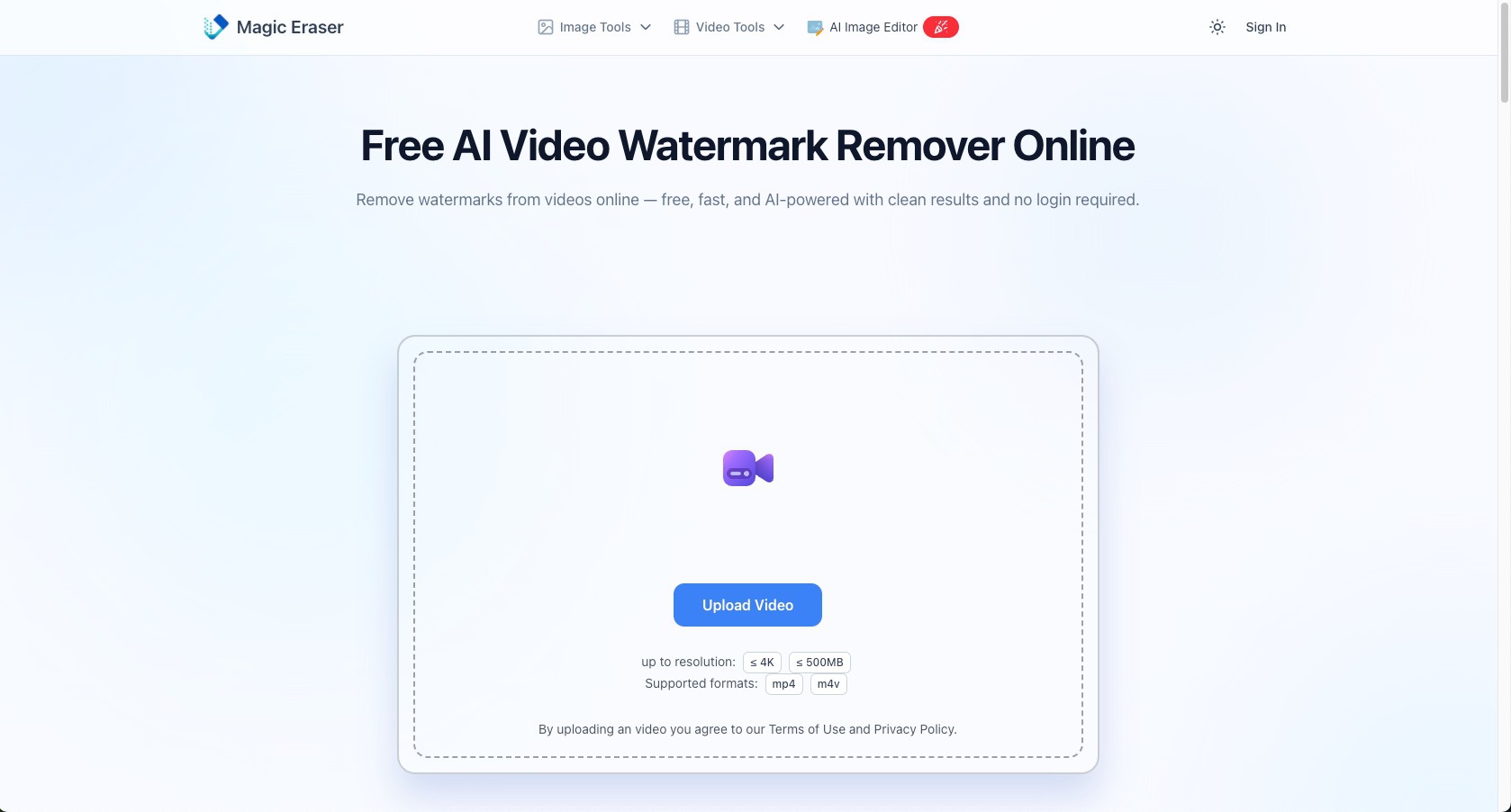
- Select watermark area (brush or frame)
- Run AI removal
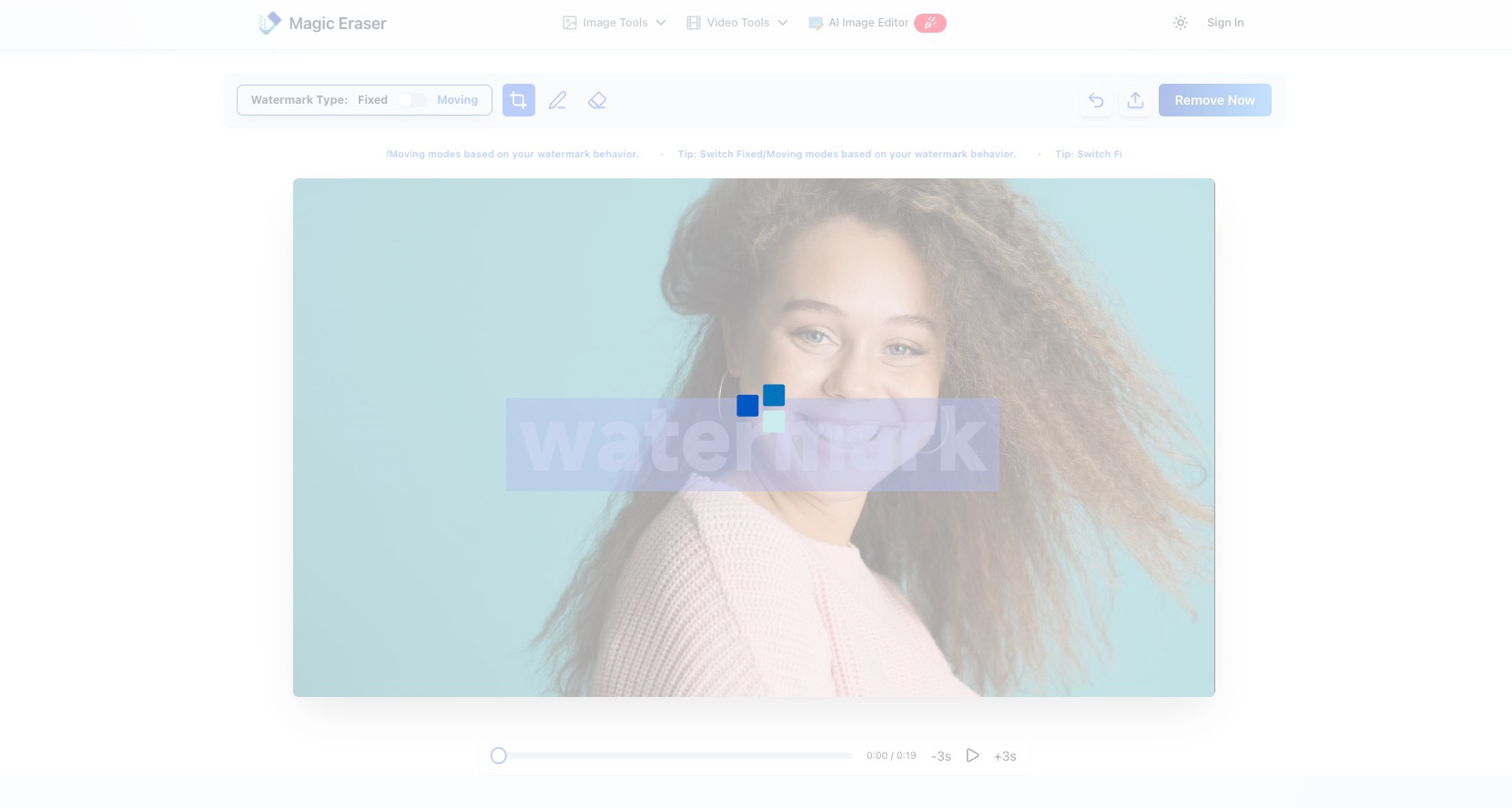
- Preview and download
Test Conclusion
MagicEraser is reliable for static logos, text, and timestamps. Output was generally clean, but time cost increases sharply for long clips or moving watermarks. Selection accuracy matters a lot. 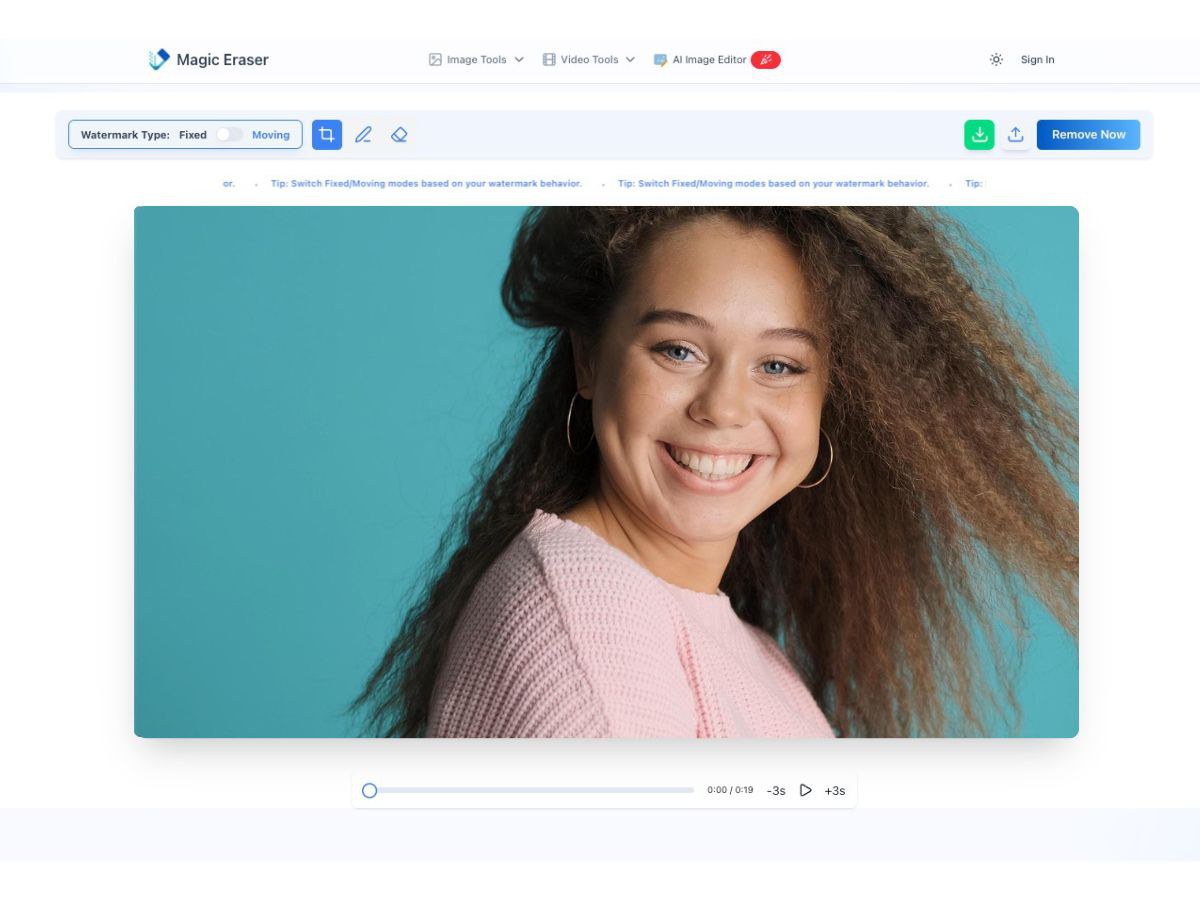 Solid tool, but effort scales with complexity.
RecCloud — Workflow Review
Uses a box selection workflow similar to EzRemove and offers two processing modes.
How to Use
- Upload (large limits shown, e.g. ≤4GB / 10 min)
- Mark watermark + choose Fast or Best Quality
- Process and download
Test Conclusion
Watermark removal itself was clean, but Fast (Recommended) mode introduced visible face distortion. This makes RecCloud risky for people-centric footage unless Best Quality performs significantly better. 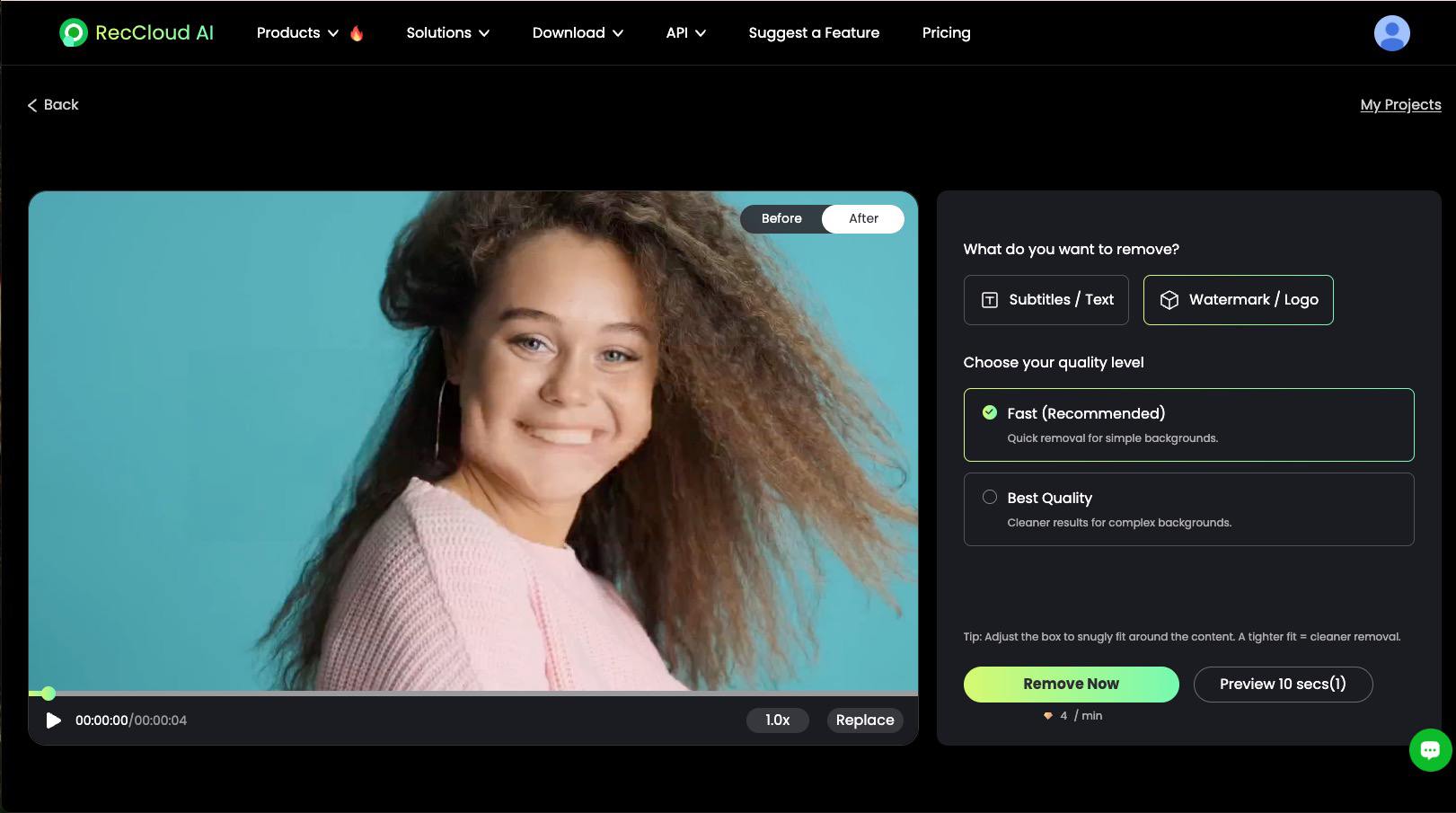 Excellent UX, mixed output reliability.
Fotor — Workflow Review
Brush-only watermark removal for video.
How to Use
- Upload
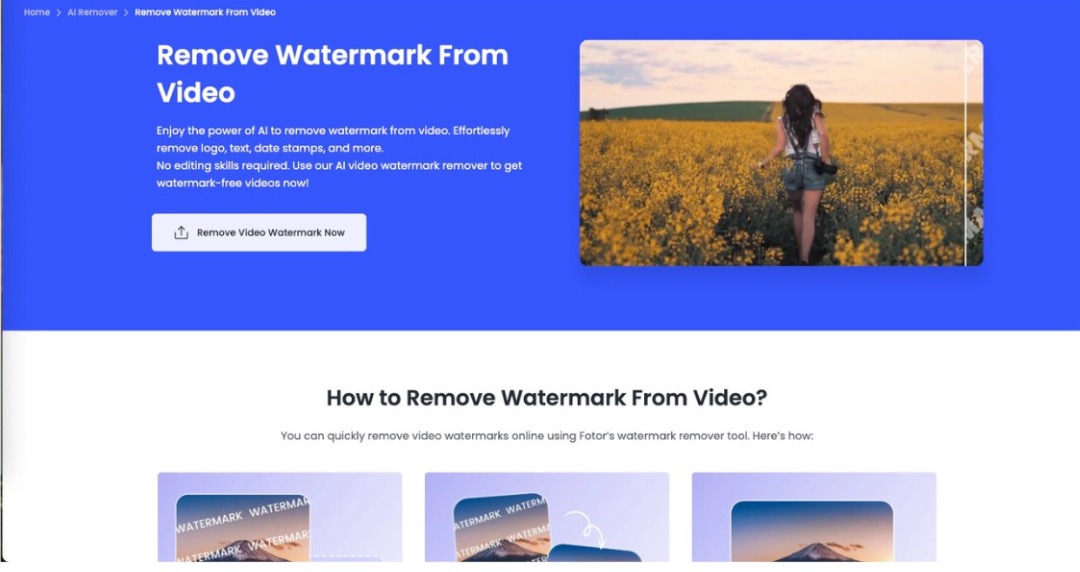
- Brush over watermark → Apply
- Download
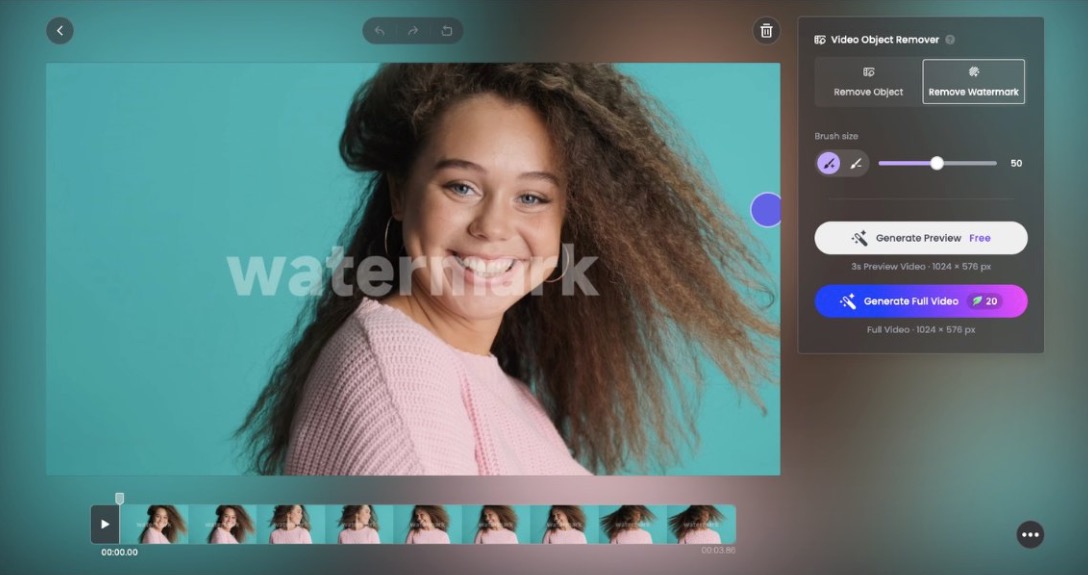
Test Conclusion
Fotor was one of the fastest tools to process. Watermarks were removed cleanly, but face warping appeared consistently, even when the watermark wasn’t near the face. Suitable for non-human scenes, risky otherwise. 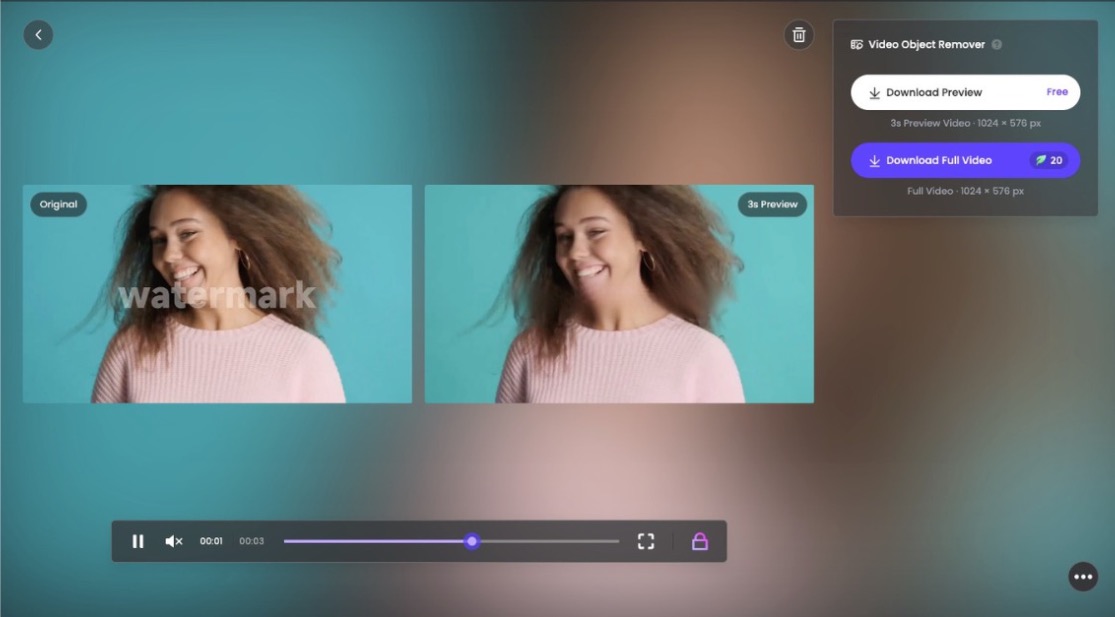
Vmake — Workflow Review
Two distinct modes with very different outcomes.
How to Use
- Upload
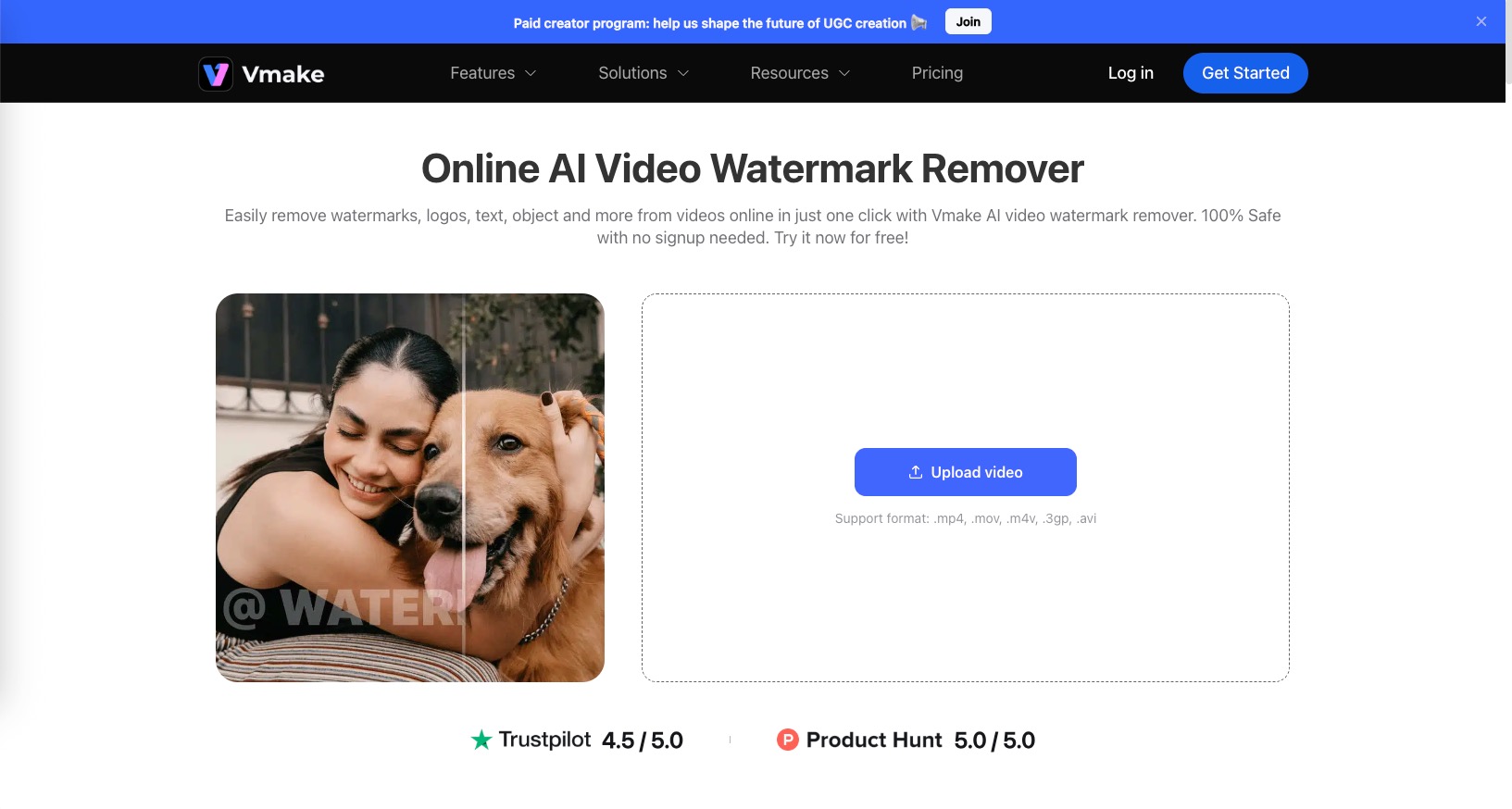
- Choose Smart Remove or Remove Watermark
- Generate
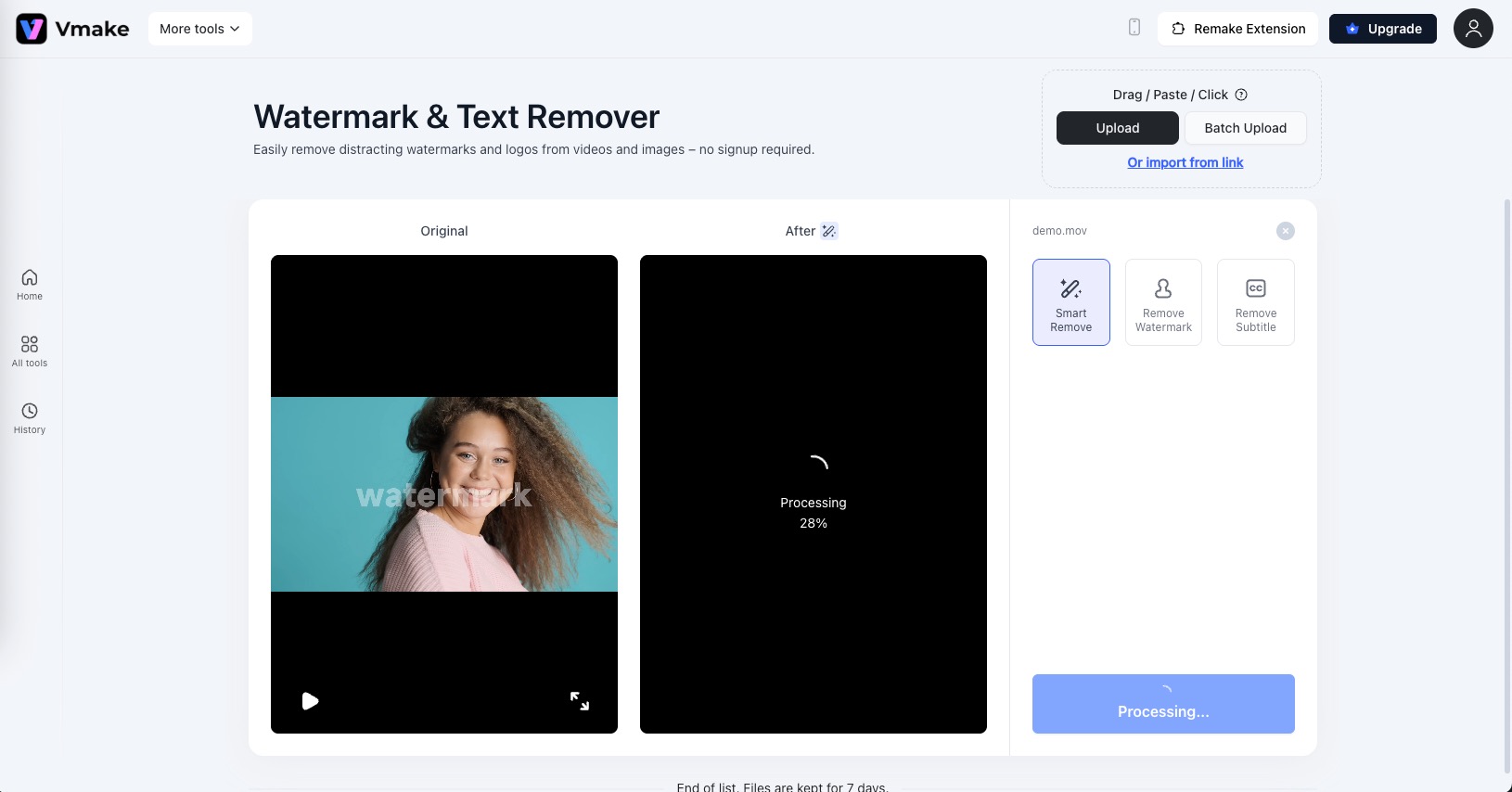
- Preview and download
Test Conclusion
- Smart Remove: watermark gone, but area heavily blurred
- Remove Watermark: cleaner, more accurate
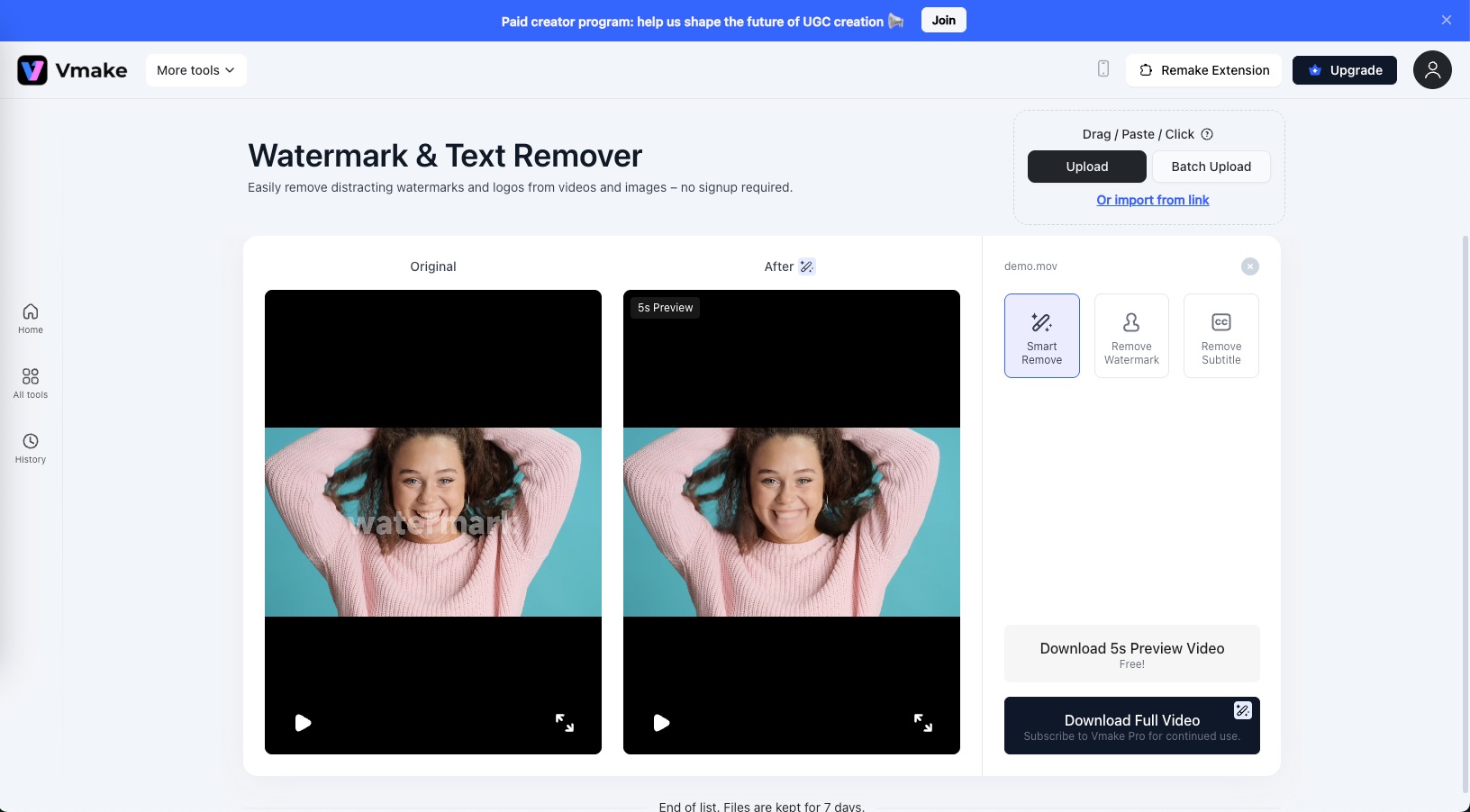 The tool works, but only if you pick the correct mode. Poor default choice can mislead users.
EaseMate AI — Workflow Review
Credit-based AI generation workflow.
How to Use
- Upload (credits required shown)
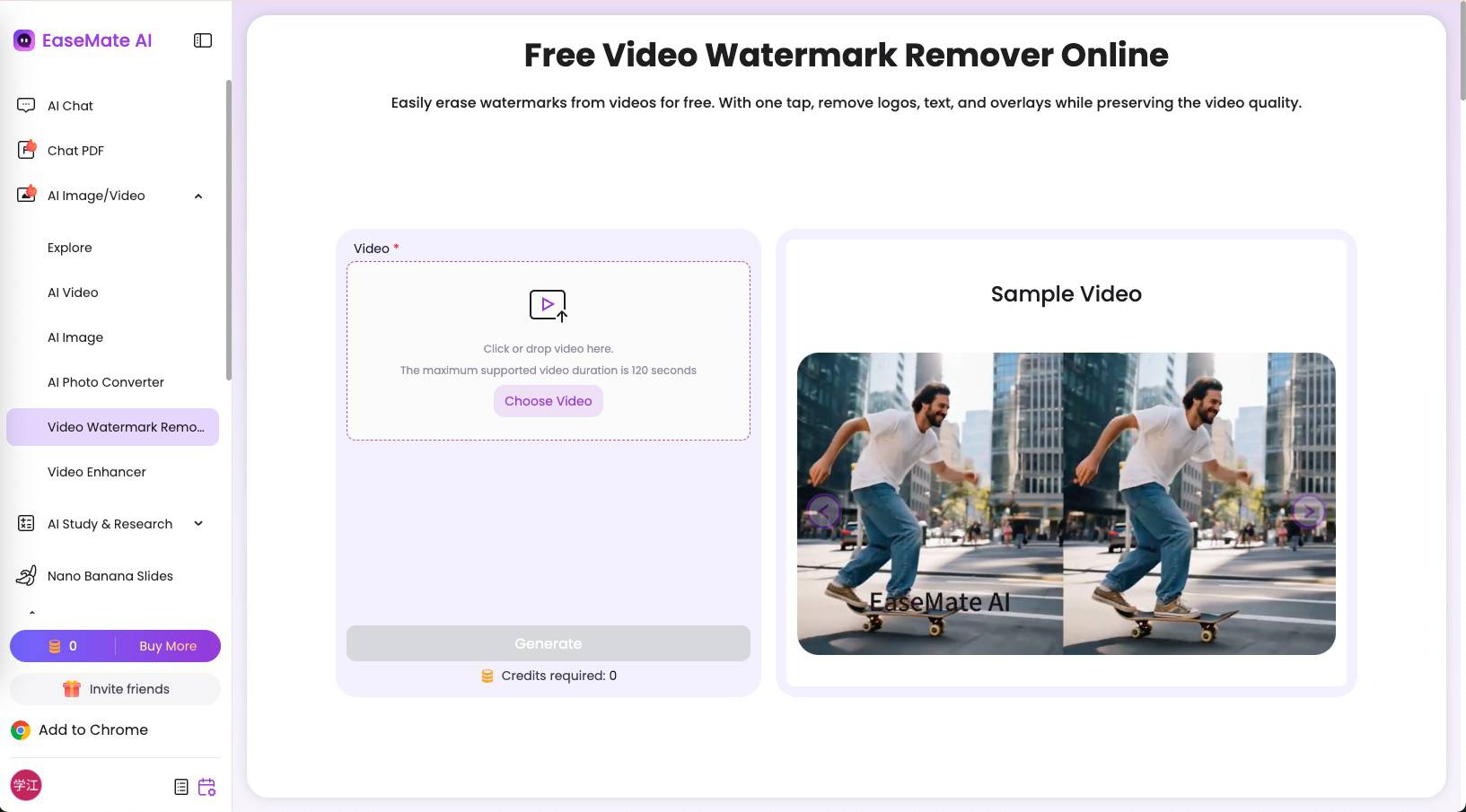
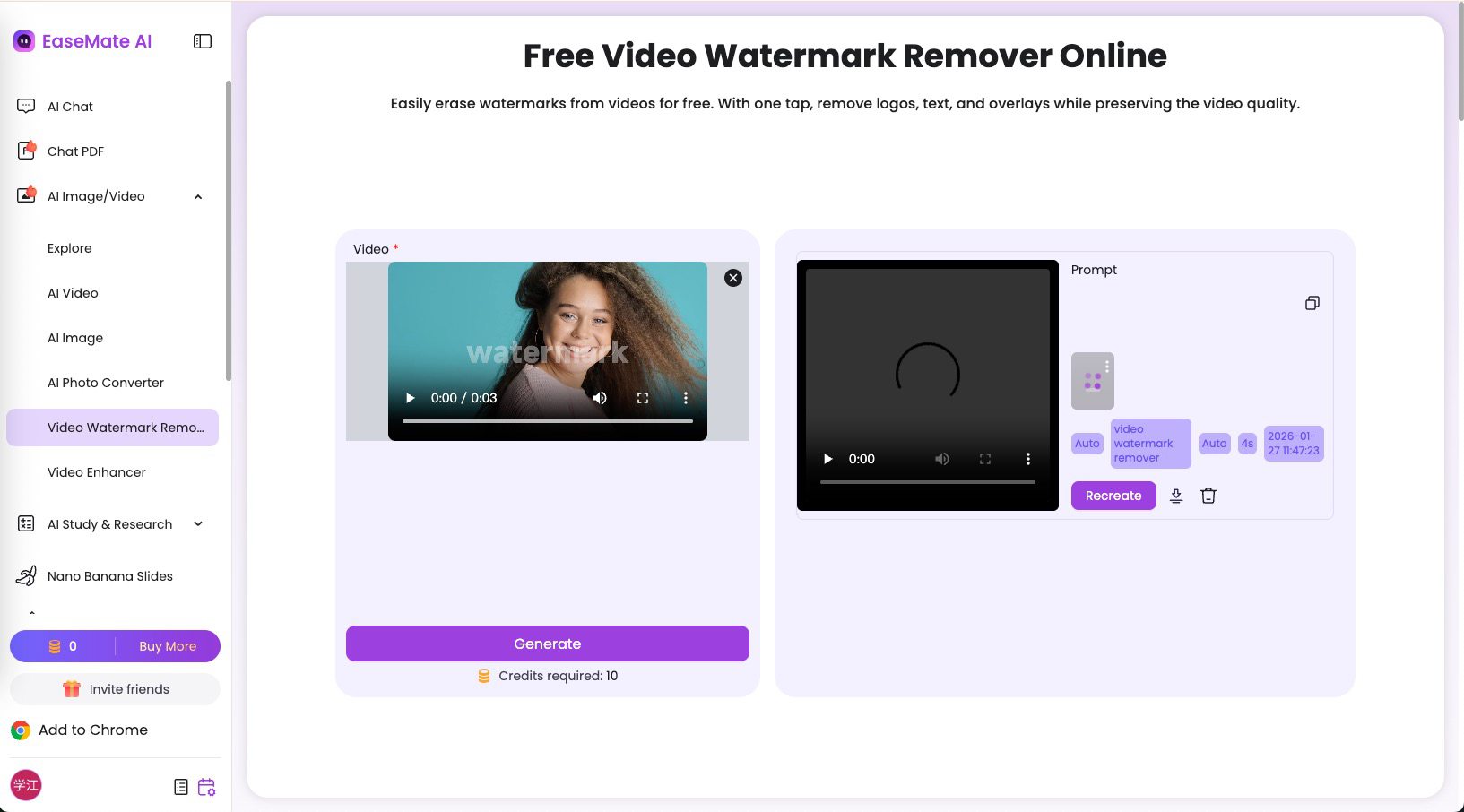
- Generate
- Preview and download
Test Conclusion
Output quality was excellent when the job completed, but the workflow was unstable. Credits were consumed before results returned, long waits occurred, and refreshing the page caused video loss without refund. Powerful but frustrating. 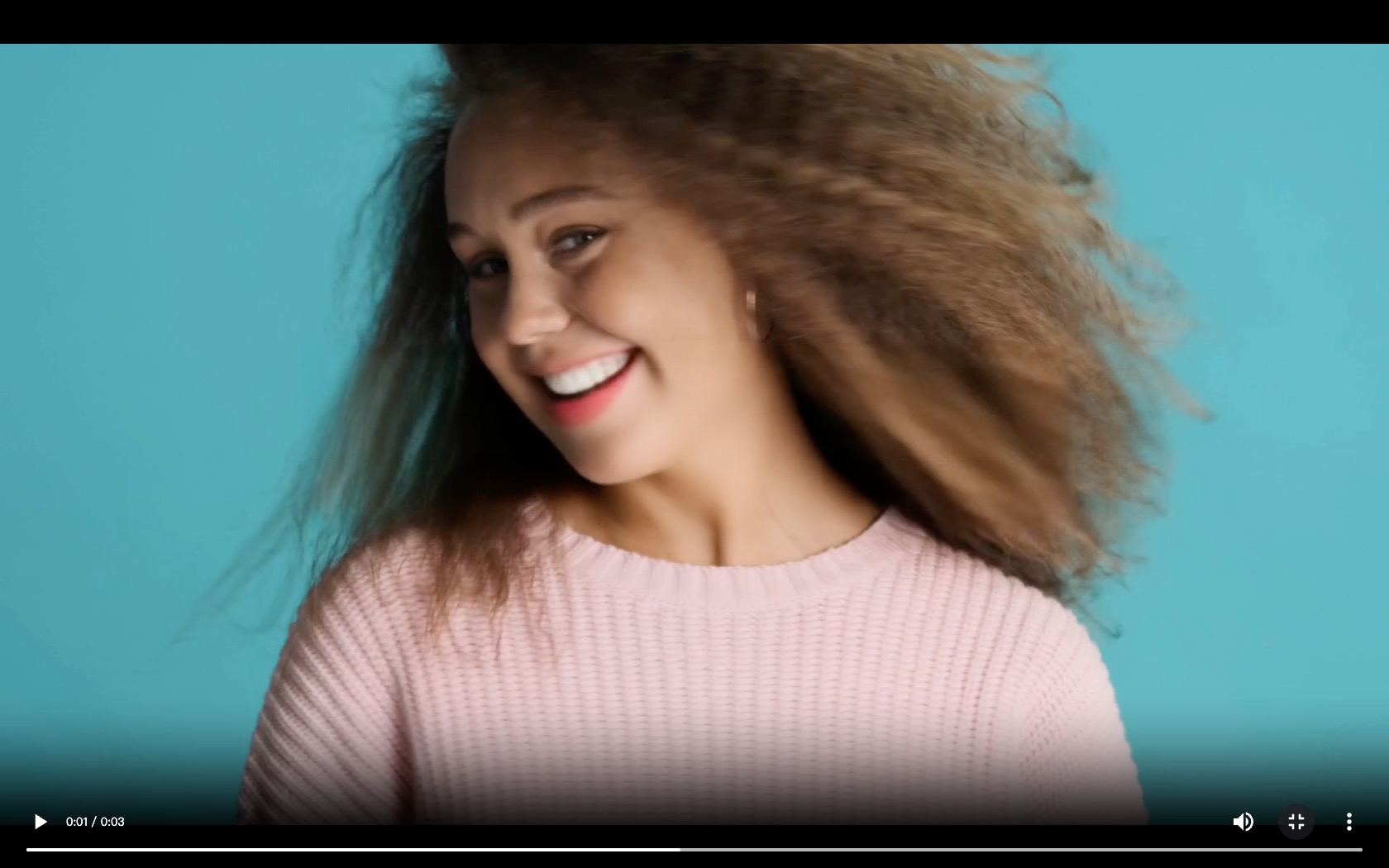
X-Design — Workflow Review
Simple, no-login AI remover with two modes.
How to Use
- Upload (MP4, M4V, MOV)
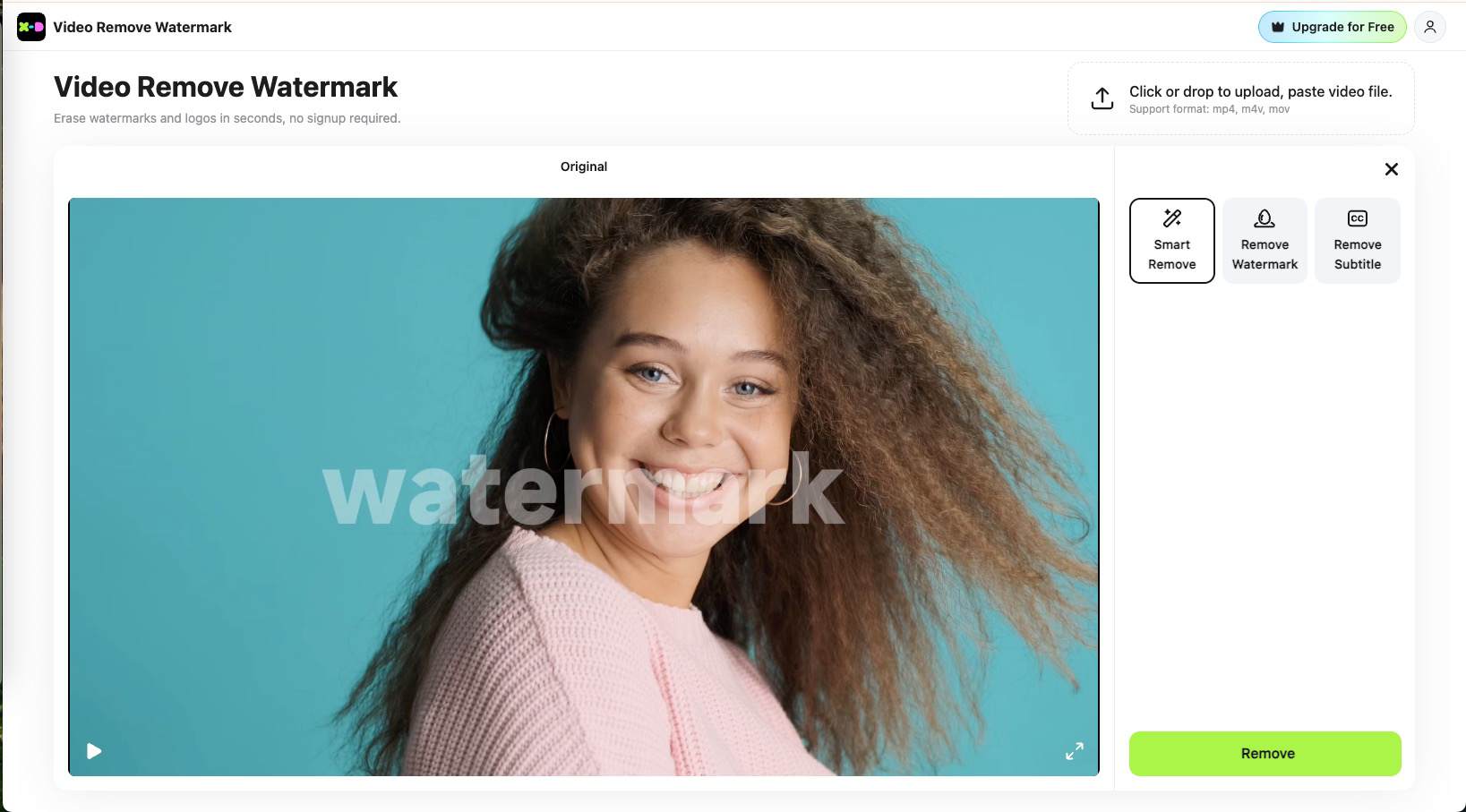
- Choose Smart Remove or Remove Watermark
- Preview and download
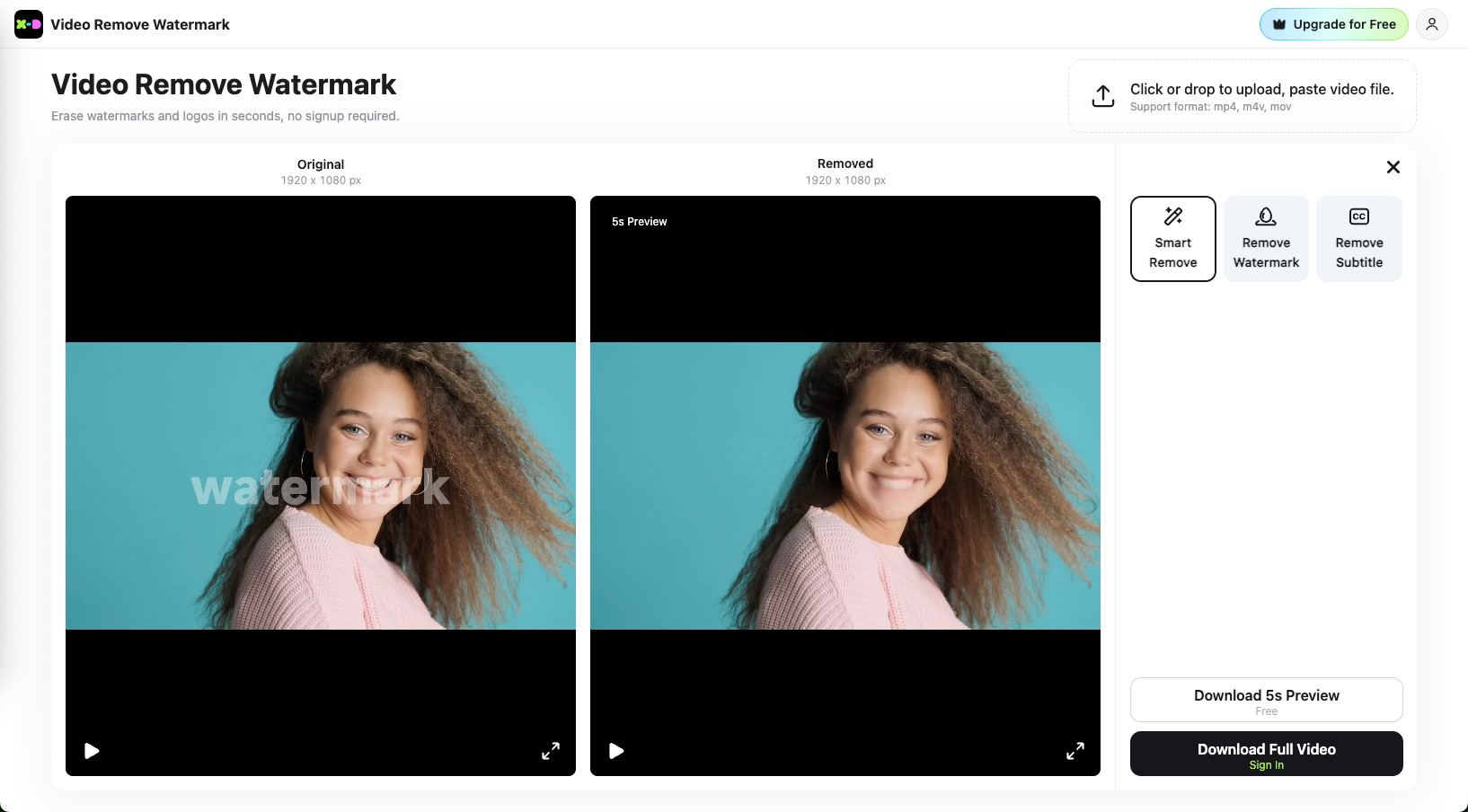
Test Conclusion
- Smart Remove: watermark removed, visible blur remains
- Remove Watermark: watermark partially visible, distortion
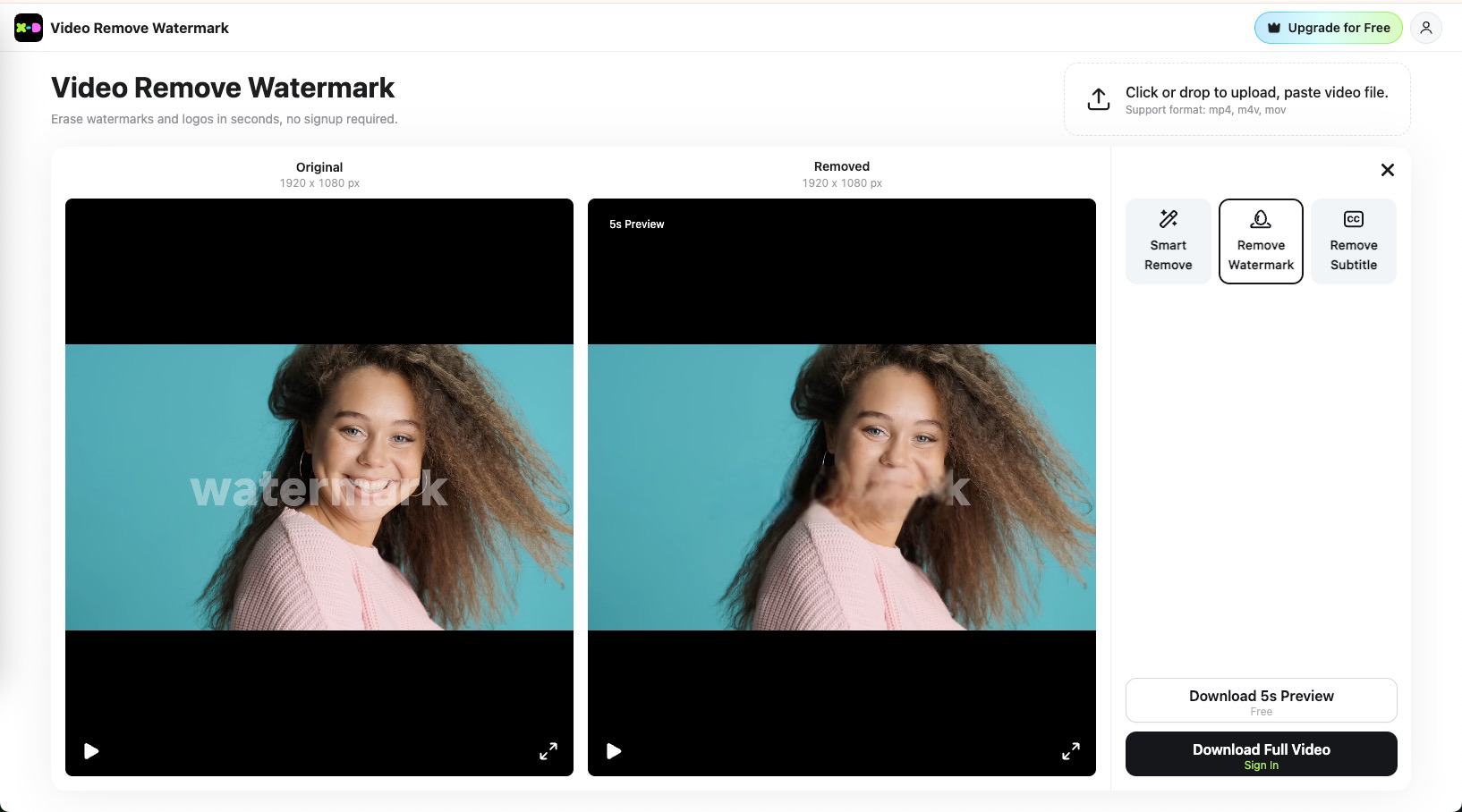 Easy to use, but neither mode delivers clean, artifact-free output.
Media.io — Workflow Review
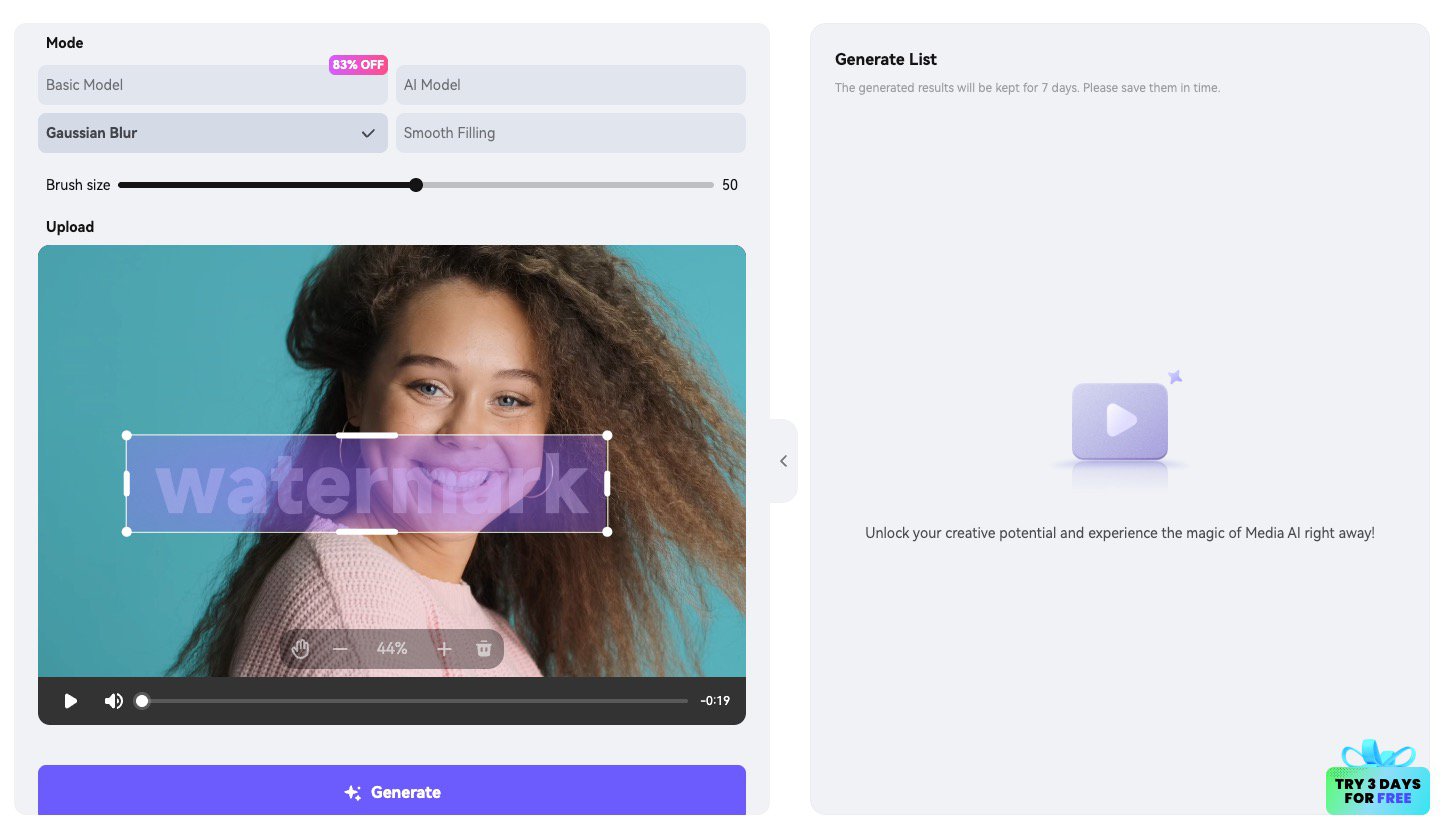
Multi-model AI object remover with heavy constraints.
How to Use
- Upload (size/duration limits apply)
- Brush watermark area
- Choose model (Basic, AI, Blur, Fill)
- Generate and download
Test Conclusion
- Basic Model: no visible change
- AI Model: limited to 3–10s clips
- Gaussian Blur: residue remains
- Smooth Filling: blocked by credits
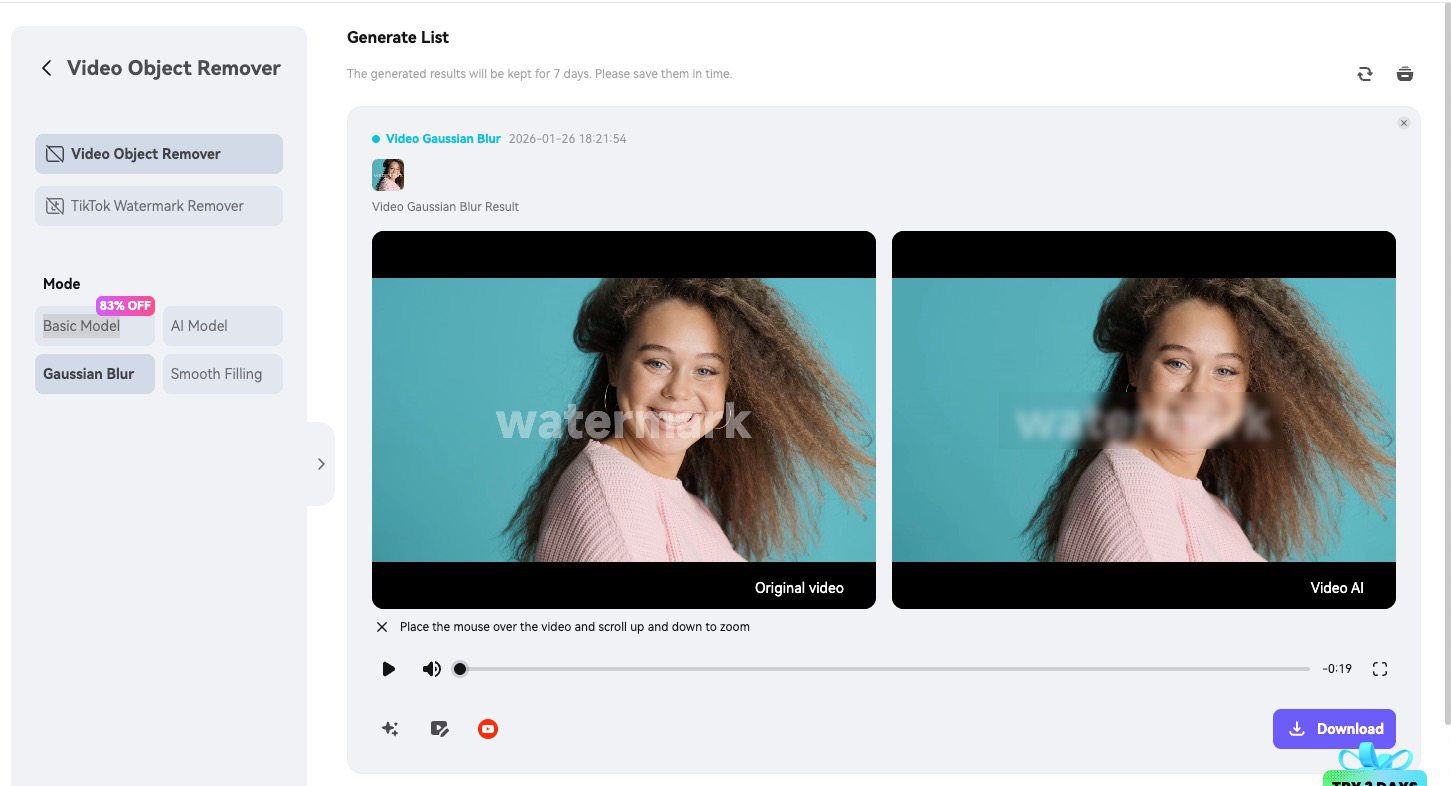
Powerful on paper, but free testing does not reflect best performance.
Airbrush — Workflow Review
Fully automatic, preview-first workflow.
How to Use
- Upload (≤4K, <200MB, <10 min)
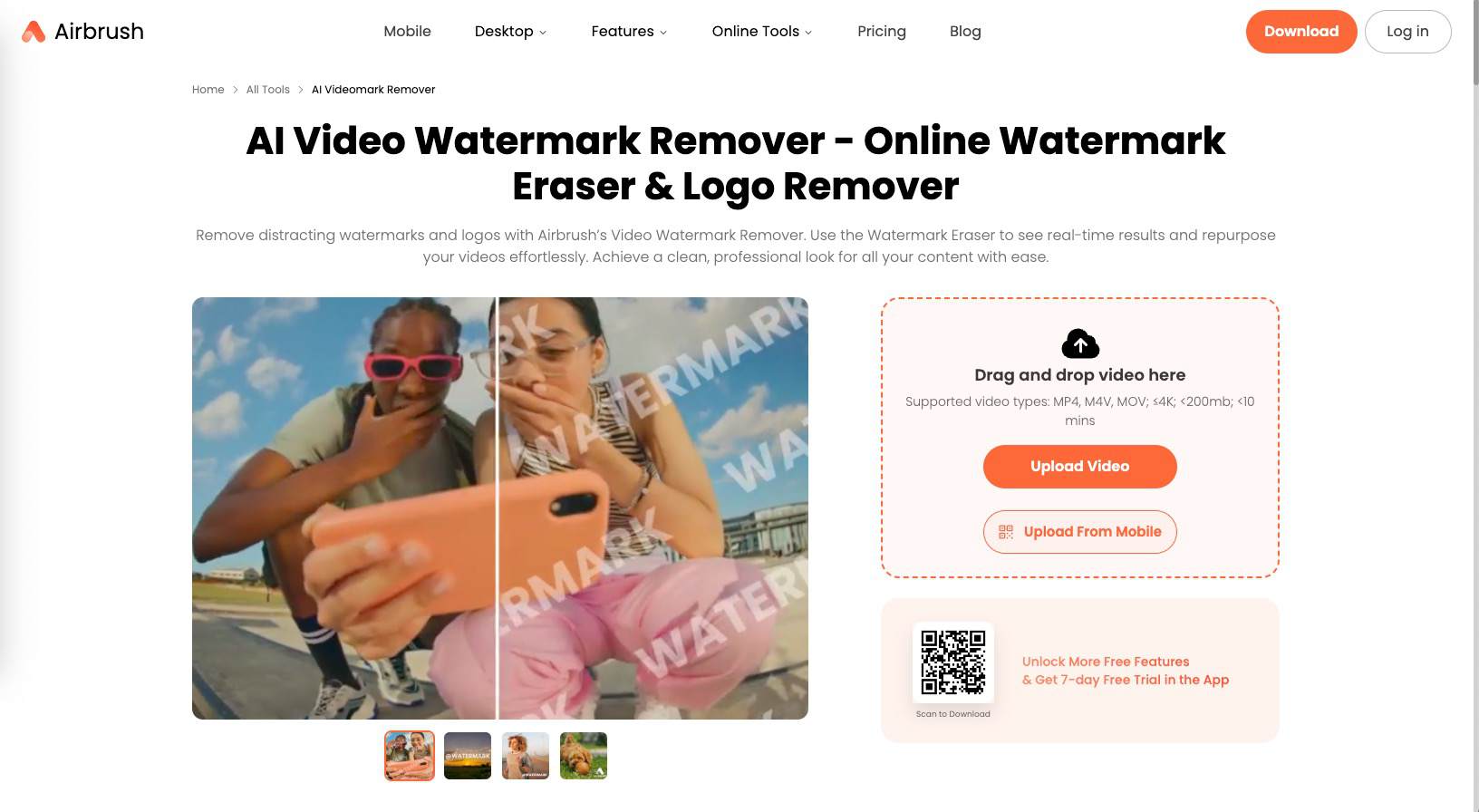
- Automatic processing + preview
- Download (free = first 5s)

Test Conclusion
Watermark region showed blur and warping, and unpaid exports add a new Airbrush watermark. Convenient preview, weak final delivery. 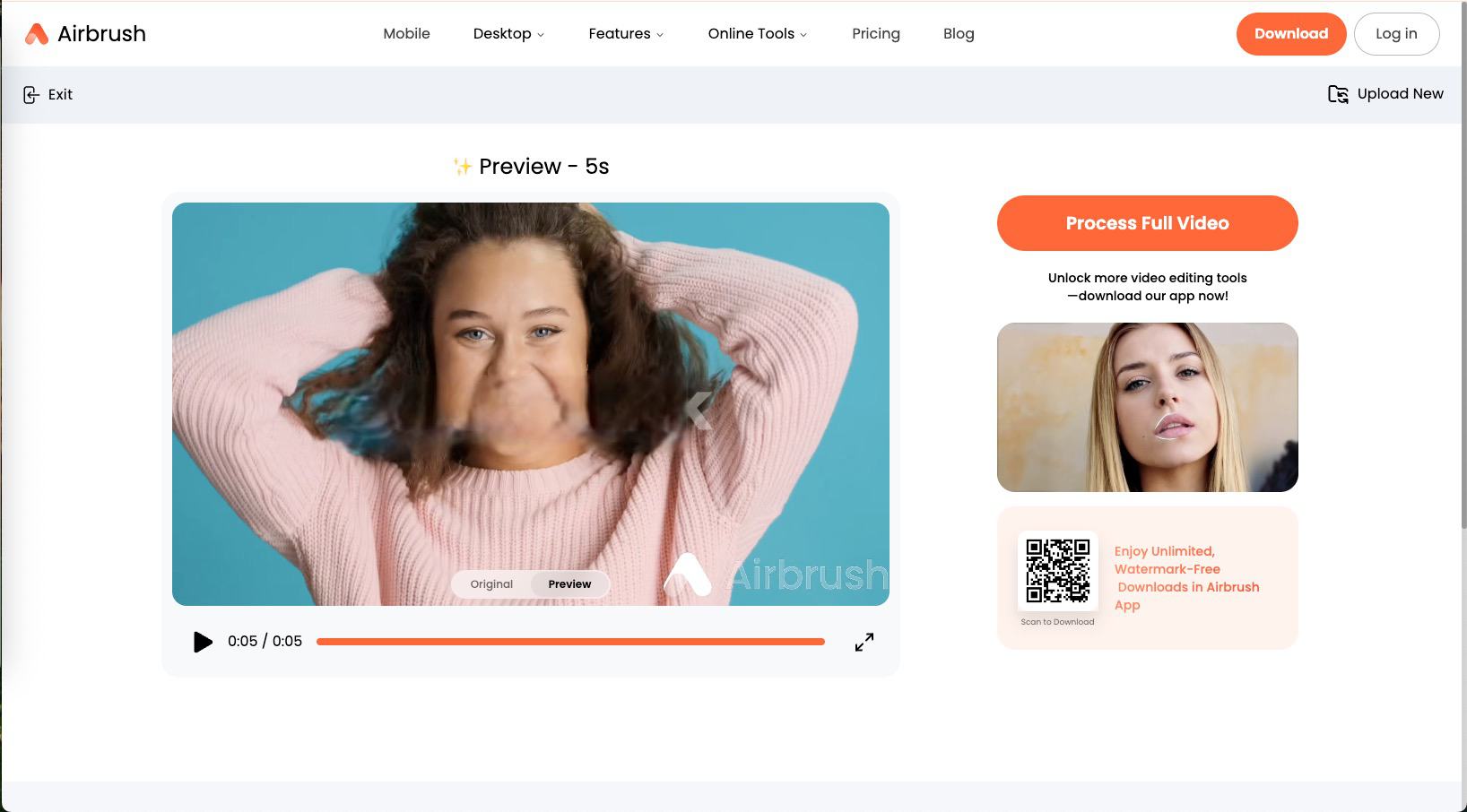
Wink — Workflow Review
Auto + manual modes with batch upload.
How to Use
- Upload (supports batch)
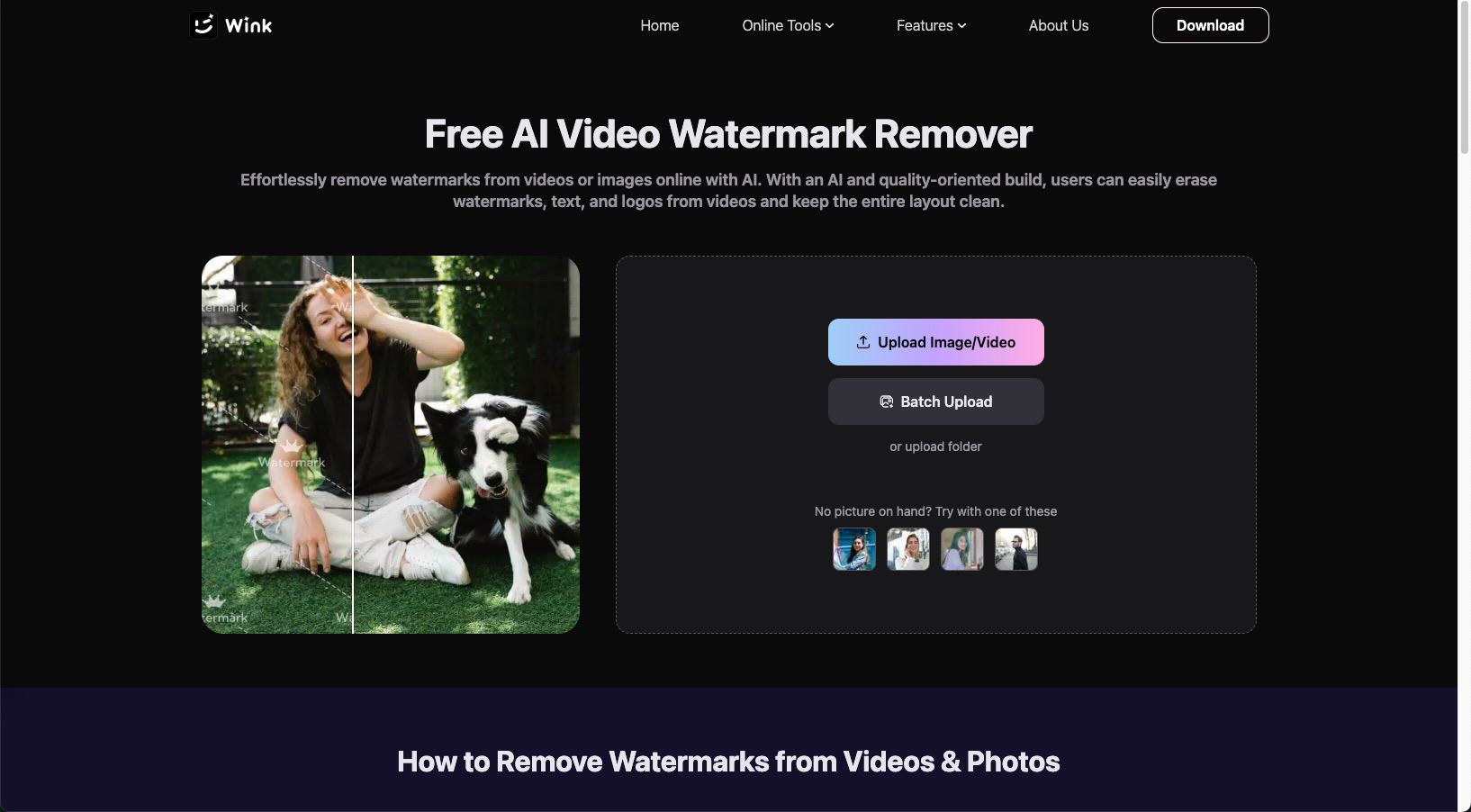
- Choose Auto or Manual mode
- Export
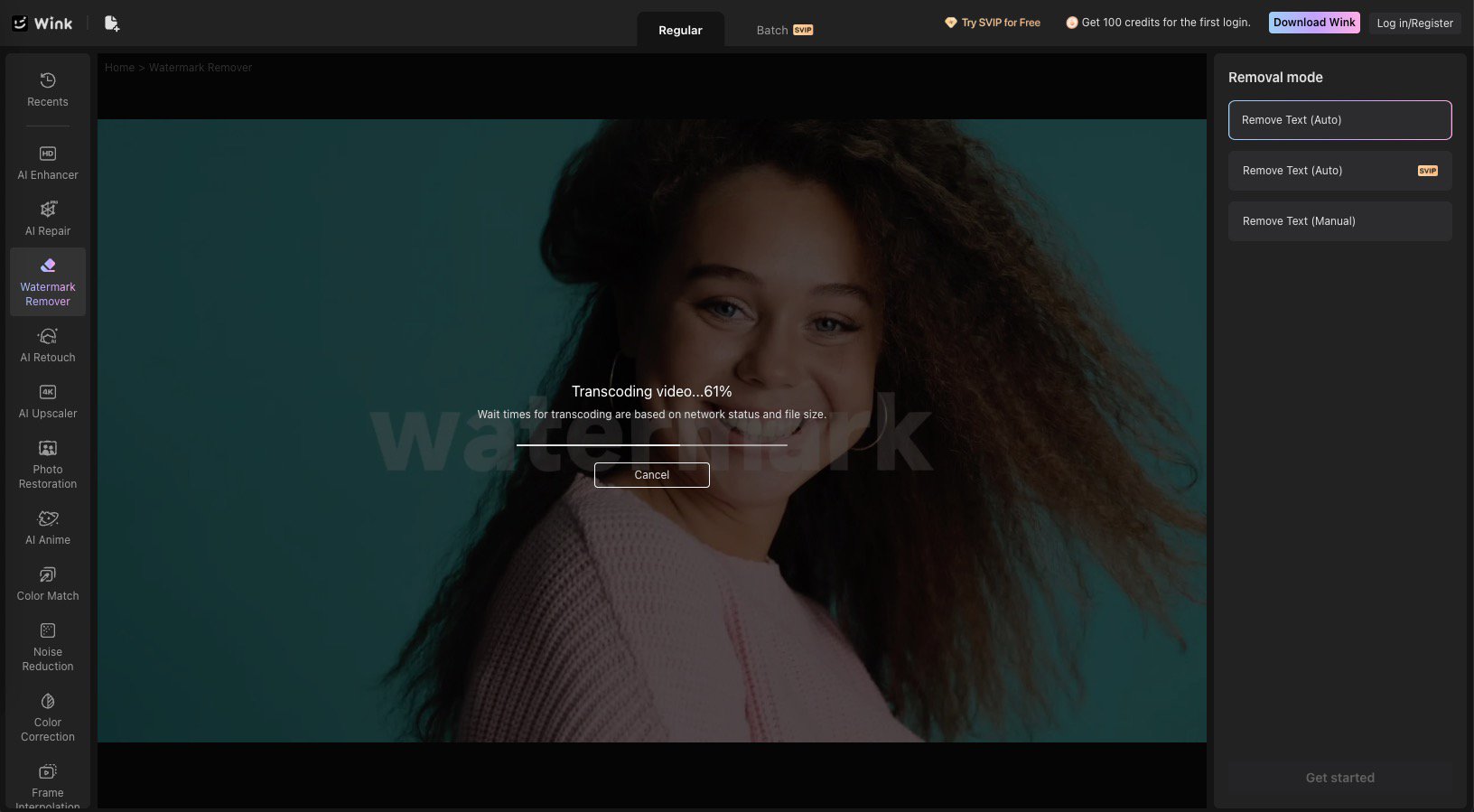
Test Conclusion
Despite generous starter credits, results were inconsistent: watermark residue remained and face distortion was visible. Batch features are nice, output quality is not dependable. 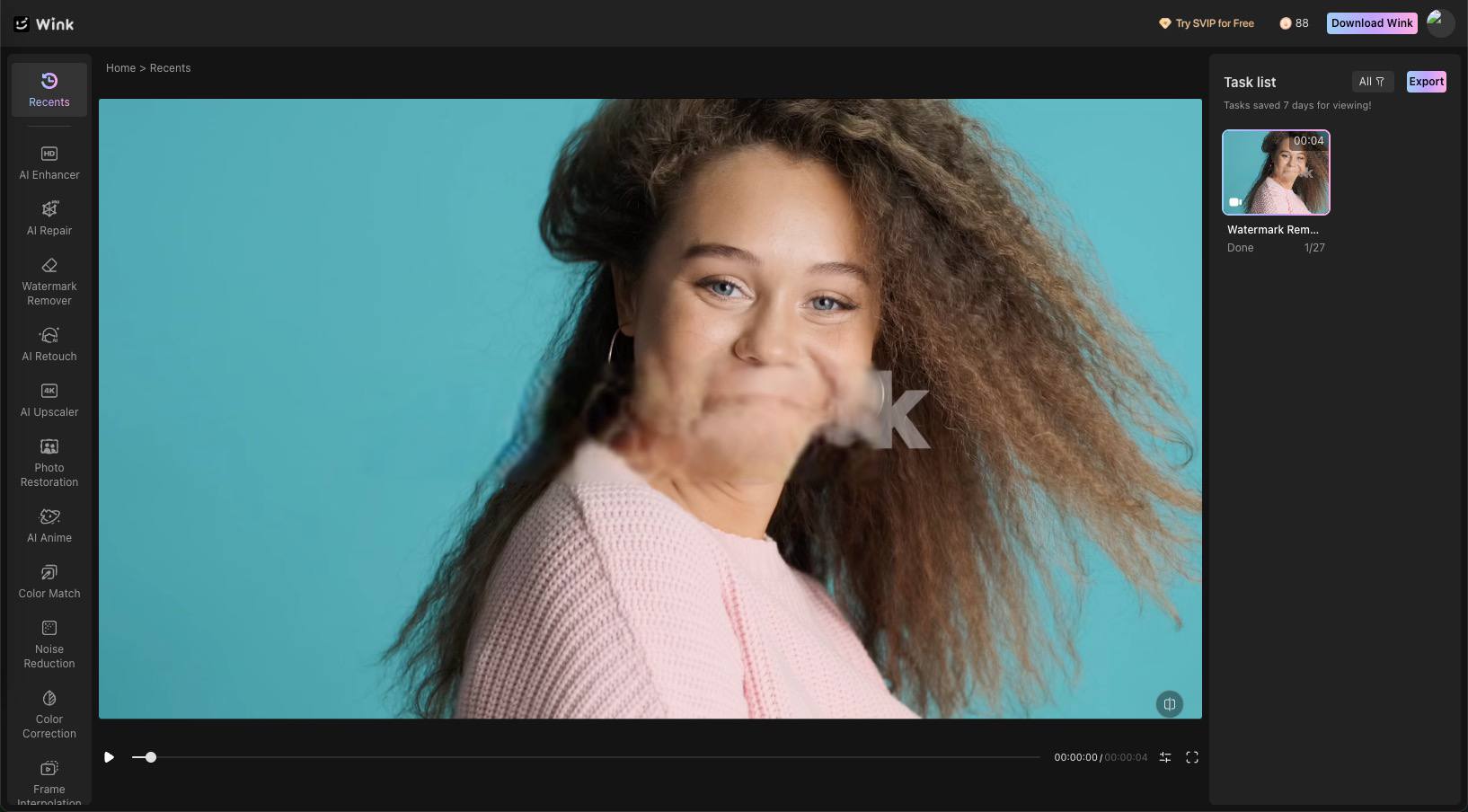
Pixelbin — Workflow Review
Auto-only AI remover.
How to Use
- Upload or paste URL
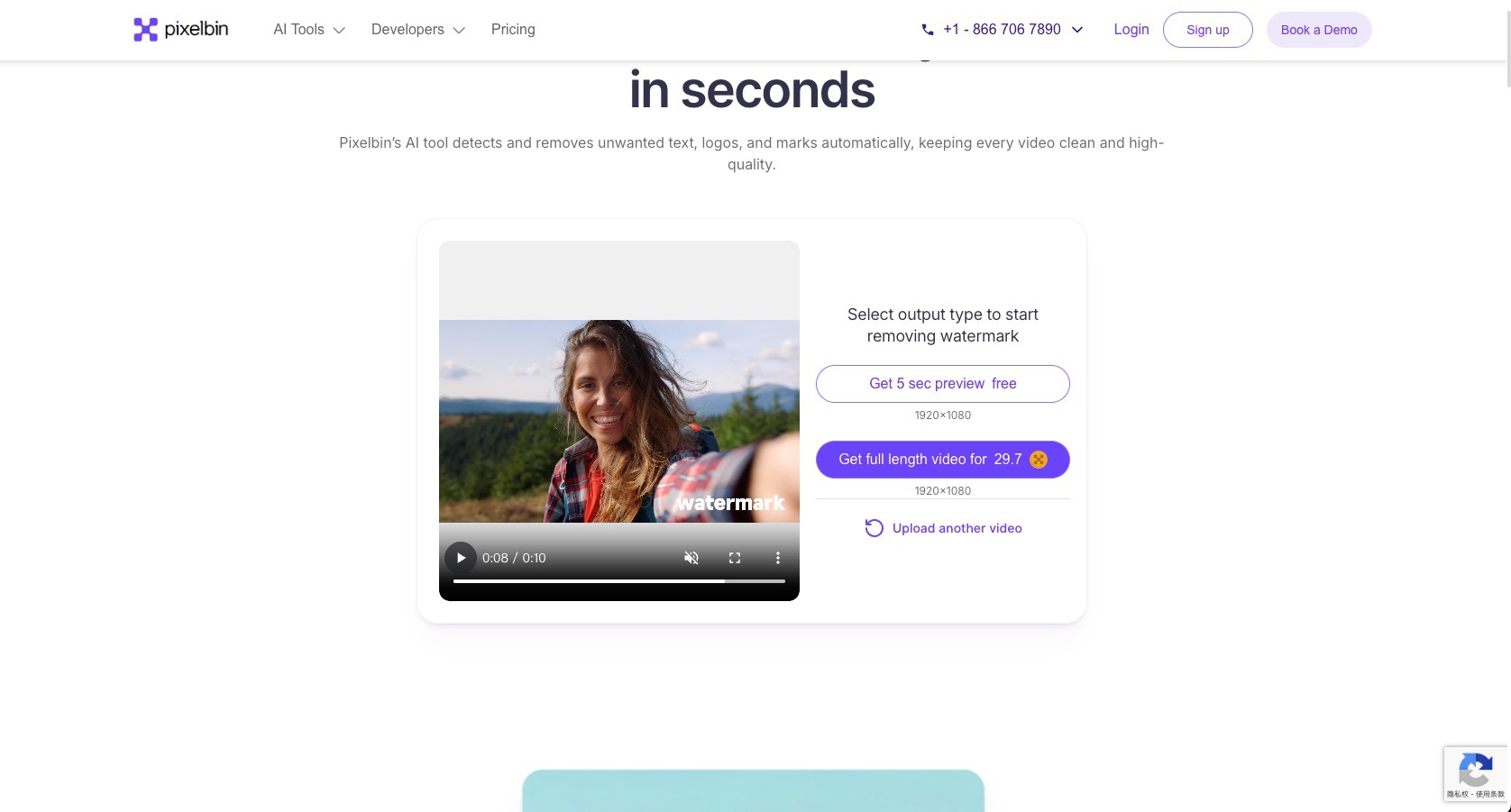
- AI processing
- Download
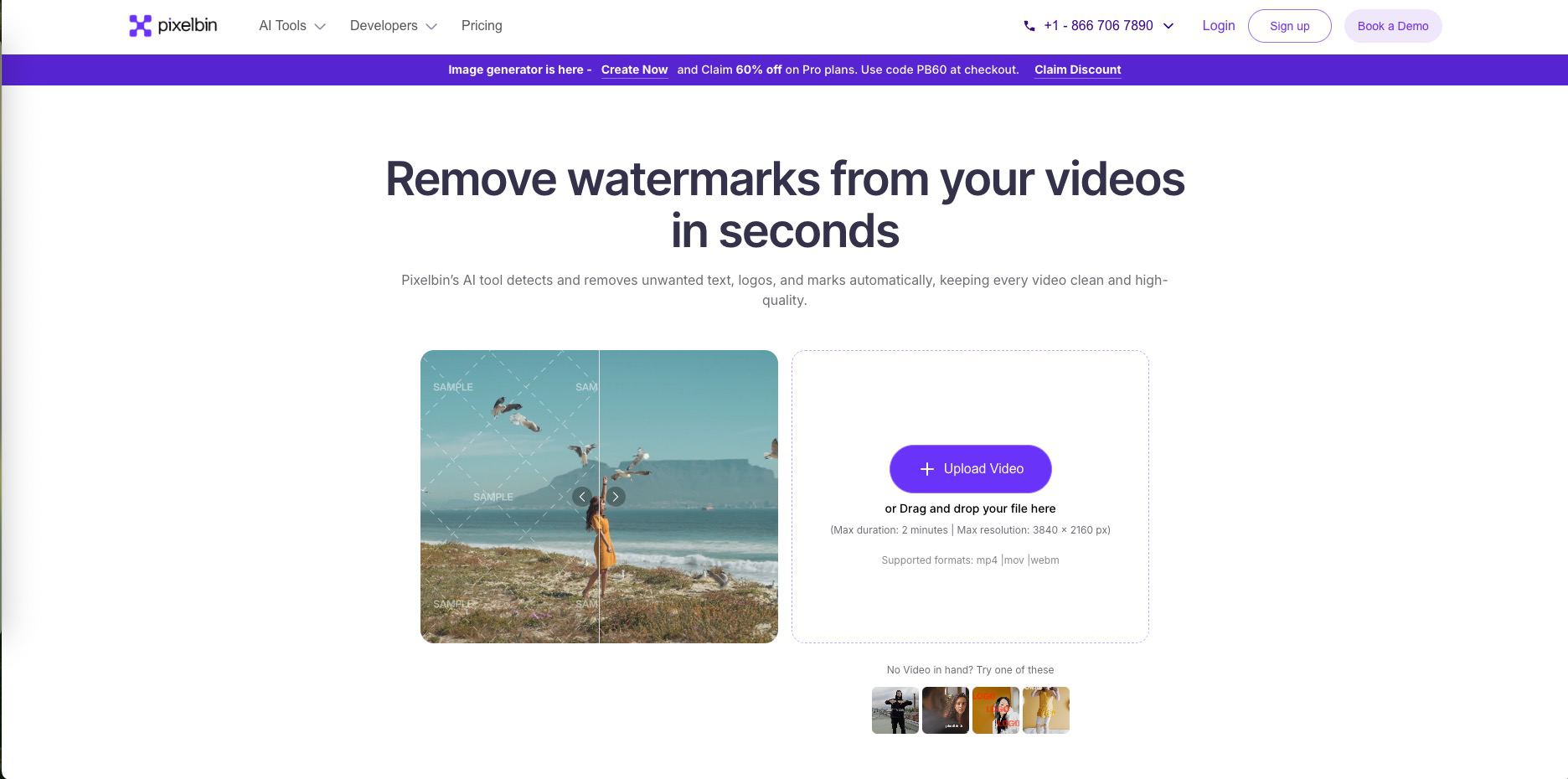
Test Conclusion
In multiple tests with different watermark positions, Pixelbin failed to detect the watermark reliably. No manual tools means no fallback when detection fails. 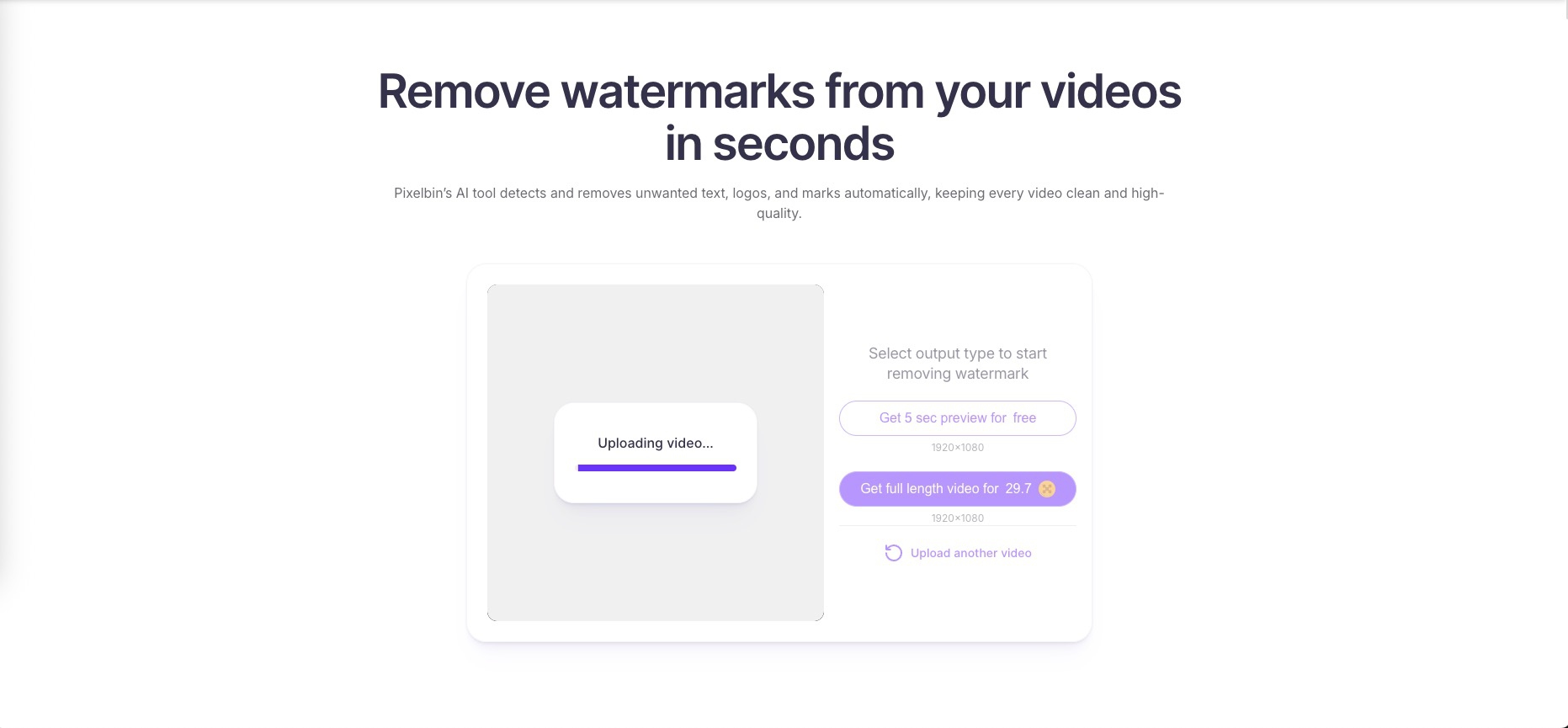
DIGEN — Workflow Review
Deep Clean AI mode.
How to Use
- Upload (MOV claimed supported)
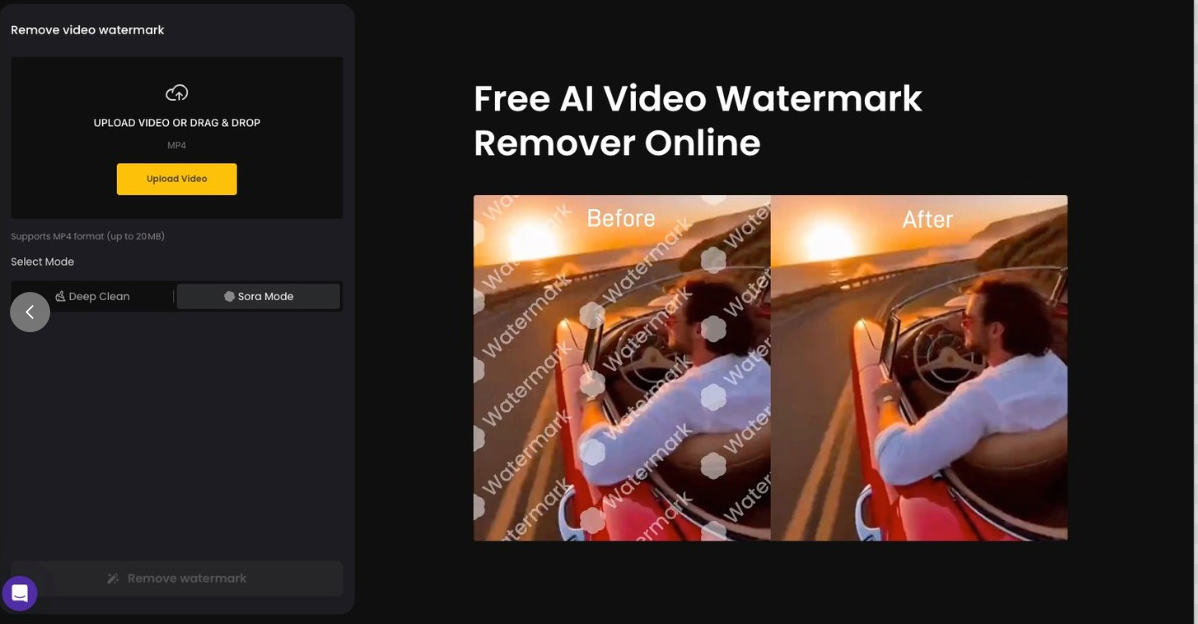
- Select Deep Clean
- Process and download
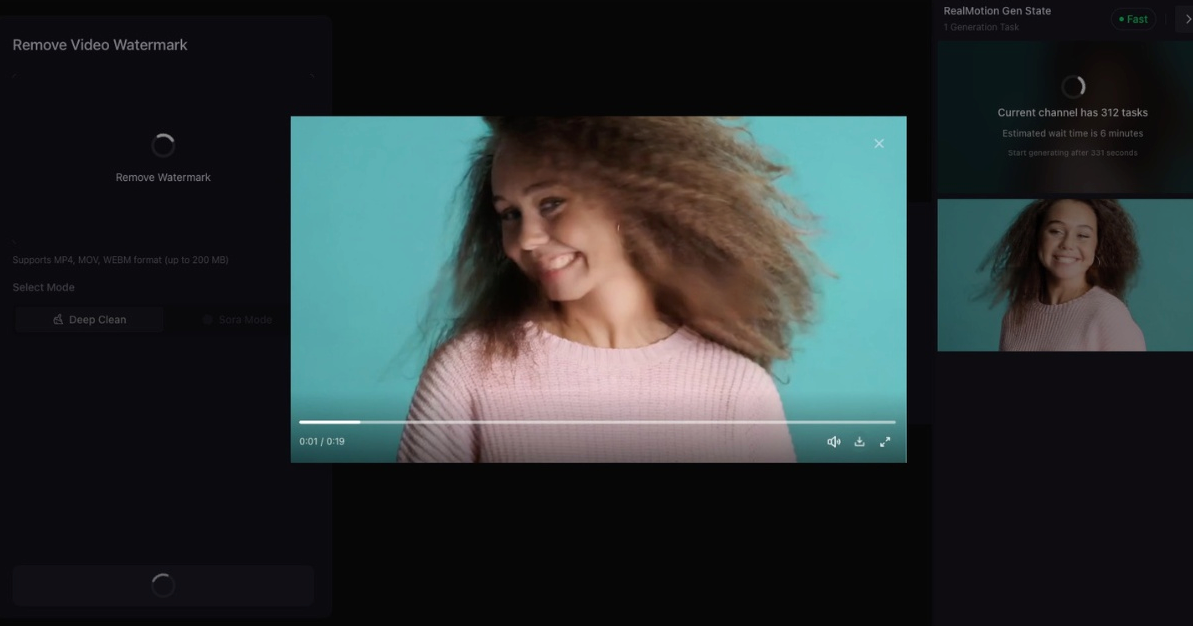
Test Conclusion
MOV upload failed despite being listed. Deep Clean removed the watermark, but the area showed blur and distortion. Works, but with quality trade-offs. 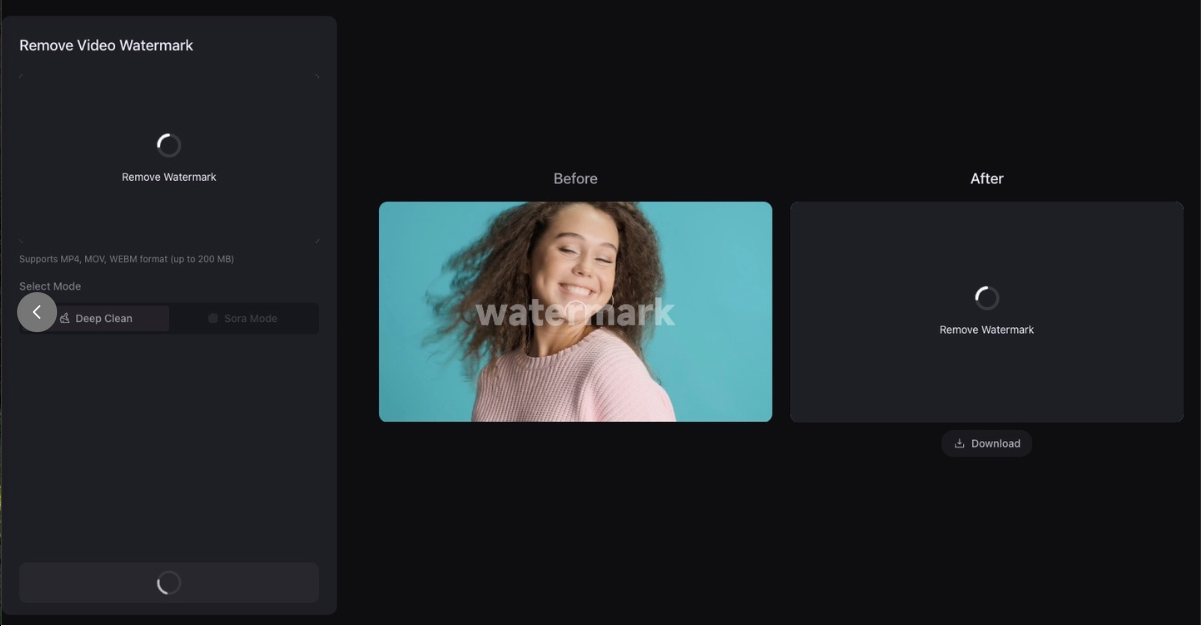
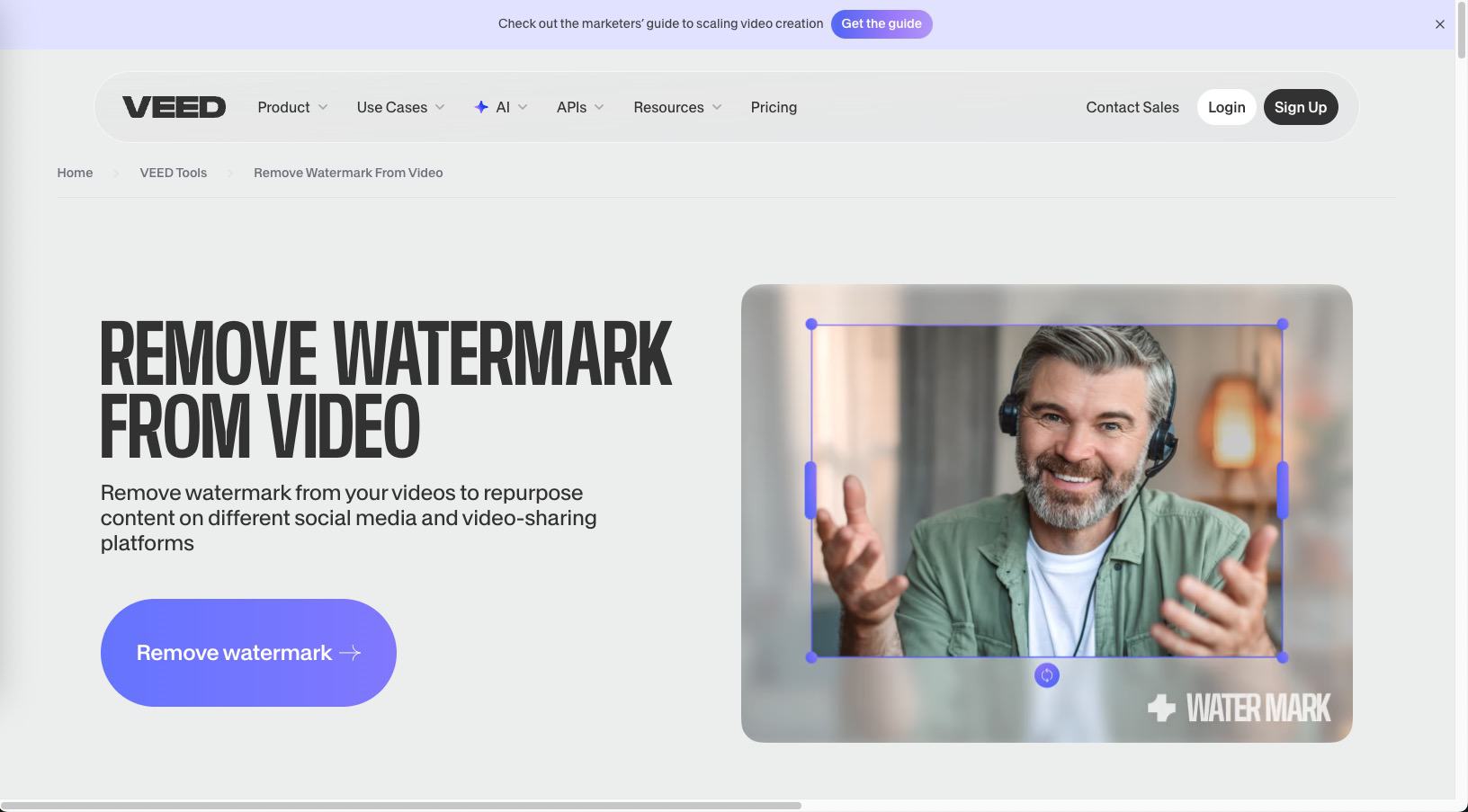
VEED — Workflow Review
Editor-based workarounds, not AI removal.
How to “Remove” Watermarks
- Crop the frame
- Cover with shapes/stickers
- Overlay text or subtitles
Test Conclusion
VEED hides watermarks instead of removing them. Fine for repurposing, not suitable for clean restoration. 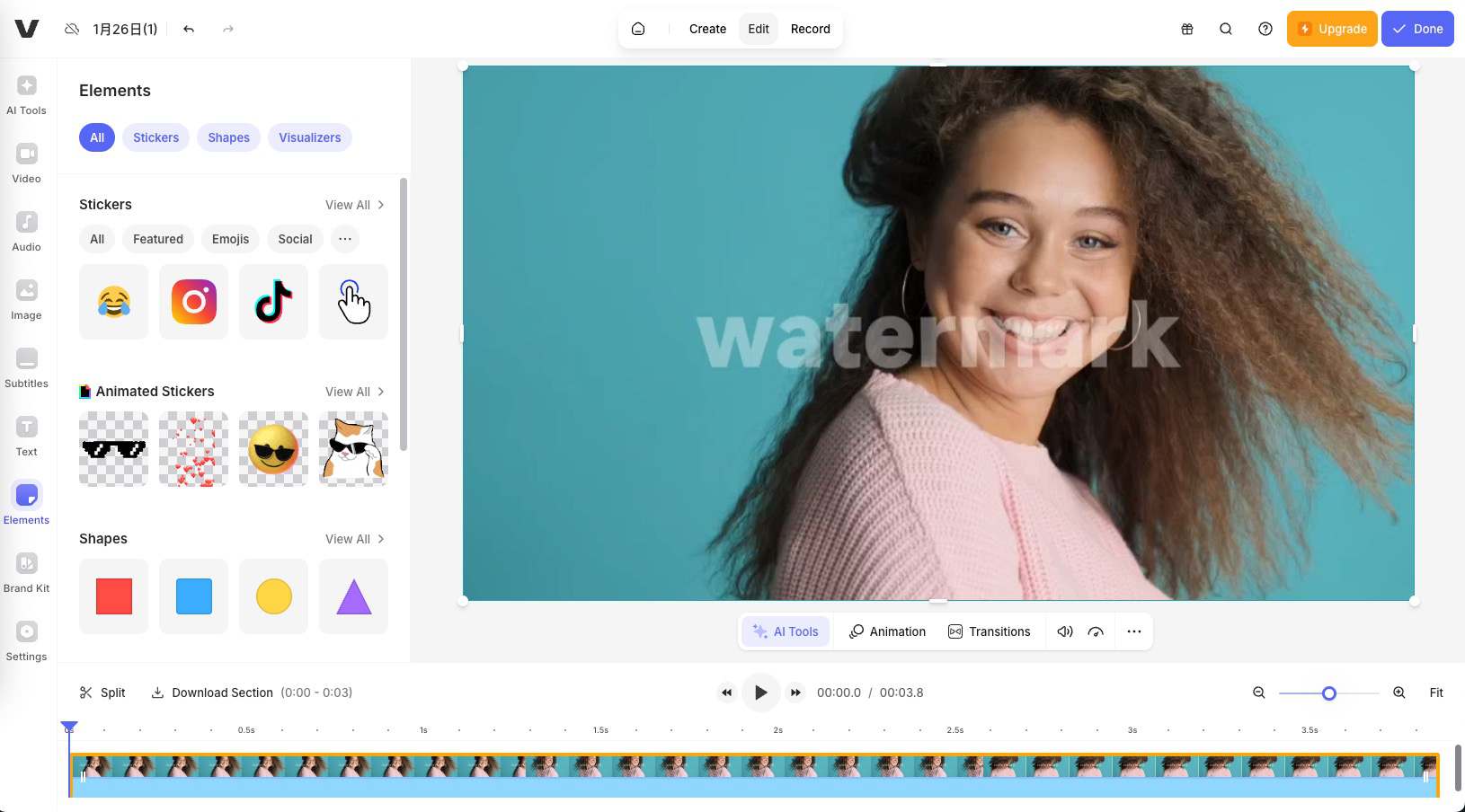
Final Summary
After testing all 15 tools, one truth stands out: workflow reliability matters more than marketing promises.
Patterns observed:
- Auto-only tools fail hard when detection fails
- Selection-first tools are more repeatable
- Credits, limits, and late paywalls ruin usability
- “Watermark removed” is meaningless if faces are distorted
Why EzRemove Fits This Review
EzRemove sits in the most reliable middle ground:
- Not auto-only
- Not a heavy editor
- Selection-first AI repair
- Low retry cost
- Predictable results
If you remove watermarks regularly and care about consistency across different placements and scenes, EzRemove is the safest default choice in this list.
Visual benchmarks (flicker, stability, preview vs export fidelity) will be added next.