Skip to content
Top 15 AI Watermark Remover Tools (2026) — Tested & Compared
Watermarks can be a real buzzkill.
They rarely appear where they’re harmless. Instead, they sit right on top of what you actually care about: a person’s face, a product detail, a texture you want to reuse, or a clean area meant for publishing.
A few years ago, removing a watermark meant slow, manual work. You’d zoom in, clone pixels, adjust colors, and hope the final result wouldn’t scream "edited." Even after spending real time, the image often looked acceptable only at small sizes. The moment you zoomed in—or tried to reuse it professionally—the flaws showed up.
Today, an AI watermark remover promises something much simpler. Upload an image, click once, wait a few seconds, and the watermark disappears. And often, that part does work.
But here’s the truth most comparison articles avoid saying clearly:
Watermark gone does not automatically mean the image is fixed.
Many tools are good at removing visible logos or text. Far fewer are good at reconstructing what was underneath in a way that looks natural, holds up at high resolution, and stays consistent across different images.
That gap—between "removed" and "usable"—is where most people lose time, quality, or trust.
This guide exists to help you avoid that gap.
Instead of another shallow roundup, you’re about to read a practical, experience-driven review of 15 AI watermark removers recommended in 2026. The goal isn’t to crown a single "best" tool, but to help you understand which one actually fits your situation—and which ones only look good on demos.
The 3 Most Common "Watermark Removal Illusions"
Before you compare tools, it’s important to understand the three illusions that make many AI watermark removers seem more capable than they really are.
If you’ve ever felt disappointed after downloading an image that looked fine in preview, chances are you ran into one of these.
Illusion #1: "The watermark is gone, so it worked."
At normal viewing size, many tools look successful. The logo disappears, the text vanishes, and the image looks clean enough.
Then you zoom in.
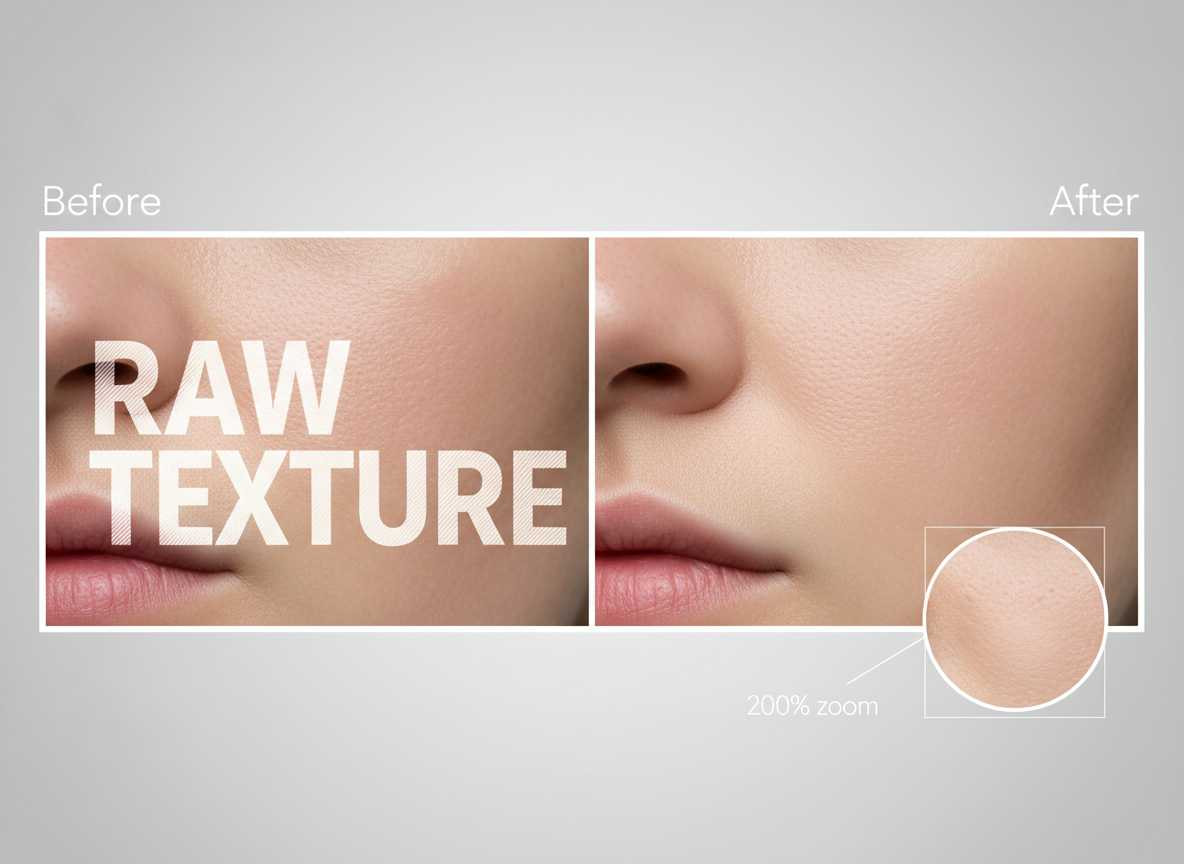
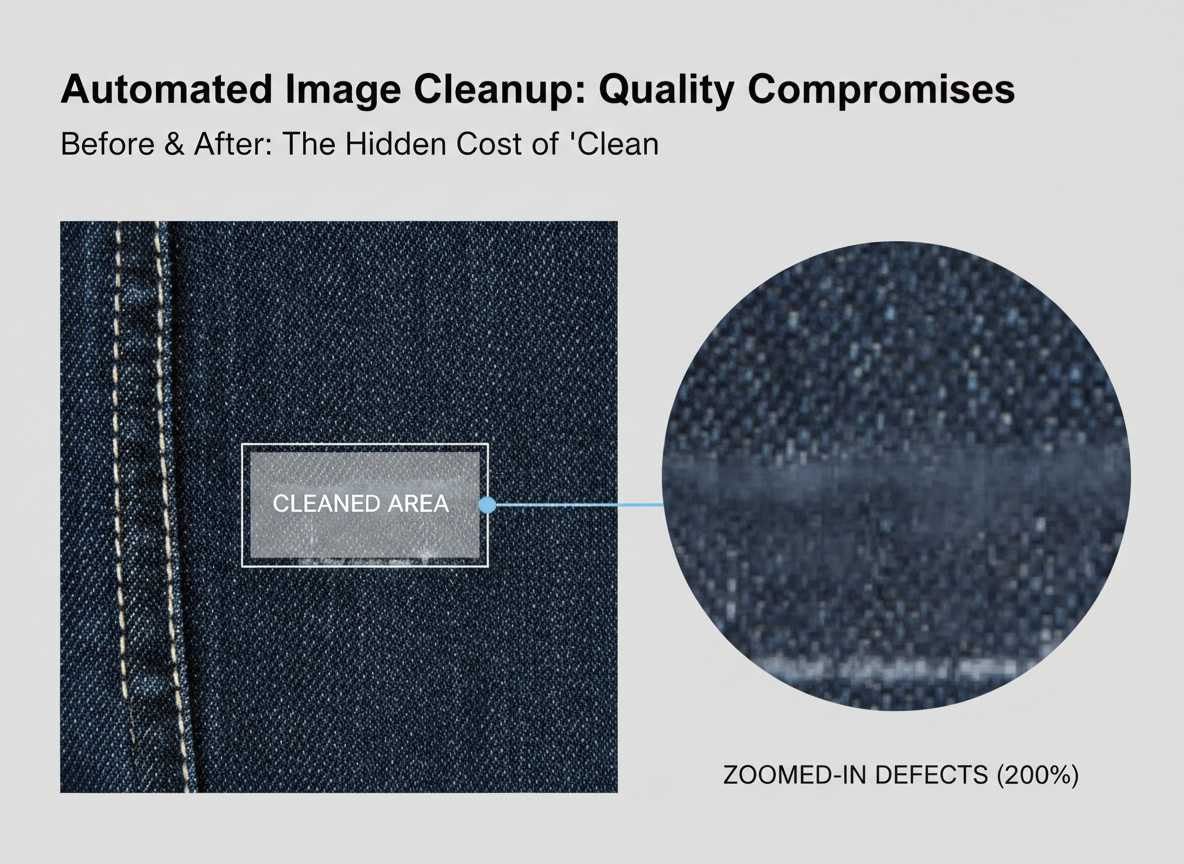
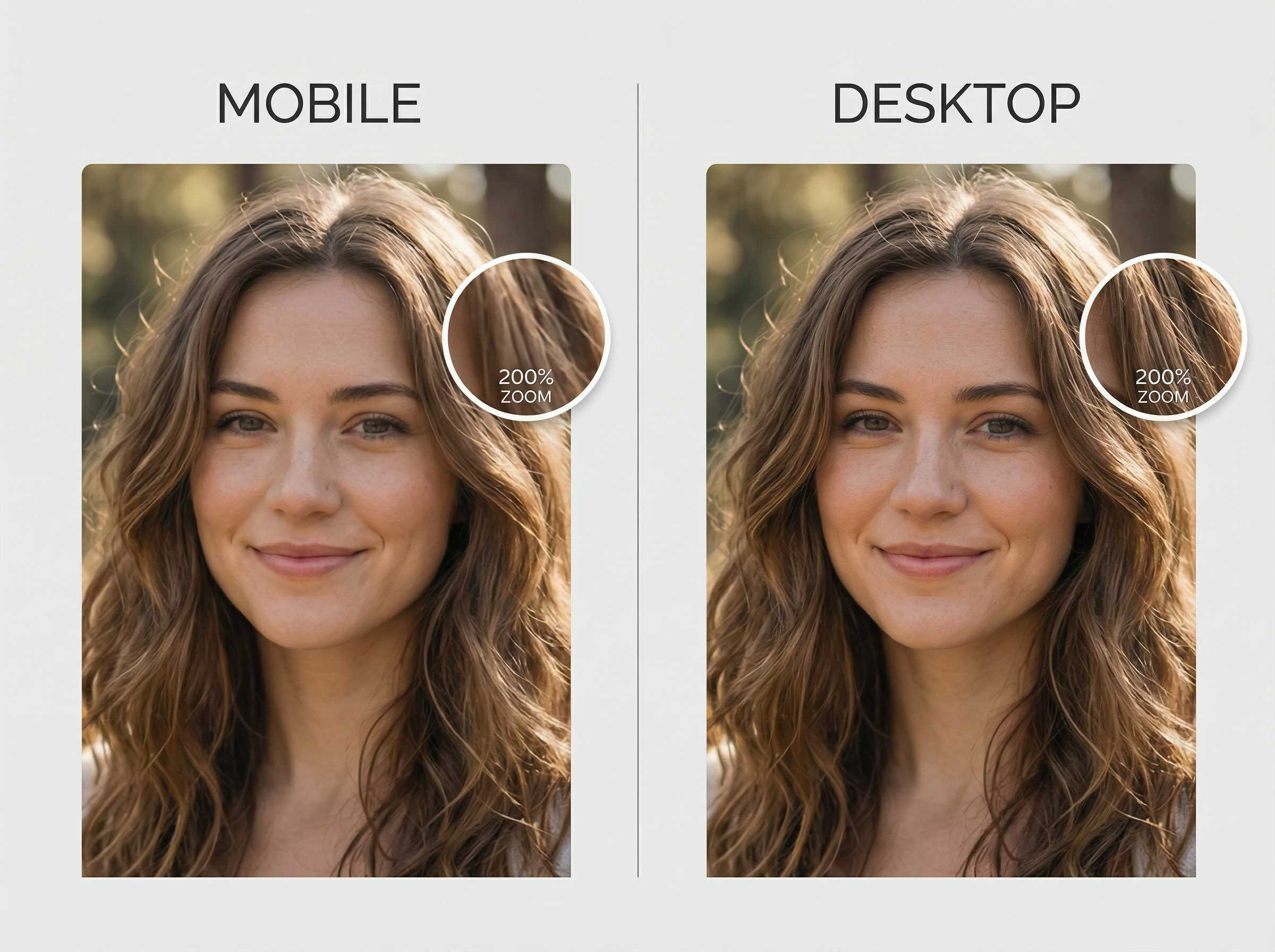
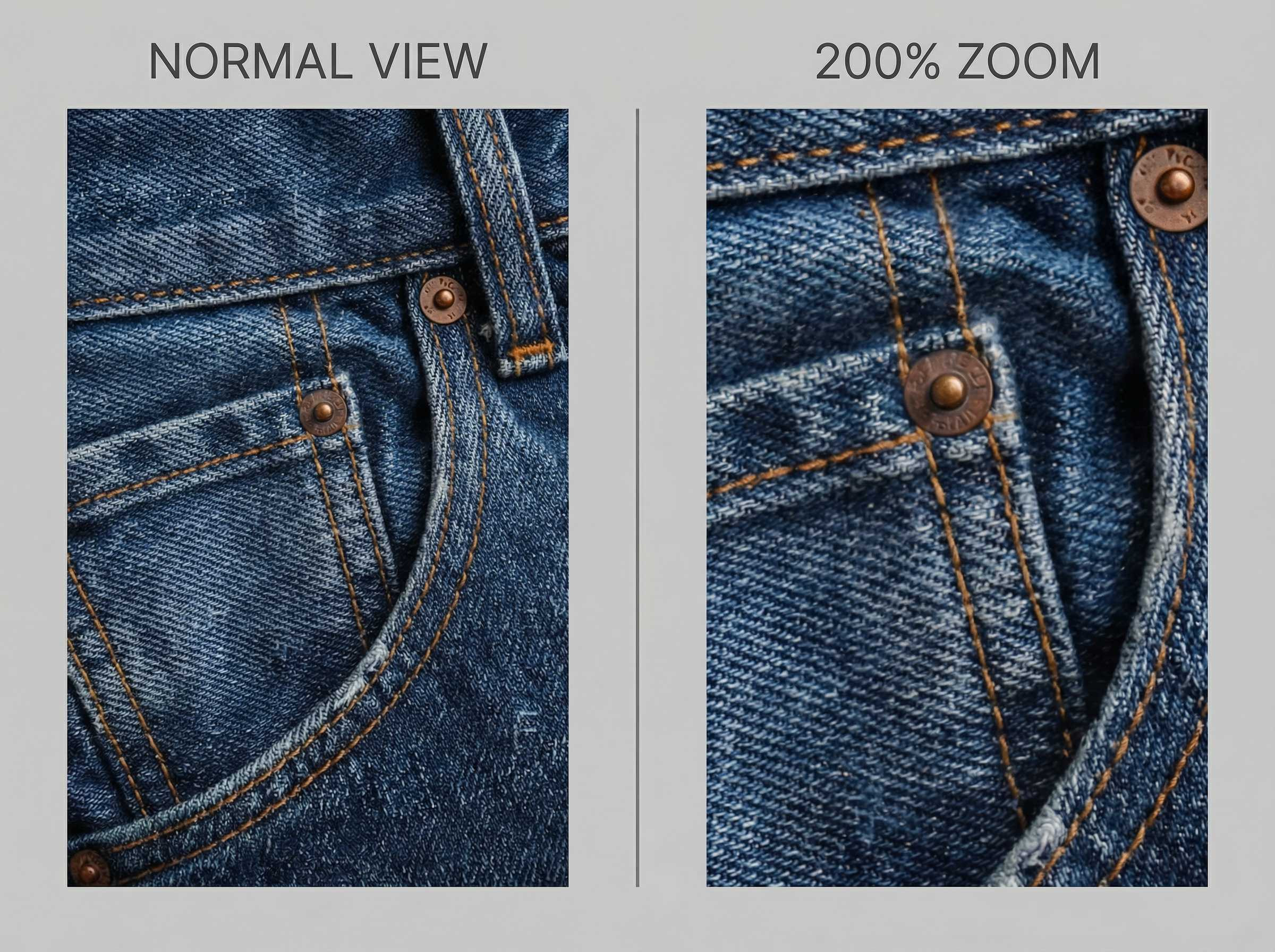
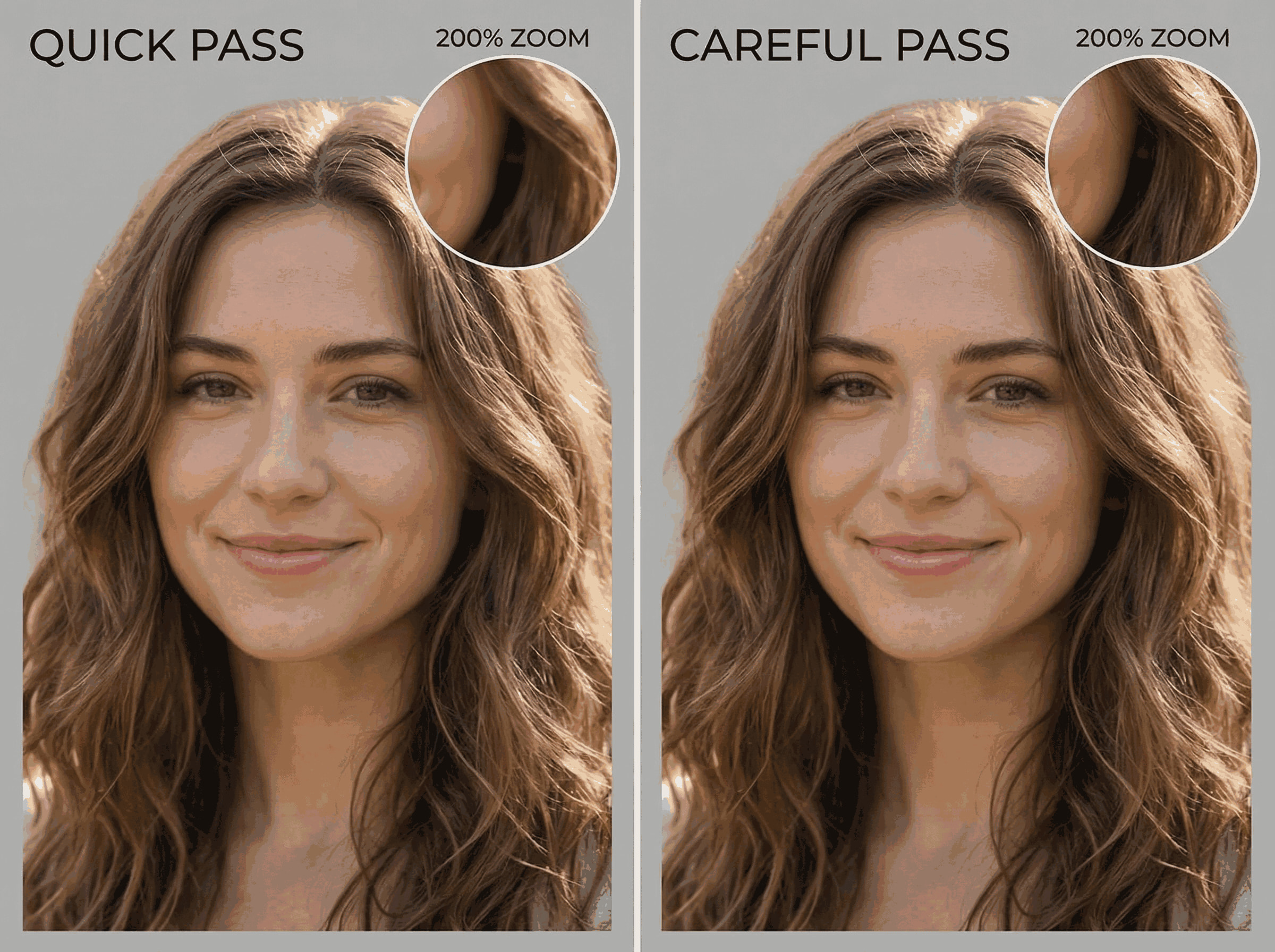
At 150–200% zoom, a different story often appears:
● blurred or overly smooth patches
● smeared textures that don’t match the surrounding areas
● faint halos or shadows where the watermark used to be
● "painted" regions that ignore lighting direction or structure
These artifacts become especially obvious on:
● hair and fur, where thin strands reveal mistakes instantly
● fabric, grass, and foliage, where repeating micro-textures matter
● skies and gradients, where banding and uneven blending stand out
● repeating patterns like tiles, bricks, fences, or waves
From a technical standpoint, this makes sense. Removing pixels is relatively easy. Rebuilding believable detail is not.
Many AI models handle this by smoothing the area until the problem is less visible. That approach works at small sizes, but it breaks down quickly under scrutiny.
Illusion #2: "It looks sharp… until you download it."
Another common trap is judging a tool by its preview.
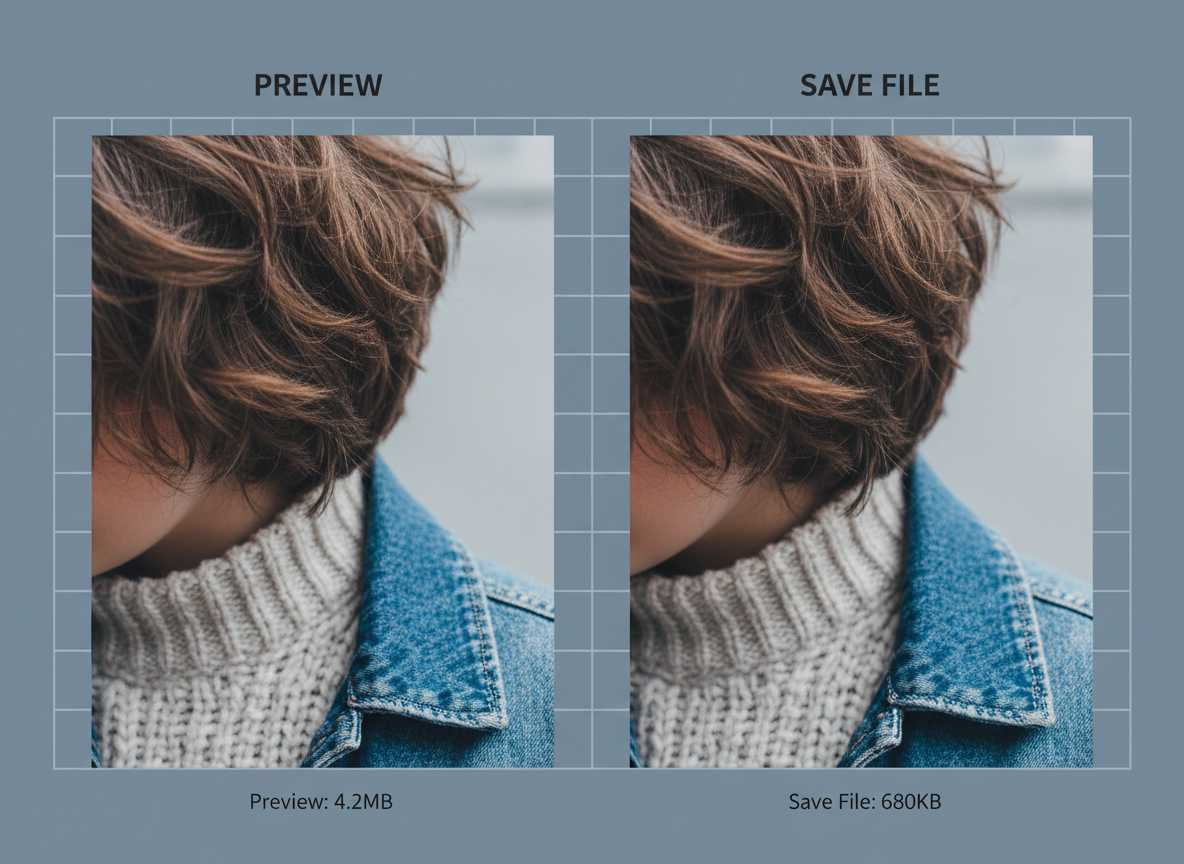
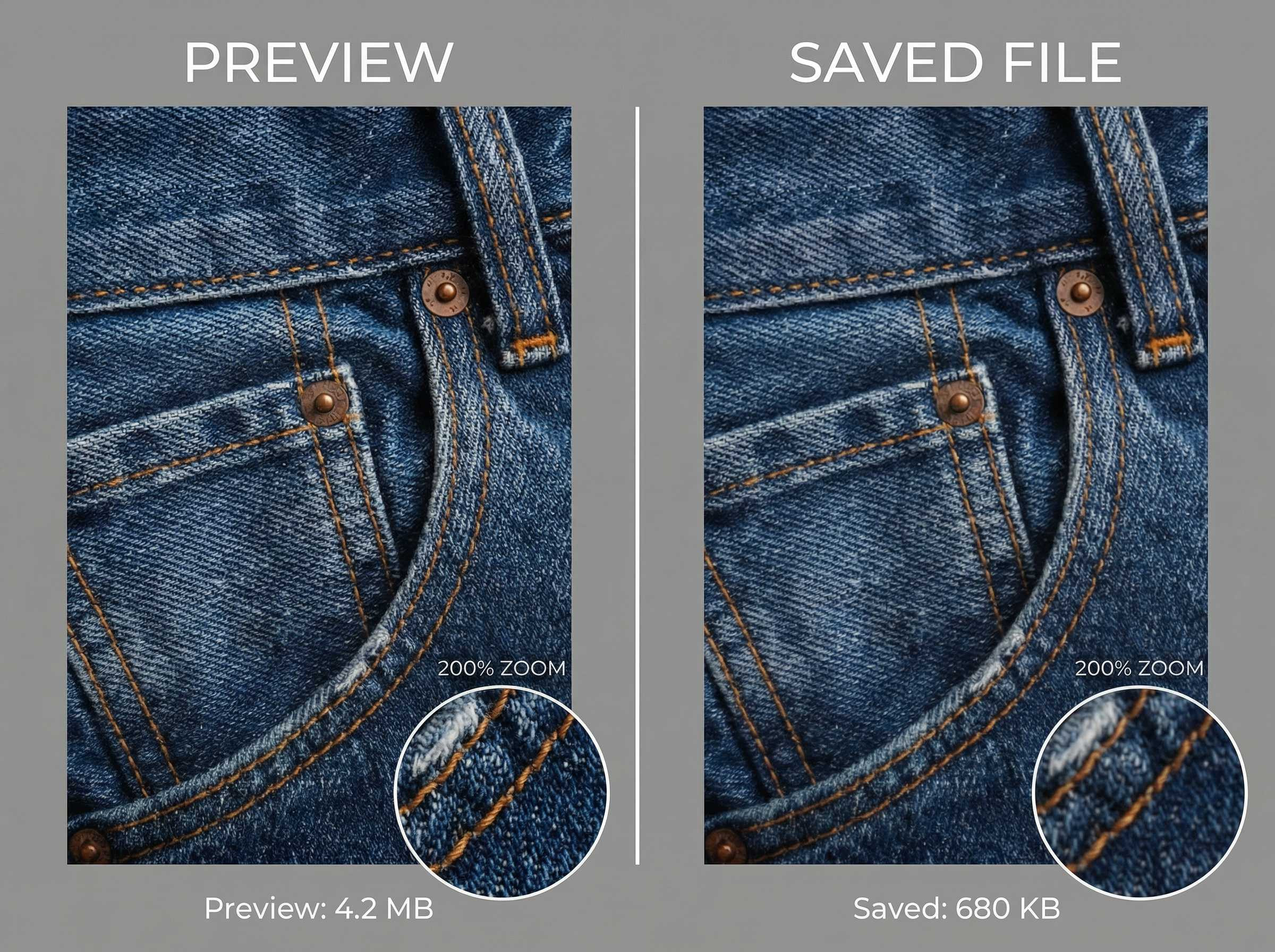
Some AI watermark removers show high-quality previews but quietly compress exported files—especially on free or trial plans. This compression reduces file size, but it also removes fine detail.
You might not notice this immediately on social media. You will notice it when you try to use the image for:
● eCommerce product listings
● ads or landing pages
● print materials
● portfolios or client work
A simple warning sign is a large drop in file size after export. While compression isn’t always bad, aggressive compression almost always softens edges and destroys texture fidelity.
The practical rule here is simple:
Never trust the preview alone. Always inspect the downloaded file, zoomed in.
Illusion #3: "One good image means the tool is reliable."
Many AI watermark removers perform well on one easy image and poorly on the next. This becomes obvious only after repeated use.
If watermark removal is something you do more than once in a while, you’ll quickly start caring about:
● how often you need to retry the same image
● whether similar images produce similar results
● how predictable the exports are
In real workflows, consistency often matters more than peak quality. A tool that produces "pretty good" results reliably can save more time than one that occasionally produces a perfect result but often fails.
Even without batch processing, stability is a hidden but critical feature.
How an AI Watermark Remover Actually Works (Without the Hype)
Most AI watermark removers, regardless of branding, follow a similar underlying process:
- Detect the watermark region (text, logo, or pattern)
- Classify it (solid, semi-transparent, transparent)
- Analyze the context around the watermark
- Inpaint the missing area using AI-generated pixels
- Export the image
The real differences between tools are not in detection. Modern models are already quite good at finding watermarks.
The differences show up in steps 3 and 4.
Some tools use conservative models that avoid inventing detail, leaving subtle imperfections behind. Others use more aggressive models that hallucinate texture to make the area look "complete." That can look impressive at first glance, but it can also introduce fake patterns that don’t belong.
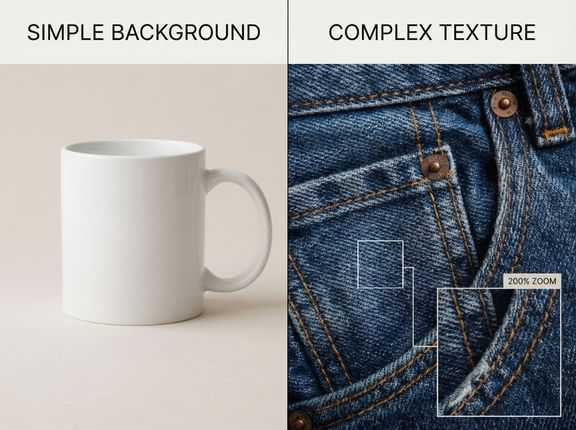
This is also why your choice of tool should match your goal. If you only need a quick, casual cleanup, you might start with a free AI watermark remover online—it’s fast, low-friction, and usually "good enough" for simple marks on clean backgrounds.
But if you care about whether the image still looks natural at 200% zoom—especially on hair, fabric, gradients, or repeating textures—then consistency matters more than flash. That’s the gap EzRemove was built to reduce: it focuses on stable reconstruction and export quality so you spend less time retrying the same image across multiple tools.
In other words, it’s not trying to "wow" you with dramatic fills—it’s trying to give you a result you can actually use.
How These 15 Tools Were Evaluated
To avoid vague opinions, every tool in this review was evaluated using the same method. You can use this exact approach yourself.
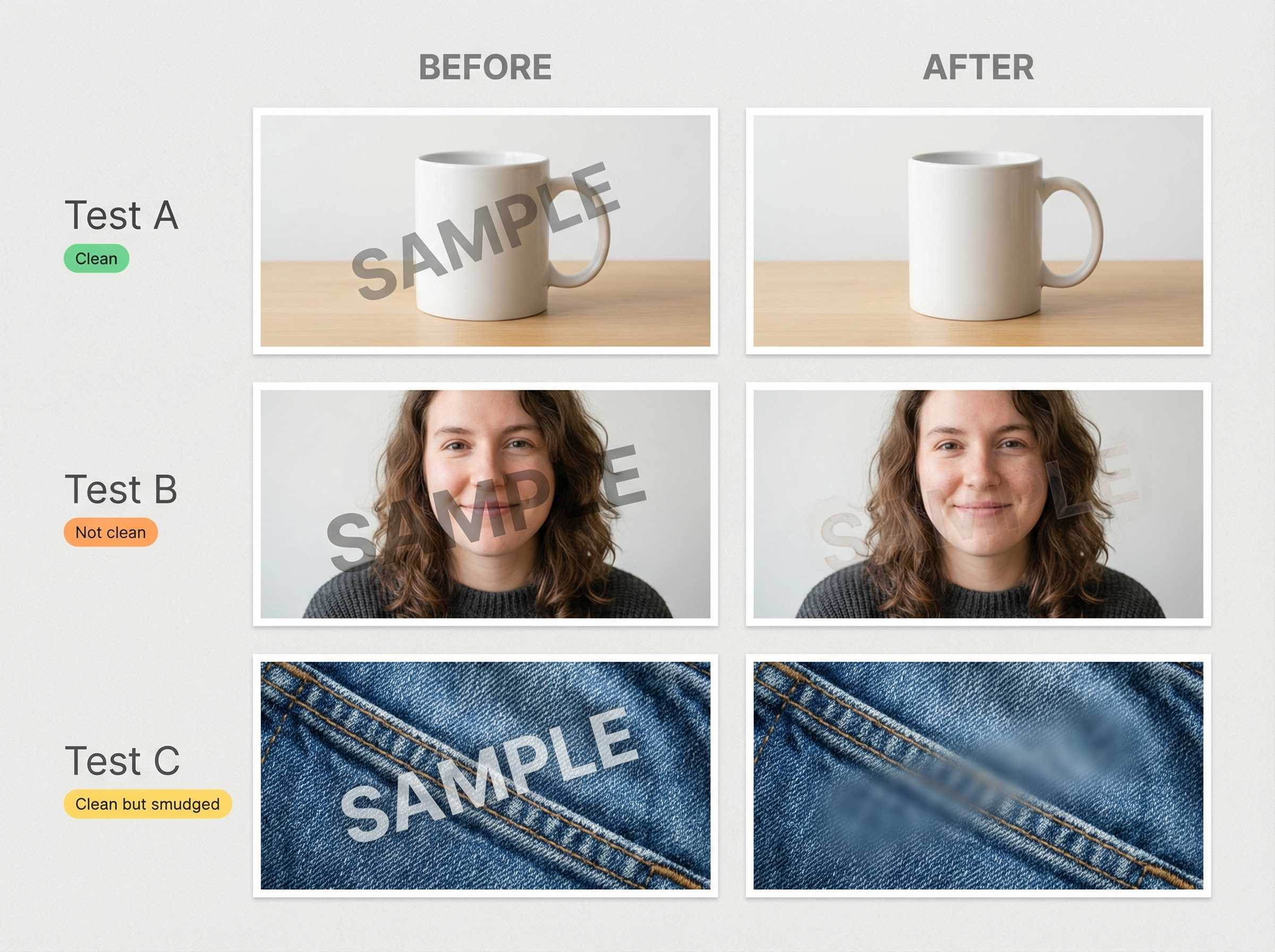
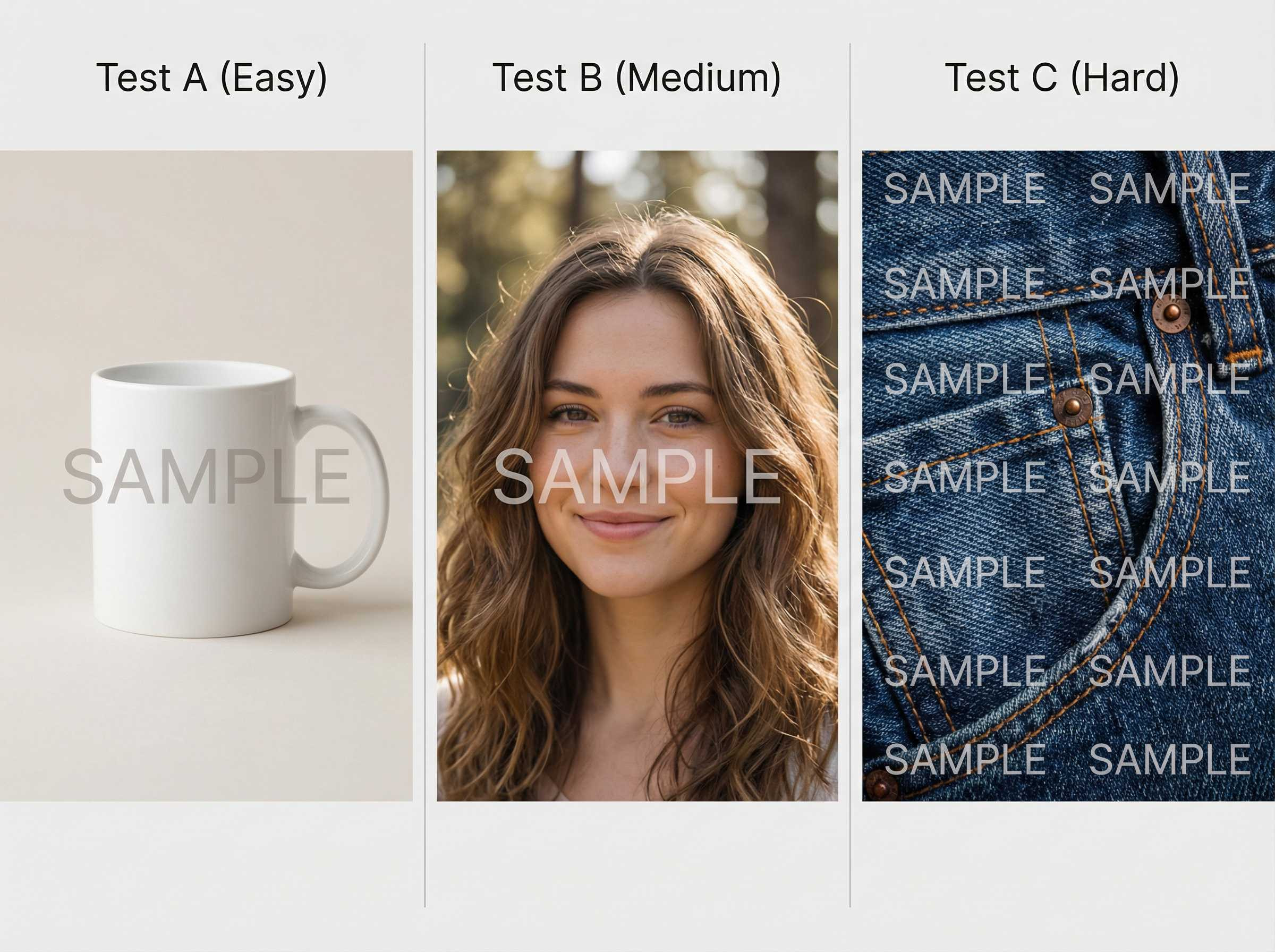
Three Test Image Types
Test A: Clean background + semi-transparent text watermarkThis checks basic detection accuracy and whether faint residues remain.
Test B: Portrait photo + watermark overlapping hair or skinThis reveals weaknesses in edge handling and texture reconstruction.
Test C: Busy background + repeated logo watermarkThis tests whether the AI understands patterns or simply blurs them away.
What Was Evaluated
● How completely the watermark was removed
● How natural the reconstructed area looked
● Whether export quality matched the preview
● How consistent were the results across images
● How much effort was required to get a usable result
Quick Index: Which Watermark Remover Should You Start With?
If you don’t want to read all 15 reviews, use this table to narrow your options based on your situation.
| Apps | Platforms | Batch Processing | Pricing | Best For | Key Trade-off | Rating (★) |
|---|---|---|---|---|---|---|
| EzRemove | Web + Mobile | Yes | Freemium / Paid | • eCommerce hero images: clean, sharp outputs you can publish fast • Portrait watermarks: overlaps on face/hair where edges and skin texture matter • Textured backgrounds: fabric/denim/walls/wood grain with fewer smudge artifacts | Built for automatic, repeatable results with strong processing power. You gain speed and consistency, but it’s not meant for pixel-level hand retouching like Photoshop in extreme edge cases. | ★★★★☆ |
| Unwatermark | Web + Mobile | Yes | Freemium / Paid | • Bulk everyday cleanup: many images processed quickly • Content production: social posts, asset prep, fast turnaround • Common watermark types: text and semi-transparent logos | Optimized for convenience and throughput. For very complex hair or texture cases, a 200% zoom check is still recommended. | ★★★★☆ |
| Pixelbin | Web | Limited / Plan-based | Freemium | • Fast one-click removal when speed matters • Simple backgrounds and corner marks • Draft or quick publishing workflows | Texture-heavy areas (hair/fabric/grass) can look slightly softened at high zoom; HD exports may depend on plan. | ★★★★☆ |
| WatermarkRemover.io | Web + Mobile | Limited | Freemium | • Best first tool for simple upload → process use • Easy watermarks on clean images • Occasional needs | Free/trial limits and export constraints appear quickly; less reliable on complex textures and overlaps. | ★★★☆☆ |
| Media.io | Web (cross-device) | Limited | Freemium | • Cross-device convenience without installs • Quick, general-purpose cleanup • Light usage scenarios | Results vary image-to-image; export and trial limits may apply. | ★★★☆☆ |
| HitPaw | Desktop + Mobile | Varies by product | Paid (trial available) | • Manual selection control when auto tools miss • Edge-sensitive overlaps (products, clothing, faces) • Users willing to refine | Quality depends heavily on selection precision; full features gated behind subscriptions. | ★★★★☆ |
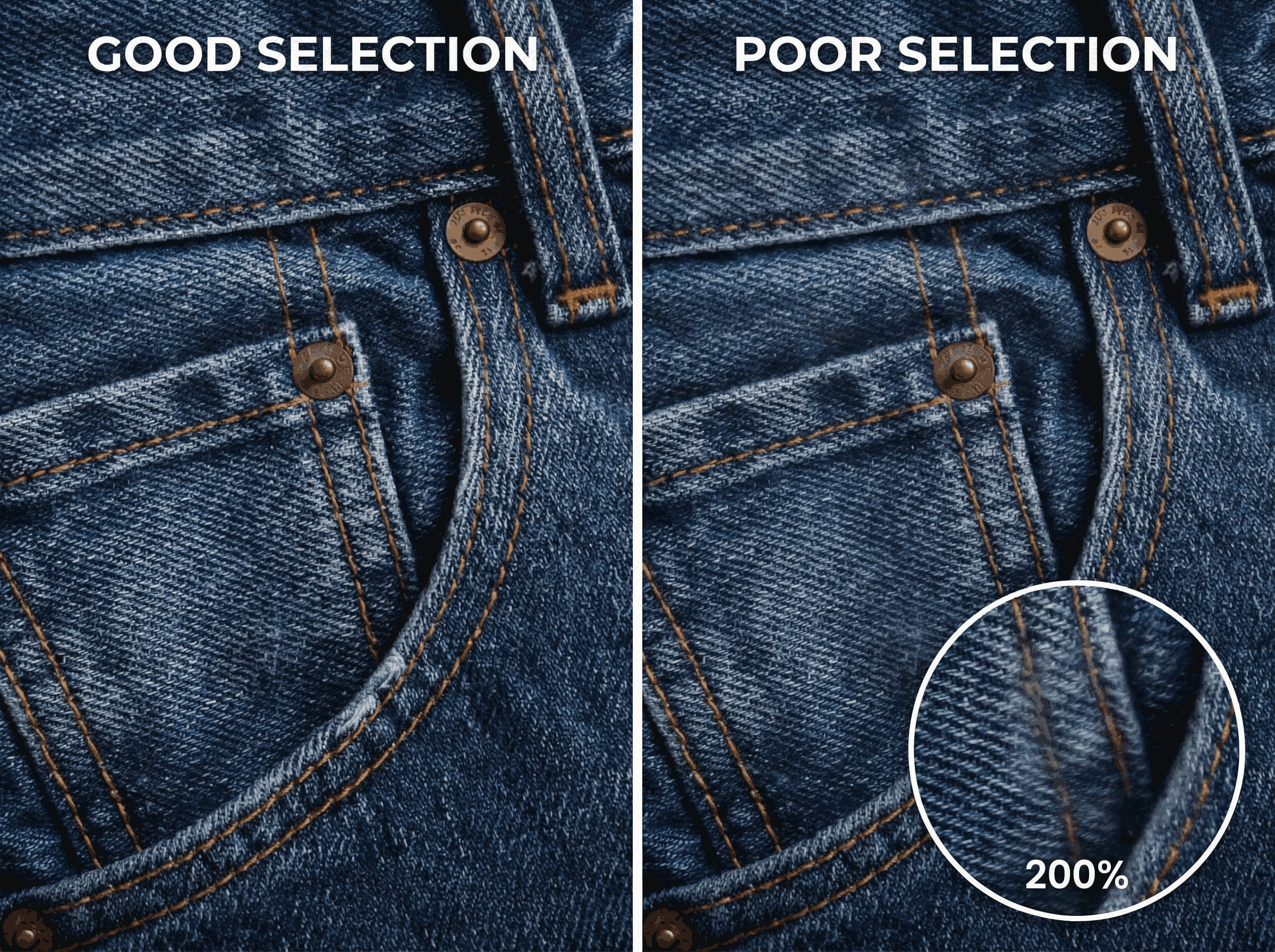
| Cleanup.pictures | Web | No (single-image flow) | Freemium | • Texture reconstruction on busy surfaces • Careful single-image edits • Users comfortable refining masks | Extremely dependent on masking accuracy; rushed selections create visible artifacts. | ★★★★☆ |
| Fotor | Web + Mobile | Limited | Freemium | • Remove + edit in one place (crop, color, polish) • Social-ready images • Simple to medium cases | Convenient bundle, but reconstruction quality lags behind dedicated tools on detailed textures. | ★★★☆☆ |
| Picsart | iOS + Android + Web | Limited | Freemium | • Mobile-first creation and publishing • Social content workflows • Quick visual cleanup | Creation-first approach smooths fine texture; not ideal for realism-critical work. | ★★★☆☆ |
| LightPDF | Web + Mobile | Limited | Freemium | • Document and PDF workflows • Flat or scanned images • Office-style cleanup | Strong for documents, weaker for photographic realism and complex textures. | ★★★☆☆ |
| Adobe Photoshop | Desktop | Yes (actions/scripts) | Paid | • Critical commercial images • Hardest watermark cases (hair, fabric, layered marks) • Maximum creative control | Highest time, skill, and cost investment; overkill for quick, usable results. | ★★★★☆ |
How to use this table:
● If speed matters most, start at the top.
● If texture realism matters most, look at inpainting tools.
● If you hate retrying the same image, prioritize stability-focused tools.
You can then scroll down to the detailed reviews to understand what you’ll gain—and what you’ll trade off.
Group 1: One-Click Watermark Removers (Fast, Low Effort)
These tools are built around a simple promise: upload your image, click once, and get a result without thinking too much. When that promise matches your situation, they’re incredibly efficient. When it doesn’t, they can become frustrating very quickly.
1.EzRemove — When You’re Tired of Retrying the Same Image
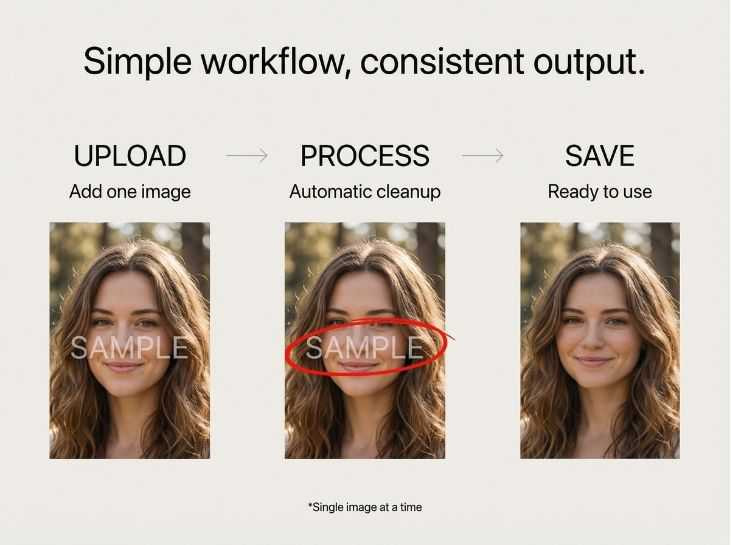
EzRemove fits into Group 1, but it behaves differently from most one-click tools.
Instead of trying to impress you with aggressive reconstruction, EzRemove focuses on predictable, repeatable results. The goal isn’t to produce the most dramatic before/after image—it’s to give you a result that you can actually use without second-guessing.
In real terms, that means:
● Fewer retries on similar images
● Fewer surprises between preview and export
● More consistent behavior across common watermark scenarios
EzRemove deliberately avoids exposing dozens of controls. It also does not support batch processing, which is an important limitation to be aware of. That trade-off exists to keep the behavior stable rather than highly variable.
If you regularly remove watermarks and hate bouncing between tools "just to see if another one does better," EzRemove often feels calmer to use.
2.WatermarkRemover.io — The Easiest Place to Start (and to Outgrow)
If you’ve never used an AI watermark remover before, WatermarkRemover.io feels friendly immediately. The interface is minimal, the workflow is obvious, and you don’t feel overwhelmed.
The preview often looks impressive, especially on straightforward images. This makes it easy to trust the tool early on.
The problem is longevity. As soon as you start removing watermarks more frequently, or from more complex images, you’ll notice limitations: restricted exports, reduced resolution, and inconsistent results on textured areas.
WatermarkRemover.io is a good entry point, but rarely a long-term solution.
3.Media.io — Convenient Across Devices, Not Always Predictable
Media.io is appealing if you move between devices. Whether you’re on desktop, tablet, or phone, the browser-based workflow stays consistent.
On simple images, results are comparable to other one-click tools. On more complex backgrounds, results vary. Some images come out clean; others need multiple attempts or simply never reach a satisfying level.
Media.io works well as a general-purpose option, especially if convenience matters more than absolute quality. If consistency is critical, you may find yourself looking elsewhere.
4.Unwatermark — Built for Volume, Not Perfection
Unwatermark is designed for speed and throughput rather than fine-grained control. Its biggest strength lies in handling a large number of images quickly with minimal user input.
The workflow is straightforward: upload your images, let the AI process them automatically, and download the results. For common watermark types—such as text overlays, corner logos, and semi-transparent marks—Unwatermark performs reliably and saves a significant amount of time.
Where Unwatermark shows its limits is in highly detailed scenarios. On images with complex textures, overlapping hair, or subtle gradients, the AI may prioritize speed over perfect texture reconstruction. At normal viewing sizes, this is often acceptable. At higher zoom levels, small inconsistencies can become noticeable.
If you regularly process many images and value efficiency over pixel-level precision, Unwatermark is a practical choice. If you need consistently refined results on difficult areas, you may want to pair it with a more stability-focused or manual tool.

5.LightPDF — Logical If You’re Already Working With Documents
LightPDF makes sense in document-heavy workflows. If you’re already dealing with PDFs, scans, or simple image assets, its watermark removal features feel like a natural extension.
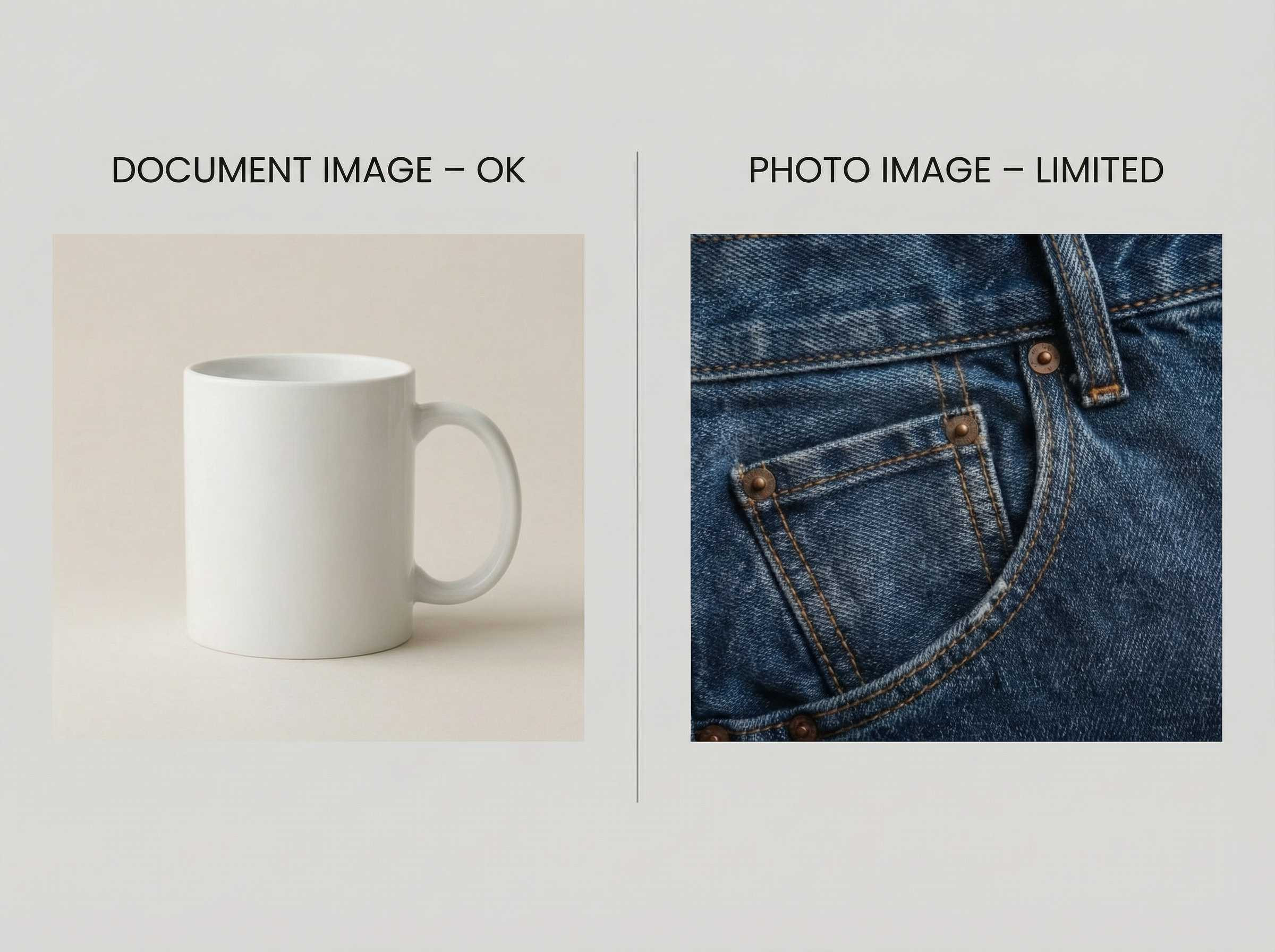
For photographic images with detail, LightPDF isn’t designed to compete with dedicated AI image tools. Reconstruction quality is limited, and complex textures rarely look convincing.
Use LightPDF when convenience matters more than visual fidelity.
6.Pixelbin — When Speed Matters More Than Control
Pixelbin is the kind of tool you reach for when you don’t want to make decisions.
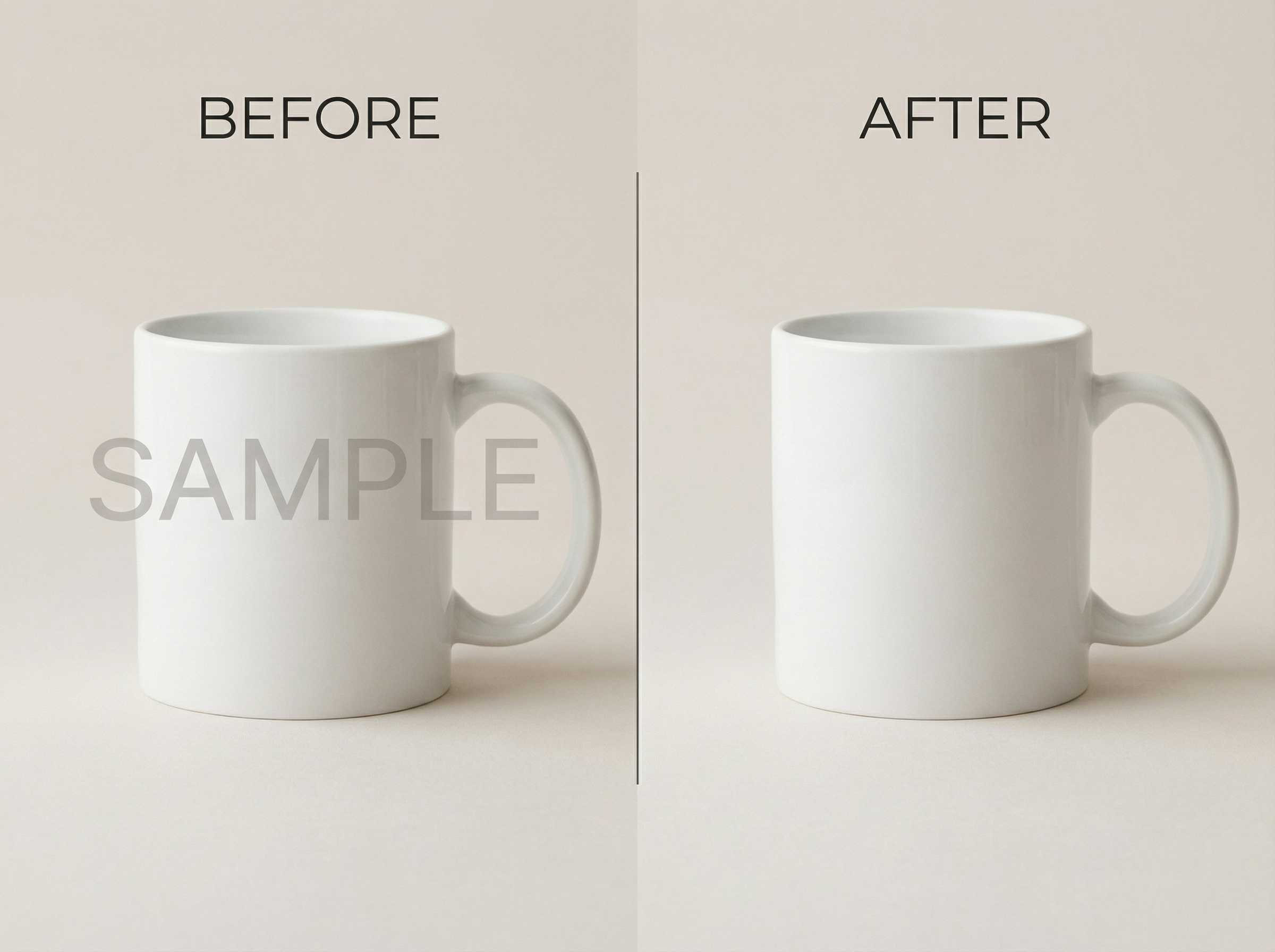
You upload an image, the AI detects the watermark automatically, and the result appears almost instantly. On clean backgrounds or simple text watermarks placed in corners, the output is usually good enough on the first try.
Where Pixelbin starts to struggle is exactly where you’d expect: texture-heavy areas. Hair, fabric, grass, or repeating patterns often come back slightly softened. At normal viewing size, that’s easy to miss. At higher resolution, it becomes obvious.
If you’re working on quick social content, internal presentations, or drafts, Pixelbin can save you time. If you’re preparing images for eCommerce, print, or reuse across campaigns, you’ll likely notice its limits.
Group 2: Object Removal & Inpainting Tools (More Control, More Effort)
These tools ask more from you, but they can deliver cleaner results on difficult images—if you’re willing to guide them.
1.HitPaw — When You’re Willing to Trade Time for Control
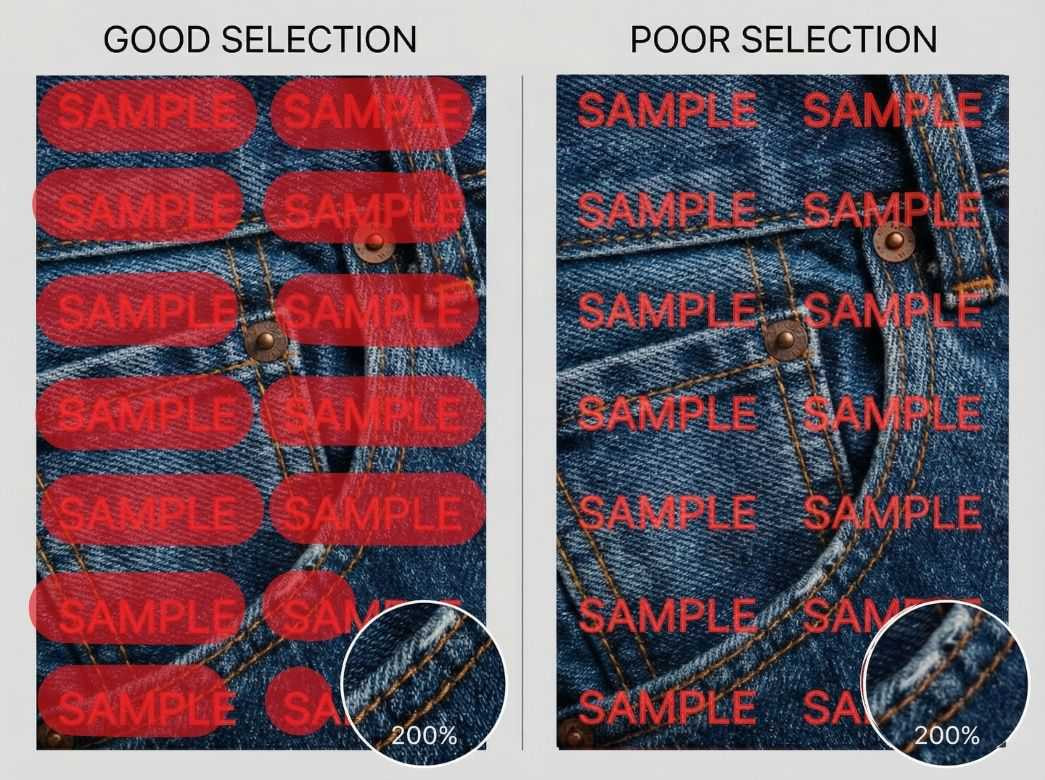
HitPaw gives you manual selection tools, which can be a major advantage when the AI misidentifies the watermark area.
If the watermark overlaps a subject—especially faces, clothing, or product edges—being able to guide the selection improves results. The downside is that precision matters. Poor selection leads directly to poor output.
HitPaw rewards patience. If you want quick, thoughtless edits, it’s not ideal. If you’re okay spending a bit of time to get cleaner edges, it can be effective.
2.DeWatermark.ai — Automatic First, Manual If Needed
DeWatermark.ai sits comfortably between one-click tools and full manual editors.
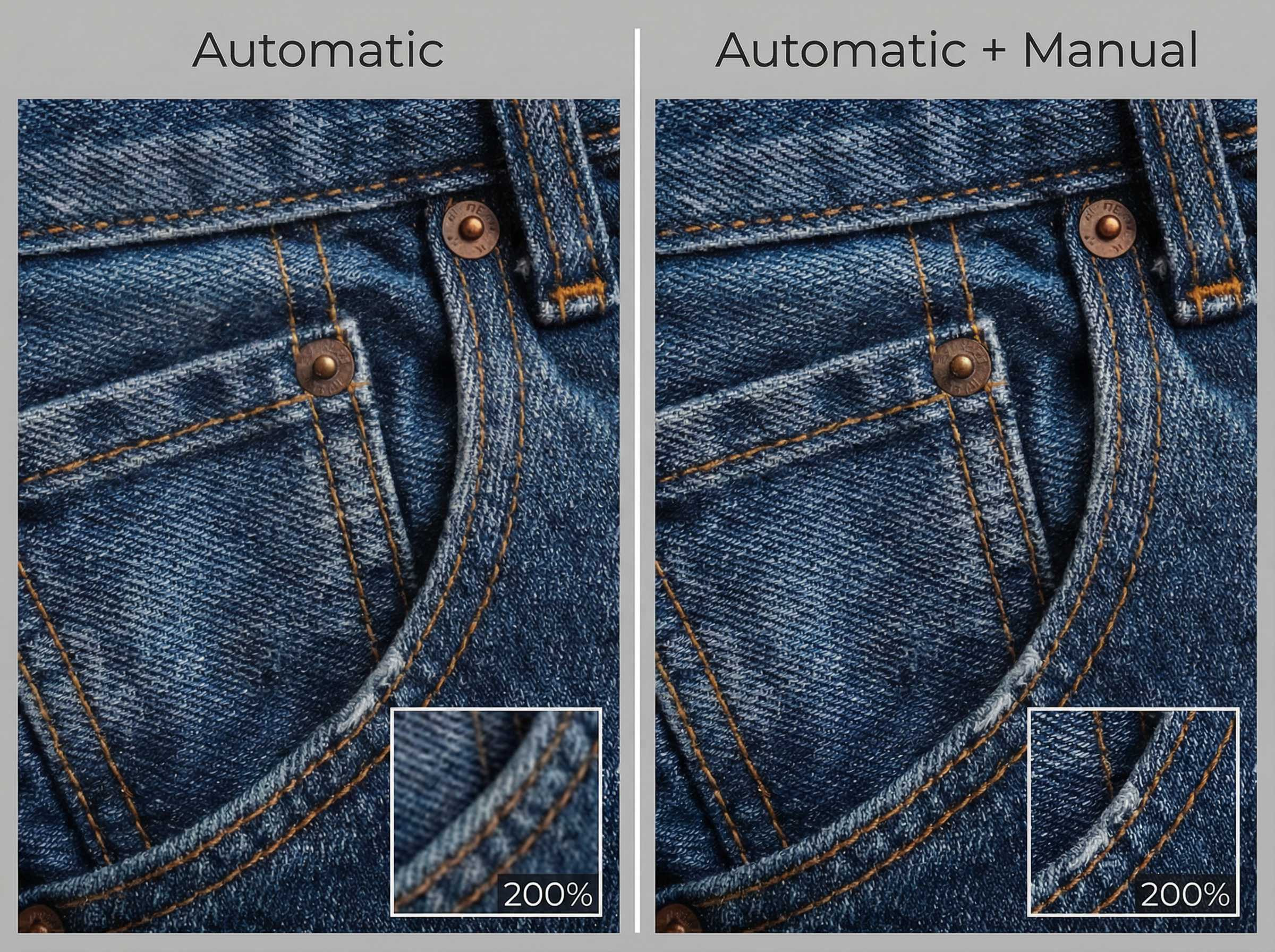
In many cases, the automatic result is good enough. When it’s not, you can step in and refine the area manually. This makes it especially useful for semi-transparent watermarks that confuse fully automatic tools.
Free usage is limited, so it’s best used thoughtfully rather than experimentally.
3.Cleanup.pictures — Excellent Inpainting, If You’re Precise
Cleanup.pictures has earned a reputation for strong inpainting, especially on busy backgrounds. When used carefully, it can reconstruct grass, walls, and textured surfaces better than many automatic tools.
The keyword here is carefully.
Cleanup.pictures responds directly to how well you select the area. A clean, accurate selection often leads to impressive results. A rushed or sloppy selection leads to obvious artifacts, warped textures, or unnatural blending.
This tool rewards patience and penalizes haste. It’s not ideal if you’re processing many images quickly or if you expect the AI to "figure it out" on its own.
Use Cleanup.pictures when:
● The watermark overlaps complex textures
● You’re willing to zoom in and refine selections
● You need better texture reconstruction than one-click tools offer
Avoid it when:
● You’re short on time
● You want predictable, low-effort results
4.SnapEdit — Fast Object Removal With Predictable Limits
SnapEdit focuses on speed and simplicity within the object-removal category. The interface is friendly, and you can remove unwanted elements quickly.
However, SnapEdit tends to rely on smoothing rather than true reconstruction. On detailed textures, this often results in "washed" areas that look fine at first glance but feel artificial on closer inspection.
SnapEdit works best as a quick cleanup tool, not as a restoration tool.
Use SnapEdit when:
● You want a fast fix
● The background doesn’t need perfect texture continuity
Avoid it when:
● Realism matters
● The image will be reused professionally
Aiseesoft Watermark Remover — Lightweight and Situational
Aiseesoft’s watermark remover is best described as functional but limited.
It works reasonably well on simple watermarks and clean backgrounds. On complex images, results are inconsistent. The AI often removes the watermark but leaves subtle texture damage behind.
This makes Aiseesoft suitable for one-off tasks, not ongoing workflows.
Use it when:
● You need a quick, occasional removal
● Expectations are modest
Avoid it when:
● You need consistent quality
● You’re dealing with complex textures
Group 3: Full Editing Platforms (Maximum Control, Maximum Effort)
These tools were not built specifically for watermark removal. Instead, they offer it as part of a much broader editing ecosystem.
That can be a strength—or a burden.
1.Fotor — When Watermark Removal Is Only One Step
Fotor makes sense if watermark removal is part of a larger editing process. If you’re already cropping, adjusting colors, or preparing content for social media, removing a watermark inside the same tool is convenient.
As a pure watermark remover, Fotor is competent but not exceptional. Reconstruction quality is acceptable on simple cases but struggles with detailed textures.
Use Fotor when:
● You’re already editing the image anyway
● Removal is not the primary task
Avoid it when:
● You need strong reconstruction
● Watermark removal is your main goal

2.Pixlr — Flexibility Comes With Decisions
Pixlr offers more control than most online editors. With that control comes complexity.
If you’re comfortable making editing decisions—choosing tools, adjusting parameters, and refining results—Pixlr can outperform simpler tools. If you’re not, it can feel overwhelming.
Pixlr shines when you want control without committing to Photoshop.
Use Pixlr when:
● You want flexibility
● You’re willing to learn the interface
Avoid it when:
● You want one-click simplicity
3.Picsart — Creation First, Restoration Second
Picsart is designed for creation, not restoration. Its cleanup tools are useful, but they’re secondary to filters, stickers, and creative effects.
If your goal is to remove a watermark cleanly and move on, Picsart can work—especially on mobile. If your goal is to preserve fine texture and realism, it’s not ideal.
Use Picsart when:
● You’re working primarily on mobile
● You’re creating social content
Avoid it when:
● Realism and texture accuracy matter

4.Adobe Photoshop — When You Truly Need Perfection
Adobe Photoshop remains the highest ceiling for watermark removal.
Tools like Content-Aware Fill and Generative Fill allow you to control nearly every aspect of the process. With enough skill and time, you can achieve results that no fully automatic tool can match.
The cost is high:
● Time
● Learning curve
● Subscription fees
Photoshop is not overkill if you genuinely need perfection. It is overkill if you just want a usable image quickly.
Use Photoshop when:
● The image is critical
● The watermark overlaps complex subjects
● You need full creative control
Avoid it when:
● Speed matters
● The result doesn’t need to be flawless
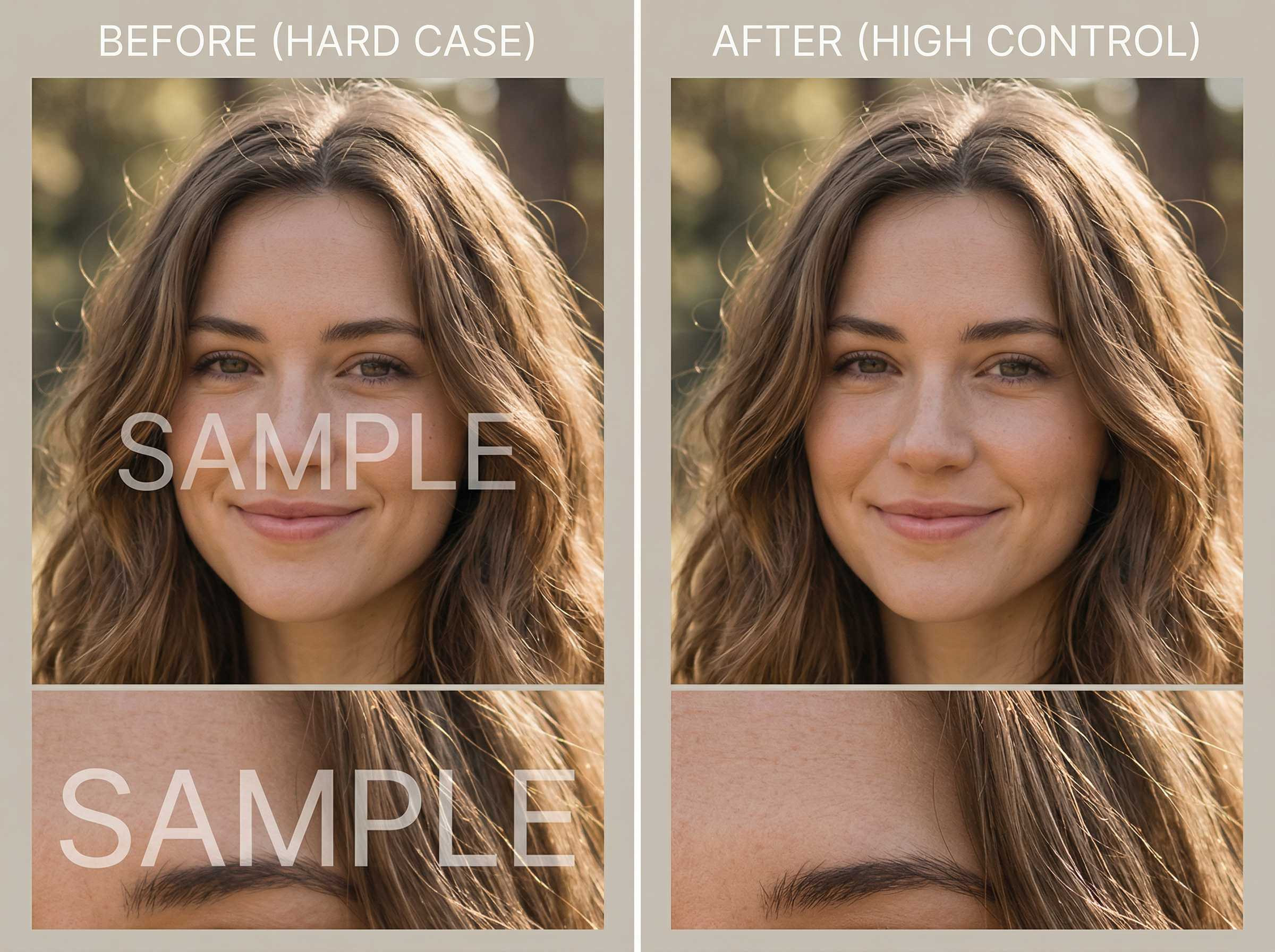
Why EzRemove Was Built Differently
At this point, a pattern should be clear.
Most AI watermark removers optimize for one of two things:
● first-impression quality
● maximum control
EzRemove was built around a different priority: predictability.
Instead of chasing dramatic reconstructions, EzRemove focuses on producing results that behave consistently across images. That means fewer retries, fewer surprises, and less time second-guessing whether another tool might do better.
This design choice explains both what EzRemove does well—and what it intentionally does not do.
● It does not try to replace professional editors.
● It does not expose dozens of controls.
● It supports online image editing.
Those omissions are trade-offs, not oversights.
By narrowing its scope, EzRemove prioritizes stability over experimentation. For many real-world workflows, that stability quietly saves more time than any advanced feature.
When NOT to Use EzRemove
Being clear about limits matters.
You should not use EzRemove if:
● You want pixel-level manual control
● You’re running complex, multi-step editing pipelines
● You enjoy fine-tuning every detail
EzRemove is designed for people who value confidence in the outcome, not creative exploration.
Common Failure Patterns to Watch For
No matter which tool you choose, be aware of these common pitfalls:
● Judging results without zooming in
● Trusting previews more than exports
● Using the wrong category of tool for the job
● Expecting AI to perfectly reconstruct heavily obscured textures
● Forgetting how the image will actually be used
Avoiding these mistakes often matters more than choosing the "best" tool.
Final Takeaway
There is no universally perfect AI watermark remover.
The best tool is the one that matches:
● How often do you remove watermarks
● How much effort are you willing to invest
● in how critical the final image quality is
For some tasks, speed wins.
For others, control wins.
And in many everyday workflows, consistency wins.
Choose accordingly—and you’ll spend less time fixing AI’s mistakes and more time actually using your images.