AI Image Upscaler to Increase Image Resolution Online
Upscale images to a higher resolution with AI while keeping the original look intact. Increase image resolution for larger, high-resolution output, from everyday photos to 2K, 4K, 8K, or 16K images.
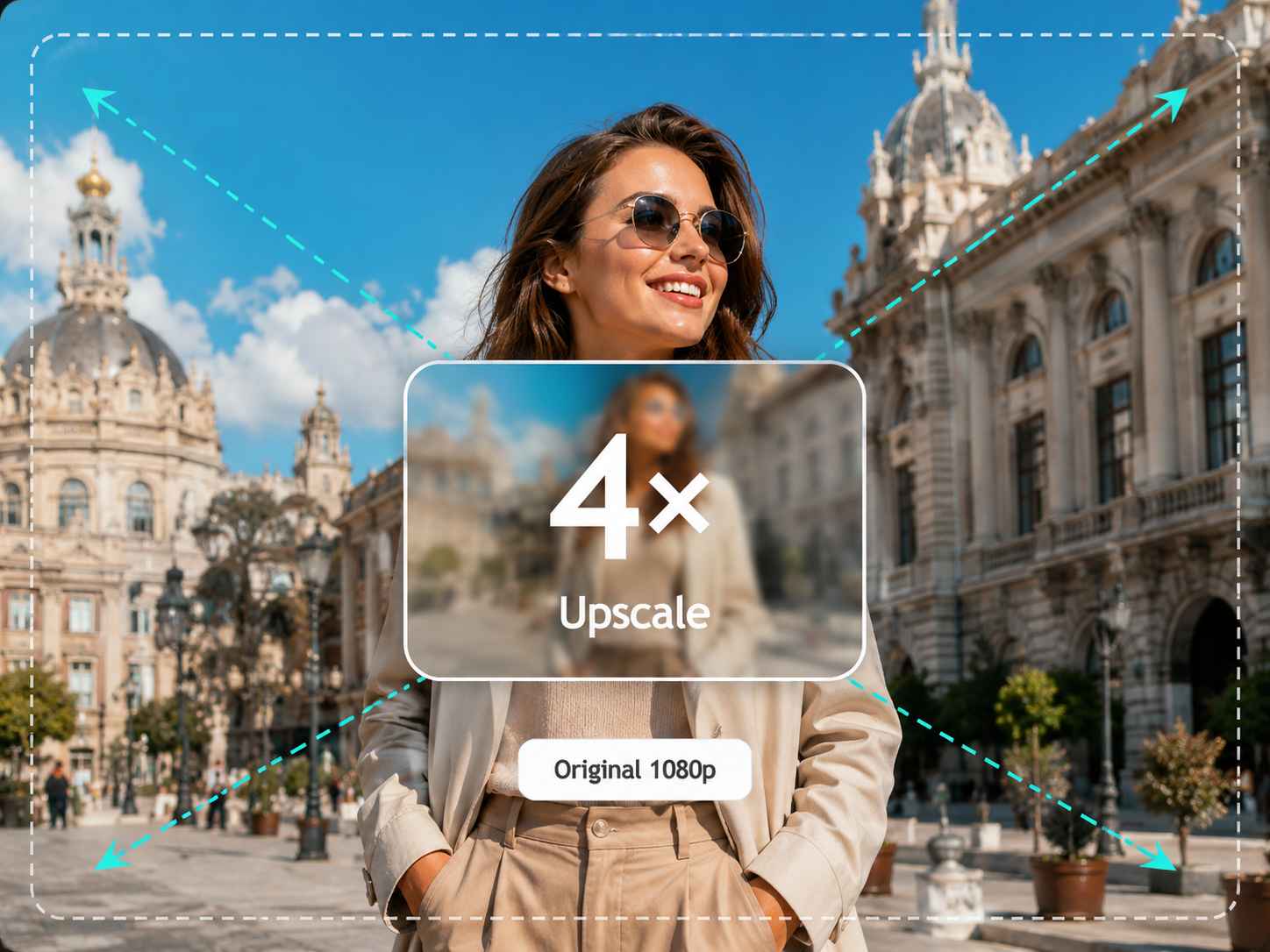
AI Image Upscaler – Upscale Image Resolution with One Click
Small or low-resolution images can quickly become a problem when you need a larger version for a website, product page, presentation, or print. With the AI image upscaler, you can increase image resolution by 2x, 4x, or higher without simply stretching the original pixels. Turn a small photo into a larger, high-resolution image that is easier to use across screens, layouts, and printed materials.
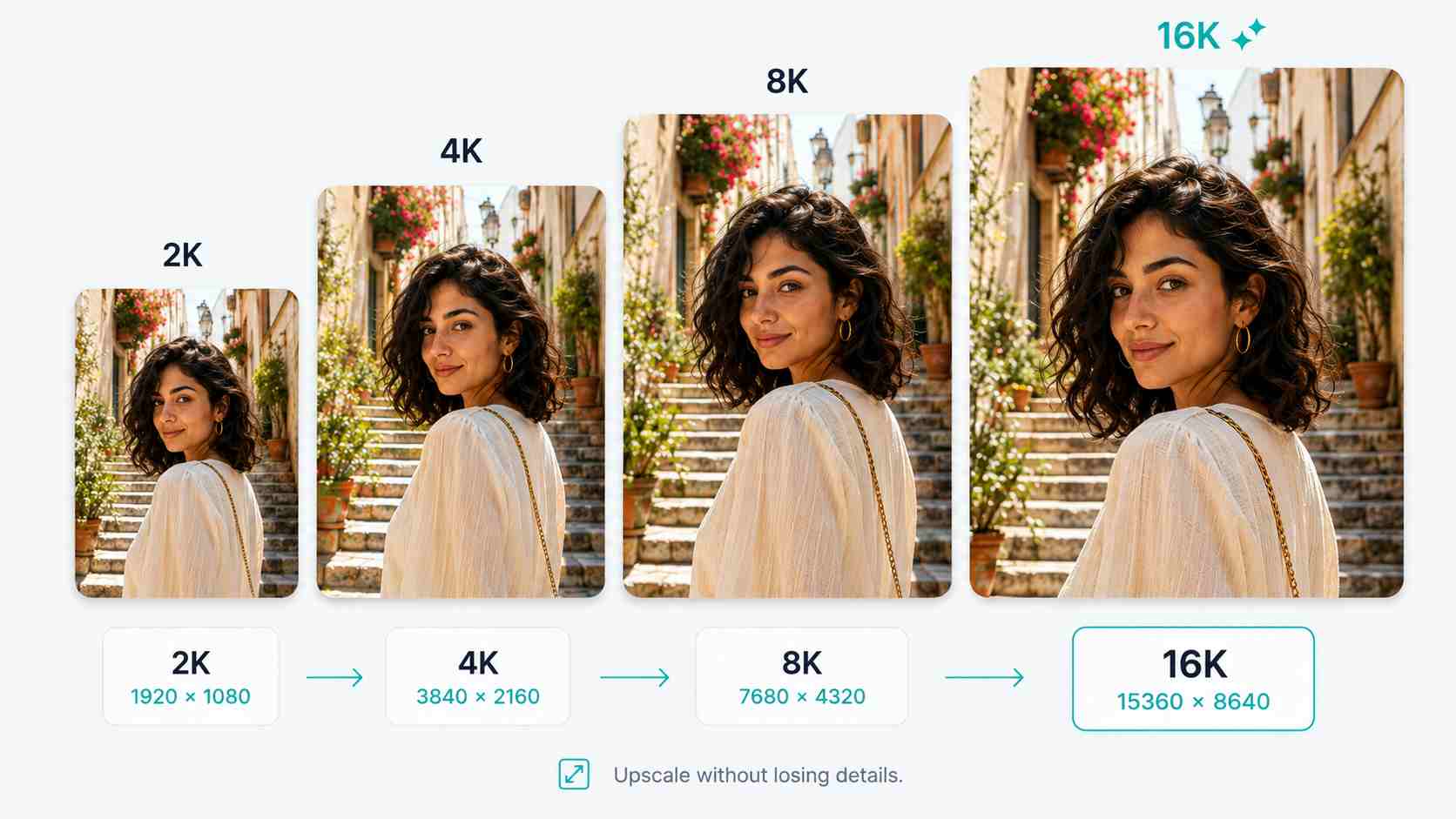
Maintain Image Quality When You Upscale an Image
Simply stretching a small image can make pixels, rough edges, and other imperfections more noticeable. EzRemove helps increase image resolution while keeping the original look as consistent as possible, so the enlarged version still feels natural. Whether you need a bigger photo for a website, screen, or print, you can upscale the image without turning it into an obviously stretched version of the original.
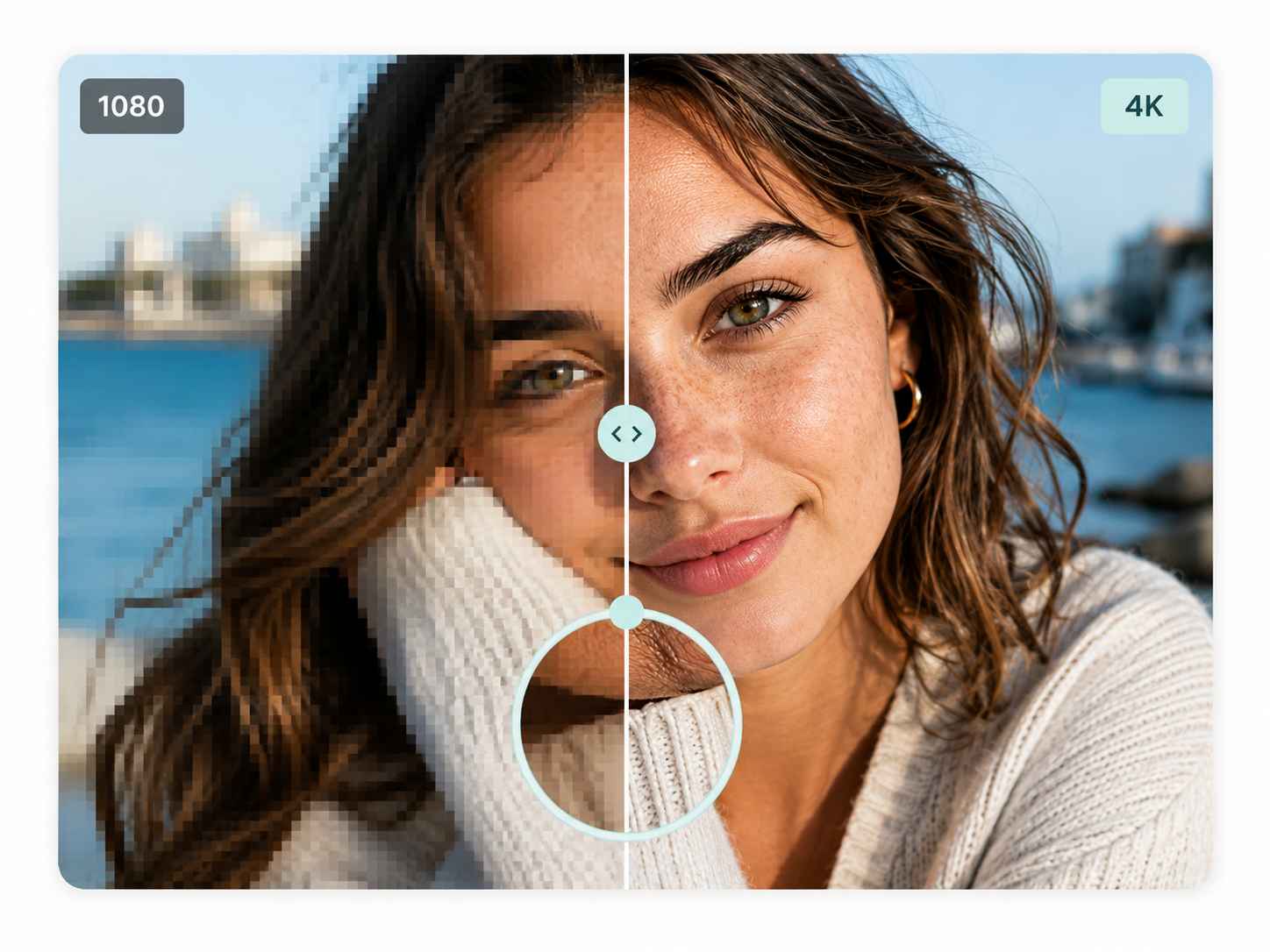
Enlarge Small Images for High-Resolution Output
A photo may look fine at its original size but feel too small once you place it on a large screen, website banner, product page, or print layout. EzRemove lets you upscale the image to a larger resolution, giving you more room to use the same visual across different formats without relying on basic manual resizing. If distractions in the original image need to be cleaned up first, you can also remove unwanted objects from photos before upscaling. It is a simple way to turn a small source image into a higher-resolution version for larger displays and layouts.
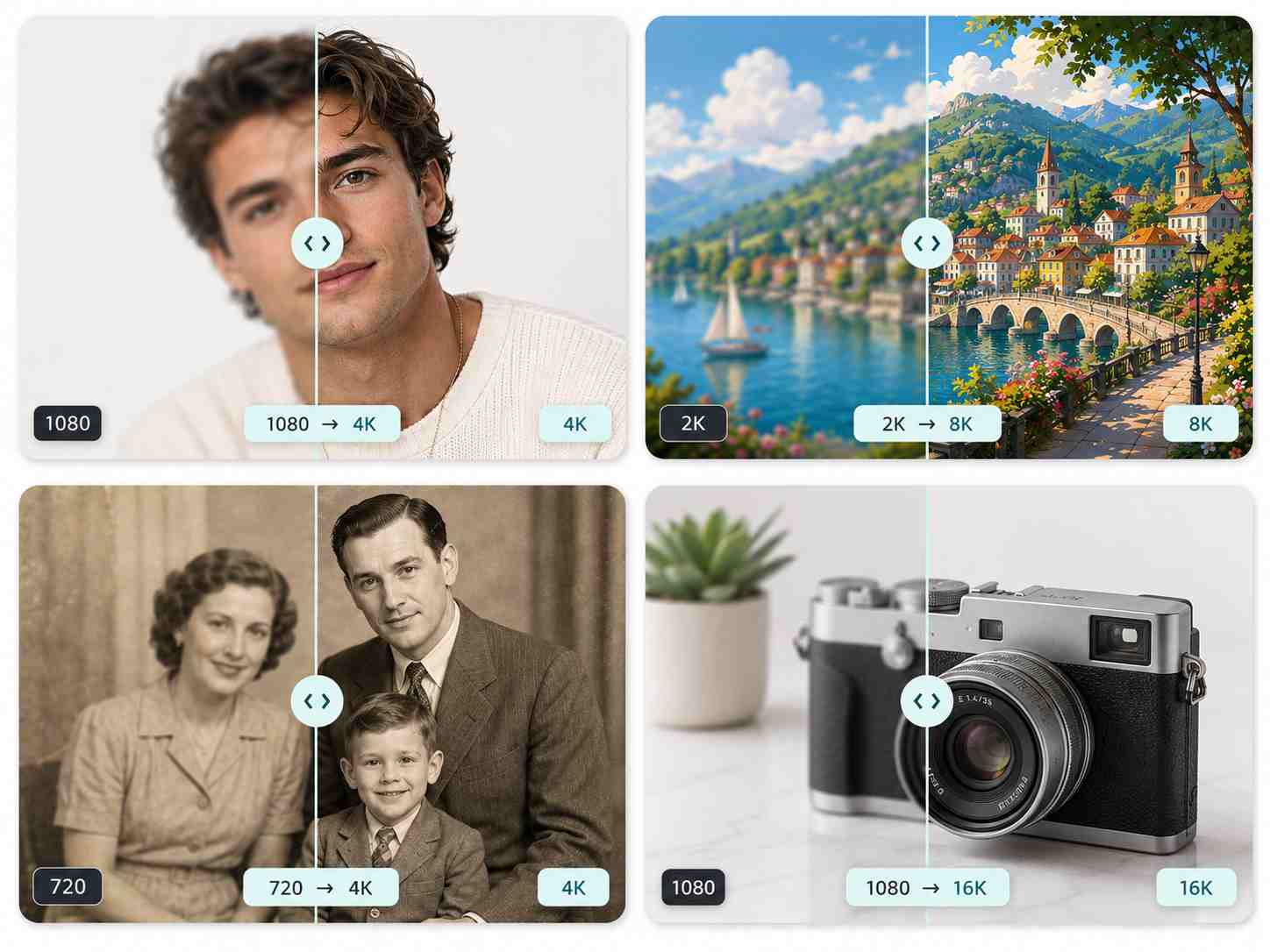
Flexible File Support with the Image Upscaler
Images do not always come in the same format. You may have a JPG from your phone, a PNG graphic, or a WEBP image saved from the web. EzRemove supports common image formats, so you can upload your file directly and increase image resolution without converting it first. Simply add your image, choose the output you need, and upscale the picture to a larger resolution.
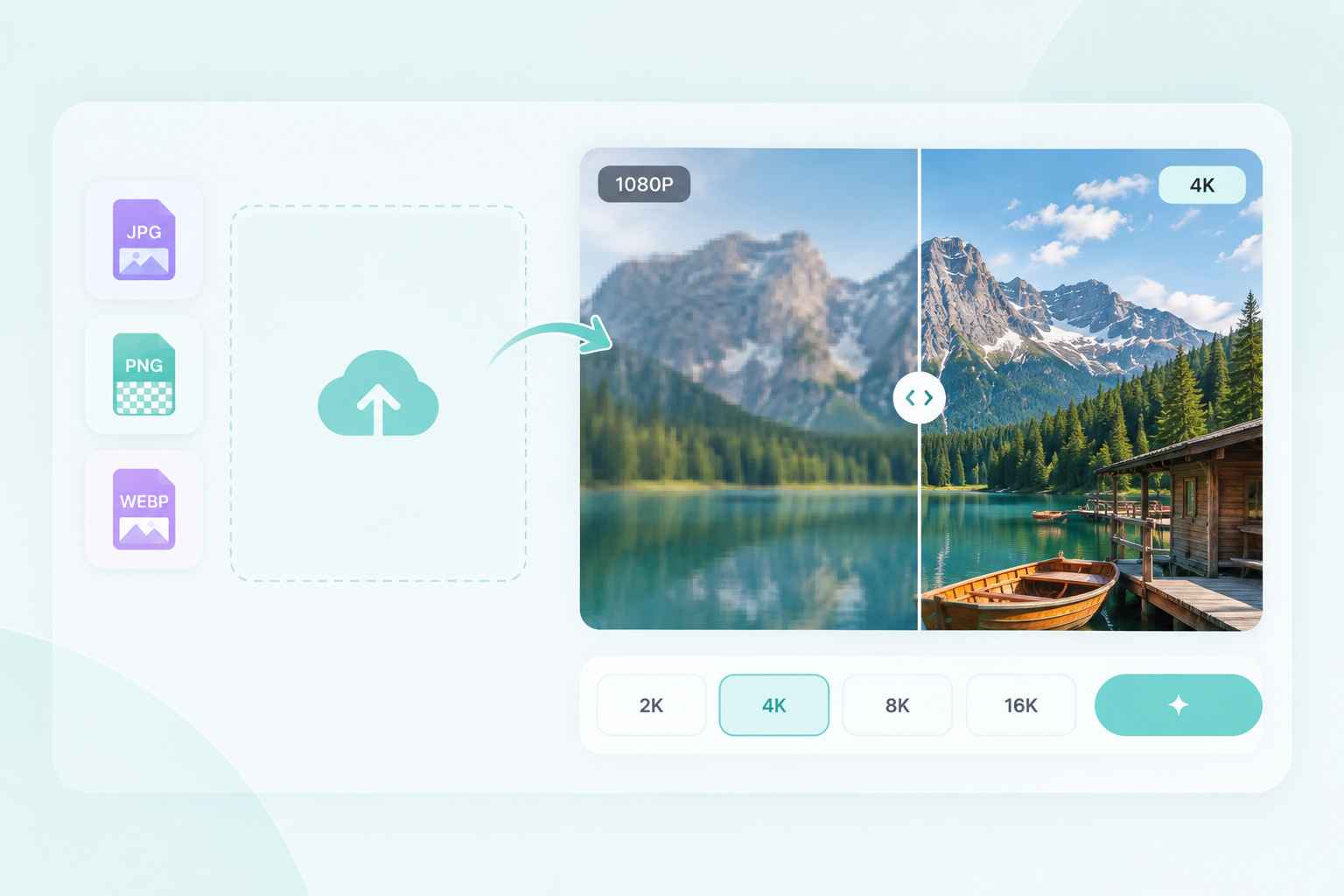
4K Image Upscaler Upscale Images to 4K Quality
When you need sharp visuals for large screens, print, or high-resolution previews, basic resizing often looks soft and pixelated. This 4K Image Upscaler uses our AI Image Upscaler to rebuild cleaner edges and finer textures, reduce compression blur, and improve clarity without an over-sharpened look. It is ideal for product images, posters, slide decks, YouTube thumbnails, and ads where crisp detail matters.


How to Use the EzRemove AI Image Upscaler
-
1
Upload Your Image
Start by visiting the AI image upscaler page and uploading your image directly from your computer, phone, or cloud storage. Our image upscaler supports various formats, including JPG, PNG, and WEBP.
-
2
AI Processing to Upscale Image Resolution
Once your image is uploaded, EzRemove processes it automatically and increases the resolution to your selected output size. There is no need to resize pixels manually. Just choose how large you want the image to be, and the AI upscaler creates a larger, higher-resolution version for you.
-
3
Download Your Upscaled Image
Once the AI has completed the processing, preview your upscaled image. If satisfied, simply download the enhanced image in your preferred format, ready to use for web, print, or other design projects.

AI Image Upscaler: Real-World Use Cases for Stunning Visuals
E-commerce Product Photos with Image Upscaler Clarity
Supplier images and product photos are often too small for modern storefronts, especially when shoppers zoom in or view them on high-resolution screens. Use EzRemove to increase image resolution and create a larger version for product pages, marketplaces, catalogs, and promotional layouts. If the product photo also needs a cleaner backdrop, you can remove the image background before preparing it for your storefront. This makes it easier to reuse the same product image across different placements without relying on a low-resolution source.

Social Media and Ads Powered by AI Upscale
You can upscale smaller visuals for social posts, thumbnails, ad creatives, and covers when the original image does not have enough resolution for a larger layout. Use the AI image upscaler to increase image resolution and prepare larger versions for feeds, campaigns, and high-resolution screens. You can also edit photos with AI before or after upscaling when a visual needs additional adjustments. For a more complete creative workflow, open the AI photo studio to prepare images for ads, profiles, covers, and landing pages while keeping the upscaler focused on creating a larger, higher-resolution output.

Print-Ready Visuals Using the AI Upscaler
Need to create high-quality posters, flyers, or banners, but only have small, low-resolution source images? The AI image upscaler allows you to upscale image files to a higher resolution, ensuring that they print without pixelation. Perfect for event materials, booth graphics, pitch decks, and reports, this tool ensures that your visuals maintain a professional look at any size. The AI upscaler is your go-to solution for print-ready visuals that stay crisp and clear.

Upscale Old and Scanned Photos to Higher Resolution
Old family photos and scanned prints are often saved at a small size, which can become a problem when you want to reprint them, add them to an album, or view them on a larger screen. Use the AI image upscaler to increase image resolution and create a larger version while keeping the original photo recognizable. If the image also has scratches, fading, or physical damage, you can restore it separately before upscaling it for print, sharing, or digital archiving.

More AI Tools to Upgrade Your Photos

HD Photo Converter

Old Photo Restoration

Sharpen Image

Unblur Image

Photo Enhancer

Colorize Photo
Why Choose EzRemove AI Image Upscaler
Multiple Upscale Sizes for Different Needs
Choose the output size that fits your needs. Upscale images for websites, presentations, printing, or high-resolution displays with ease.
Fast, Online Access with No Installation
Process images directly in your browser, no installation required. Upscale image files from anywhere, on any device.
Flexible Format Support
Upload JPG, PNG, or WEBP files and export them in your preferred format after upscaling image.
Keep the Original Look as You Enlarge
Increase image resolution while keeping details, textures, and the original appearance consistent for larger formats.
Ideal for Personal and Professional Use
Whether for personal projects or professional work, the AI image upscaler adapts to your needs, offering quick and effective results.
Privacy-Focused and Secure
Your images are processed securely, and we prioritize your privacy. No data is stored after processing, ensuring full confidentiality.
What Users Say About EzRemove AI Image Upscaler


FAQ About the EzRemove AI Image Upscaler
What is an AI image upscaler?
An AI image upscaler increases the resolution of an existing image and creates a larger version for websites, screens, print, or other high-resolution uses. EzRemove helps you upscale images without manually stretching the original file, while keeping the overall appearance as consistent as possible.
How can I make a picture higher resolution online?
Upload your picture to EzRemove and choose the output resolution you need. The AI image upscaler increases image resolution online and creates a larger version without requiring you to manually resize the file or adjust pixel dimensions yourself.
How can I convert an image to 4K resolution online?
Upload the image you want to enlarge and select 4K as the target resolution when available. EzRemove processes the image online and creates a larger, higher-resolution version, making it easy to upscale an image to 4K without using a separate 4K image converter.
Can the image upscaler increase resolution to 8K or 16K?
Yes. EzRemove supports higher-resolution output options such as 8K and 16K when available for the selected image and mode. Choose the resolution you need before processing to create a larger image for high-resolution screens, large layouts, print, or other uses.
Does upscaling an image change its original appearance?
The goal of upscaling is to increase image resolution while keeping the original appearance as consistent as possible. Results can vary depending on the size and quality of the source image, especially when the original is very small, but AI upscaling helps avoid the obvious stretched or pixelated look that can come from basic resizing.
Which image formats can I upscale?
EzRemove supports common image formats such as JPG, JPEG, PNG, and WEBP. You can upload a supported file directly and increase its resolution without converting it to another image format first.
Can I use upscaled images for printing?
Yes. Upscaling can help when the original image is too small for the print size you need. Increasing image resolution gives you a larger file to work with for photos, posters, albums, marketing materials, and other printed layouts.
What is the difference between an image upscaler and a photo enhancer?
An image upscaler primarily increases image resolution and creates a larger output. A photo enhancer focuses more broadly on image quality improvements such as clarity, lighting, color, noise, or other visual issues. If your main goal is to make an image larger or prepare it for a higher-resolution output, use an image upscaler. If the image itself needs broader visual improvements, use a photo enhancer.